

Appearance
Dataplicity Connector #
Use your normal SSH client, browser, VNC viewer or application on a Linux computer to reach devices in your Dataplicity fleet. Dataplicity Connector runs as a persistent service on that computer and gives authorised devices virtual IPv4 addresses. The remote device keeps its existing network configuration and connects through its Dataplicity agent.
For example, an engineer can run ssh against a device's Dataplicity IP, or open its HTTP service in a local browser, without creating a public Wormhole URL or configuring inbound port forwarding at the device's site.
Connector is available on all plans, including Free. Your organisation's device allowance and permitted TCP ports still apply. Free normally permits TCP 22 and 5901; check the ports displayed for your organisation before configuring access to other services.
When to use Connector #
Choose Connector when an application on your Linux computer needs to open a TCP connection to a Dataplicity device. It gives that application a private device address to use, while Dataplicity controls which devices and ports the host may reach. You keep the client tools and device services you already use.
The examples below use illustrative addresses. Replace them with addresses from Dataplicity IPs or full names from the connector's authorised inventory. Each example requires an online device, a running service, a matching access rule and a plan that permits the service's TCP port.
Investigate a fault with SSH and copy diagnostic files #
A field gateway has started rejecting readings. Your engineer wants to use a local SSH client, copy its application logs and compare a configuration file with a known working unit.
Install Connector on the engineer's Linux workstation, permit TCP port 22 for the relevant device tag, and use the device's Dataplicity IP with ordinary SSH and SCP:
bash
ssh deviceuser@198.18.0.2
scp deviceuser@198.18.0.2:/var/log/myapp.log ./gateway-myapp.logConnector carries these connections through Dataplicity to the device behind its site network. The engineer can keep local terminal preferences, file-transfer tools or an editor's SSH integration, without arranging inbound SSH access at the site. The SSH account still determines which commands and files the engineer may access on Linux.
Open an equipment service or configuration panel #
A device runs a maintenance dashboard on HTTP port 8080. A support engineer needs to inspect it from the office, but the equipment's site LAN address is inaccessible from there.
Permit TCP port 8080 for that device's tag, then open http://198.18.0.2:8080/ in a browser on the connector host. Connector supplies the private path to the device's web service, so the engineer can use its existing interface without creating a public Wormhole URL or changing the site's inbound firewall rules.
The panel's own login still applies. For an HTTPS panel, use a hostname and trust configuration that match its certificate. Use Wormhole when you need a device web service reached through a Wormhole URL instead of a client on an installed Linux host.
Support a kiosk with a VNC viewer #
A kiosk is online, but its application is showing an unexpected screen. Seeing and interacting with the desktop can resolve the problem faster than reading a shell log.
If the device already runs a VNC server on TCP port 5901, grant that port to the support host and enter the Dataplicity IP and port in its VNC viewer. Connector carries the viewer's TCP session to the device; it does not install a desktop or VNC server. The technician can see the equipment's interface without asking someone on site to configure a router or arrange a screen-sharing session. The VNC server's authentication remains required.
Run scheduled checks from your own Linux server #
Your team already has a Linux server that collects a diagnostic response from each gateway. You want to keep that script and its reporting system as the fleet moves between customer sites.
Install Connector on that server and permit only the tags and TCP service ports the script needs. The script can call an existing device HTTP endpoint using its Dataplicity IP, for example:
bash
curl --fail --connect-timeout 10 --max-time 30 http://198.18.0.2:8080/healthThis example assumes your application supplies /health on port 8080. Connector provides the authorised connection; your script handles scheduling, response checks and reporting. Use canonical private DNS names to keep targets tied to device identity if fleet IP ranges change. Treat an offline device or denied connection as a failed check, rather than assuming that connector readiness proves application health.
Use an existing TCP maintenance client #
An equipment supplier provides a Linux diagnostic client that asks for a host address and TCP port. The client normally works only when an engineer is on the same network as the equipment.
If the service runs on the Dataplicity-connected Linux device and uses IPv4 TCP, enter that device's Dataplicity IP and the permitted service port in the client on the connector host. Connector provides the remote path, so you can retain the supplier's client without rewriting its protocol or making the service public.
Check the protocol before choosing this approach: UDP discovery, broadcast, ICMP and connections to other equipment on the site's LAN are outside Connector's transport. The client must connect to the authorised device address rather than depend on local-network discovery.
Operate across multiple hosts and containers #
The same device IP can be used simultaneously from multiple authorised connector hosts. A monitoring server, its standby and an engineer's workstation can all reach the same device address, with different device and port rules on each host. Replacing a connector host does not require changing the fleet's device targets.
For redundant application access, install a separate connector on each host and let your application or scheduler move work to a surviving host. It reconnects to the same device addresses; open TCP sessions do not migrate between hosts. Multiple application containers can also use a Linux host's connector when they share its network namespace, such as Docker host networking.
See high availability, multiple hosts and containers for deployment patterns, workload ownership, container networking, rolling maintenance and a failover check.
Give each system the right device group #
A class-wide monitoring server and a site-specific support workstation can use the same fleet IPs with different device-tag and TCP-port rules. Maintain custom tags for those class or site access groups, select the relevant groups on each connector, and update membership as devices are commissioned or moved. Connector rules match assigned device tags; class and location metadata do not automatically change access membership.
See manage access groups in daily operations for worked examples, temporary maintenance access and checks when changing a host's permissions.
Before you start #
You need:
- A Linux host with systemd, an x86-64 or ARM64 processor, and administrator access to install and register the service.
- An organisation administrator who can configure connectors. Viewing requires
security.read; changes requiresecurity.write. Device access also depends on the enrolling user's current device permissions. - Devices already connected to Dataplicity, with the required service running on each device. SSH and VNC still need their own device-side usernames and credentials.
- Outbound HTTPS connectivity from the connector host to
gateway.dataplicity.comand its Dataplicity gateway, plus the agent outbound destinations for your devices. Restricted networks may need these destinations allowlisted. - An IPv4 range that does not overlap the Linux host's LAN, VPN, container networks or other routes.
Connector supports IPv4 TCP from applications on the installed host. It does not carry device UDP, ICMP/ping or IPv6, and does not provide subnet routing for other computers. Install a connector on each Linux host that needs access. Local DNS queries can use UDP; that does not enable UDP applications on devices.
1. Choose the fleet address range #
Open your organisation's Connectors screen. On first setup, choose Start setup and save the IP range when prompted. For an existing fleet, use IP ranges to inspect its configured address space.
The suggested 10.42.0.0/16 works only if your networks do not already use it. Supported ranges are subnets of 10.0.0.0/8, 172.16.0.0/12, 192.168.0.0/16 or 198.18.0.0/15, with a prefix from /16 to /30. They must be network addresses in CIDR notation. Choose enough space for the fleet and reserved addresses.
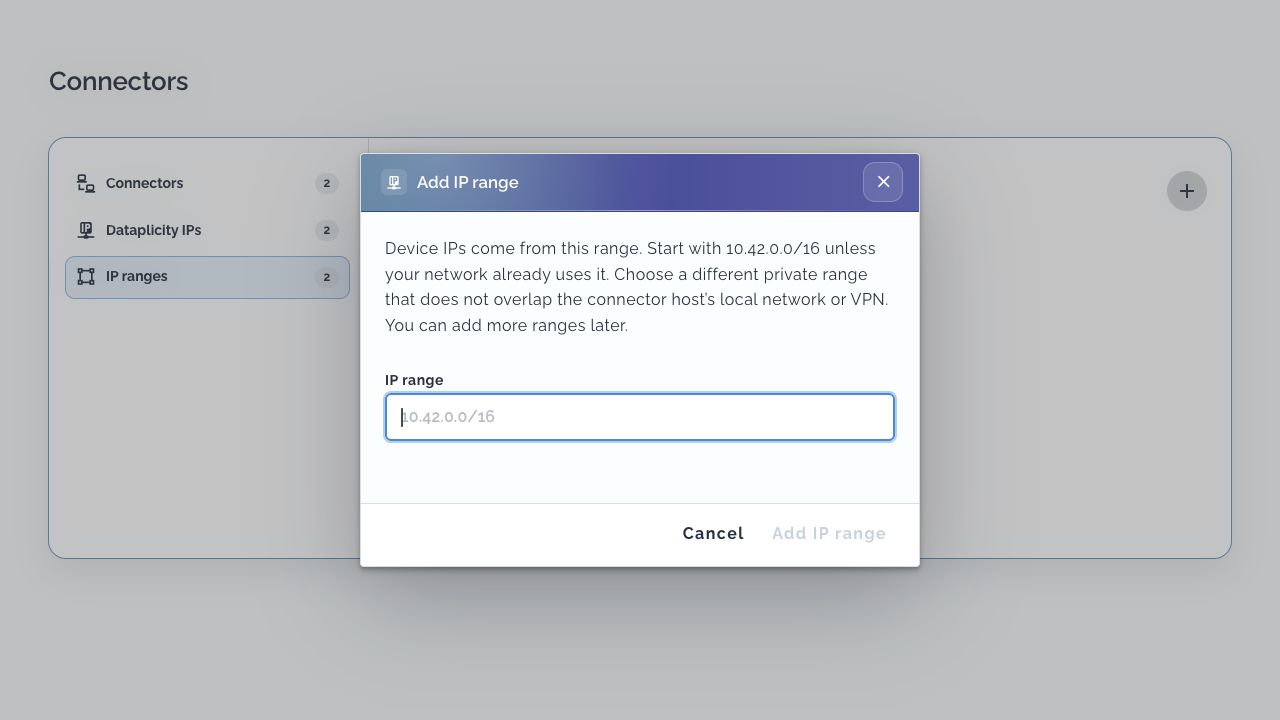
These are Dataplicity virtual addresses, not the devices' site LAN addresses. Manage access and address ranges explains adding capacity and the effect of removing a range.
2. Name the Linux host #
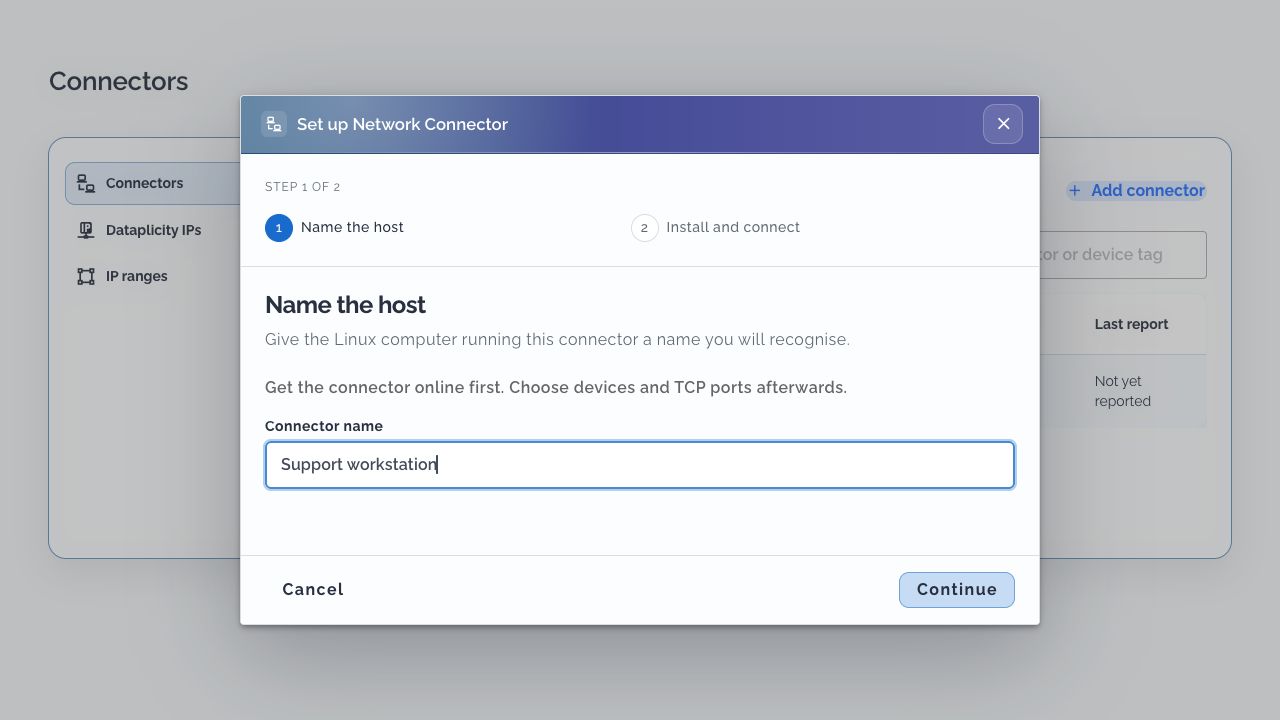
Choose Set up a connector, or Add connector if you already have one. Give the computer a recognisable name, such as Support workstation, then select Continue.
3. Install and register #
In Install and connect, download the package matching the Linux distribution and processor of the connector host. This is the computer from which you will access devices, rather than the remote device receiving the agent.
Run the matching command in the download directory. Keep only the package you intend to install in that directory, or replace the wildcard with its exact filename.
bash
sudo apt install ./dataplicity-connector_*.debbash
sudo dnf install ./dataplicity-connector-*.rpmThe package enables and starts the systemd service. Copy the registration command from your own dialog and run it on the Linux host. The production command is normally:
bash
sudo dataplicity-connector register --base-url https://gateway.dataplicity.comWhen prompted, paste the one-time enrollment key shown in the dialog. The prompt hides the key. Keys expire after 15 minutes, can be used once, and are cleared from the dialog when it closes. Keep the key out of command lines, shell history, screenshots and support messages. If it expires before registration, create a fresh connector setup and use its new key.
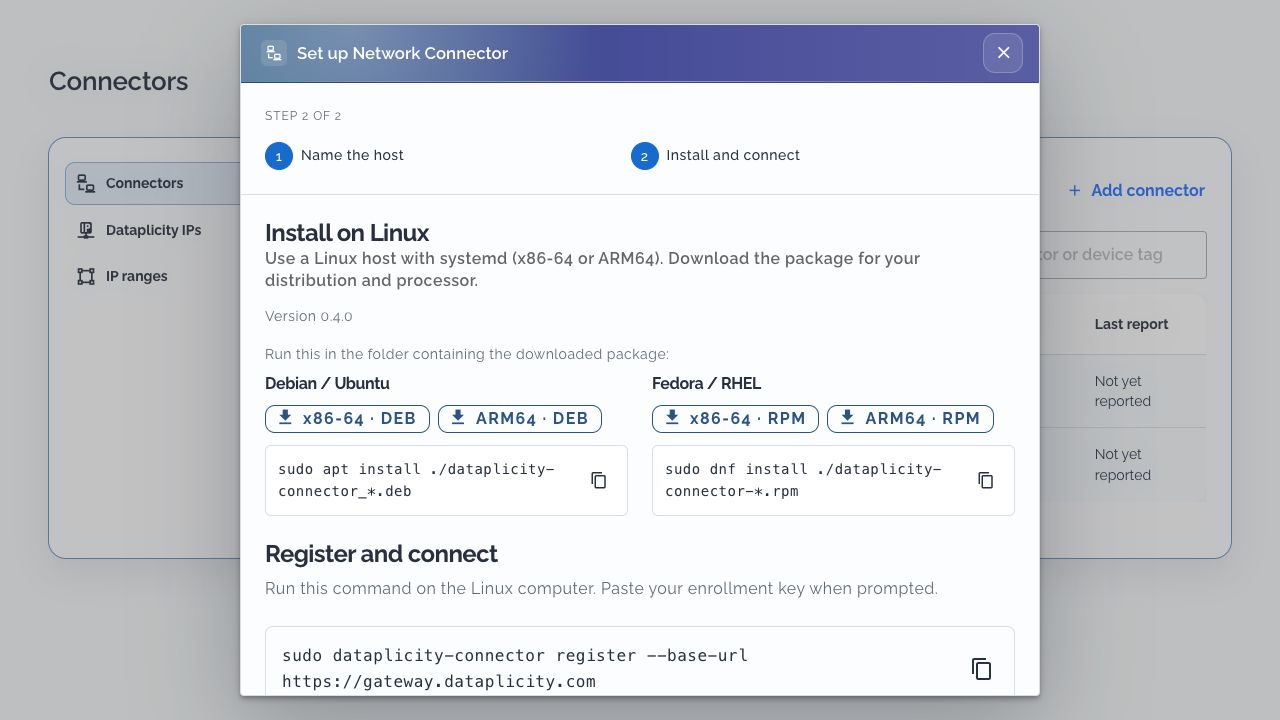
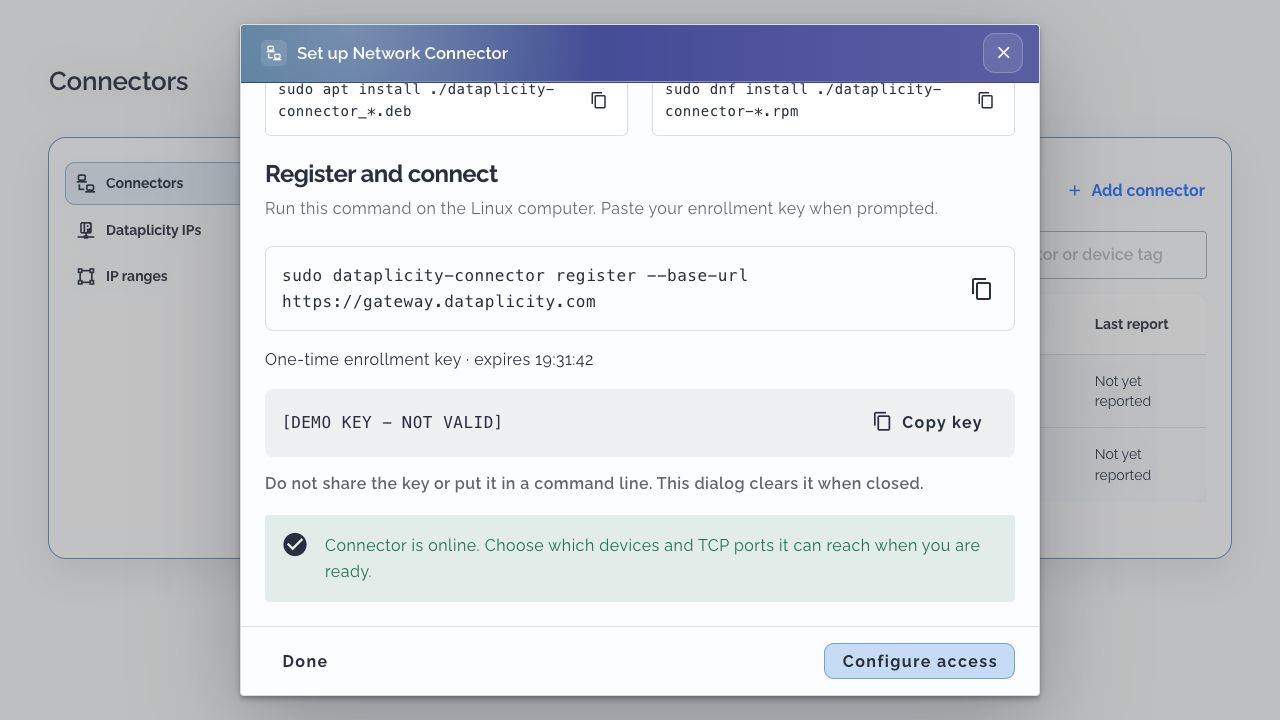
Wait for the dialog to report that the connector is online. On the host, inspect:
bash
dataplicity-connector status
dataplicity-connector doctorA connected host with no access rules has no permitted devices or services. Choose Configure access, or return later from the connector's detail dialog.
4. Permit devices and TCP ports #
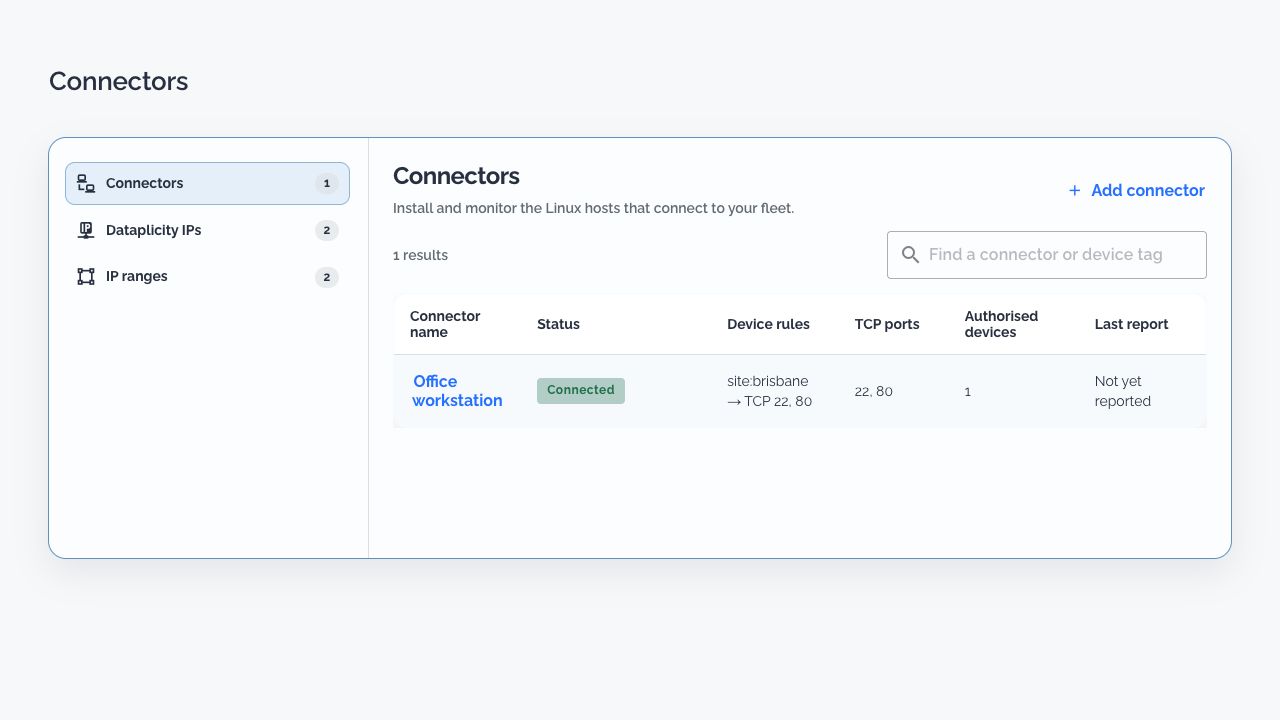
Open the connector, choose Edit device rules and ports, and add a rule containing device tags and the TCP ports you need. Choose existing tags, such as site:brisbane, and enter ports separated by commas, such as 22, 80. Save the access rules.
Each rule matches devices with any of its selected tags. A device matching several rules receives the union of their ports, within your plan and device permissions. An empty rule list permits no devices; empty ports permit no services. Access rules and address management includes worked examples.
5. Make a real connection #
Open Dataplicity IPs to find and copy a device address. The host's authorised inventory is also available with:
bash
dataplicity-connector devicesReplace the example address and username below with your device's values:
bash
ssh deviceuser@198.18.0.2
curl --connect-timeout 10 http://198.18.0.2:80/Use HTTP only when that port is permitted by your plan and access rules, and the device has an HTTP service on it. For VNC on permitted port 5901, supply the Dataplicity IP and port using your viewer's connection syntax.
The device's own service authentication still applies. For HTTPS, use a hostname covered by the service's certificate and configure its trust correctly; a virtual IP does not make a certificate valid for that address.
Verify the actual service. Connected status reports the connector's gateway and tunnel readiness; the inventory shows permission, not a successful probe of every device and port. ping is not a connector acceptance test because ICMP is unsupported.
Next steps #
- Choose Remote Desktop for browser control of a registered computer
- Share a local service between CLI machines with development tunnels
- Plan HA, multiple hosts and container access
- Control device access and manage IP ranges
- Use private DNS names
- Diagnose, upgrade or retire a connector
- Use Wormhole for a device web interface
Get help with a connector connection #
In a support conversation, give the connector host's operating system, the target device, the intended TCP port, the matching access rule and the error from your actual client. Include redacted output from dataplicity-connector status and dataplicity-connector doctor. Report whether the device is online and its service responds locally.
For example: “Our Linux support host can list this gateway, but SSH to its Dataplicity IP on port 22 times out. The gateway is online, local SSH works, and this host has the matching site tag rule. Here are the redacted doctor output and SSH error.” This lets the specialist separate host routing, authorisation, device connectivity and service health.