

Appearance
Customer portal #
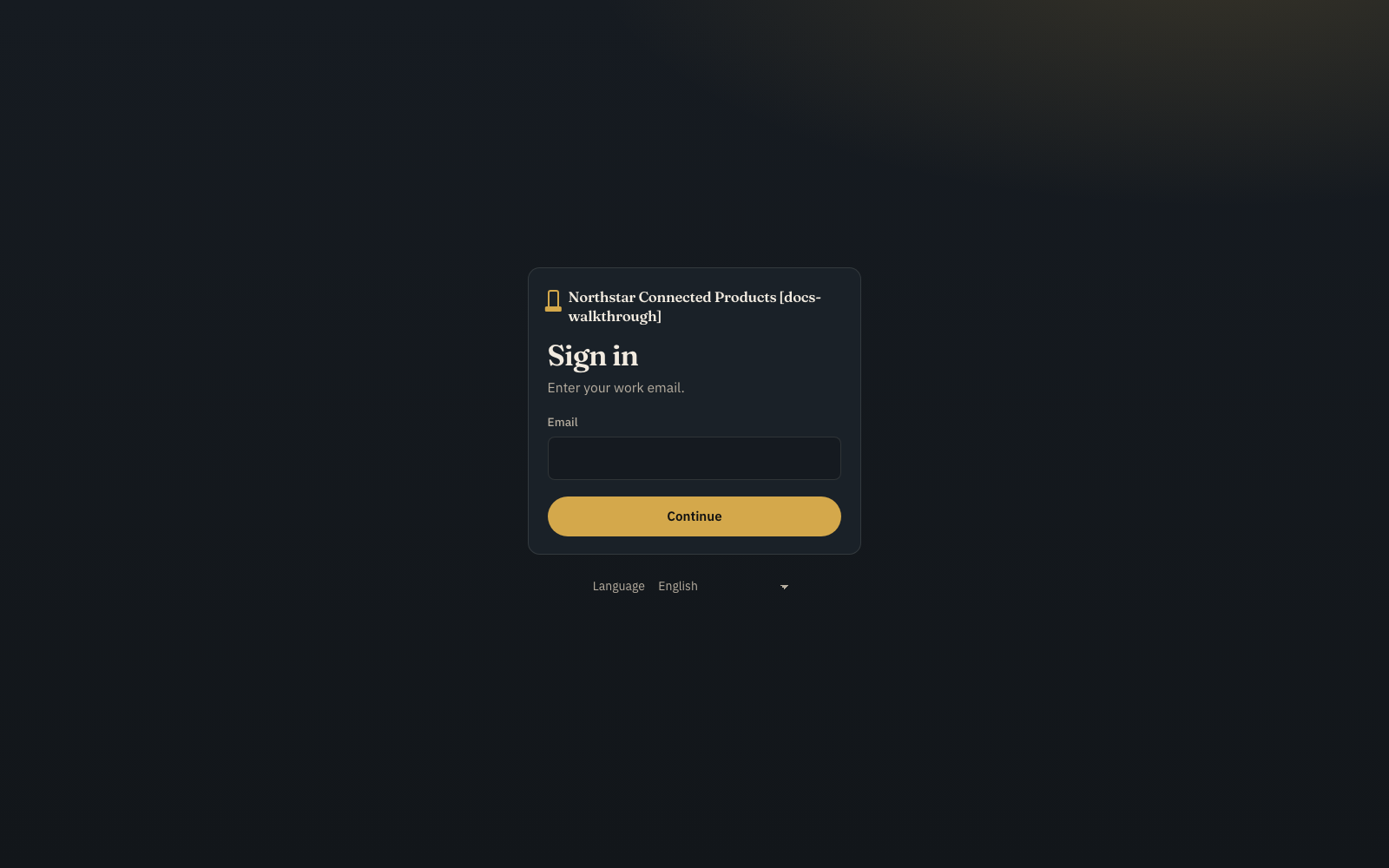
The Customer Portal is the downstream application for people who operate your deployed product. Customers sign in to your branded Dataplicity-hosted portal and see only the devices, sites, and controls assigned to their organisation.
Your engineering team continues to use the Dataplicity engineering workspace for fleet operations, diagnostics, software, Device Classes, and product configuration. The portal exposes the customer-safe product rather than the engineering controls behind it.
The customer experience #
A customer should experience your product, not Dataplicity's internal model.
A typical journey is:
- receive a portal invitation;
- sign in to a portal carrying your branding;
- see the products and locations their organisation operates;
- open a site, network, or other real-world grouping;
- inspect one device's current state, history, video, or permitted controls;
- contact your support team using a recognisable product, serial number, and location.
Do not require customer operators to understand terms such as stream binding, Software Build, fleet job, or firmware rollout.
Keep engineering and customer operations separate #
| Engineering workspace | Customer Portal |
|---|---|
| Define Device Classes | View assigned products |
| Configure streams, actions, settings, and product UI | Use the customer-safe product page |
| Release Software Builds | Operate permitted product controls |
| Run fleet jobs and software rollouts | See product and connection state |
| Use logs, diagnostics, Remote Shell, and fleet evidence | Run approved diagnostics and recovery actions |
| Manage the product across customers | Manage users and customer-scoped access where permitted |
The Customer Portal is not a route into Remote Shell, engineering logs, or unrestricted fleet rollout controls.
Model the customer boundary #
Dataplicity separates three concepts that are often collapsed in smaller systems:
- Customer: who owns or operates the product;
- Site or location: where it exists in the real world;
- Network: the current Dataplicity placement boundary used to group portal devices.
A network can represent a building, vehicle, cabinet, farm, venue, or other useful operating boundary. Treat it as a product grouping rather than forcing customers to think in computer-network terminology.
Tags remain useful for engineering and fleet selection, but they do not replace customer ownership and placement boundaries.
What customers see #
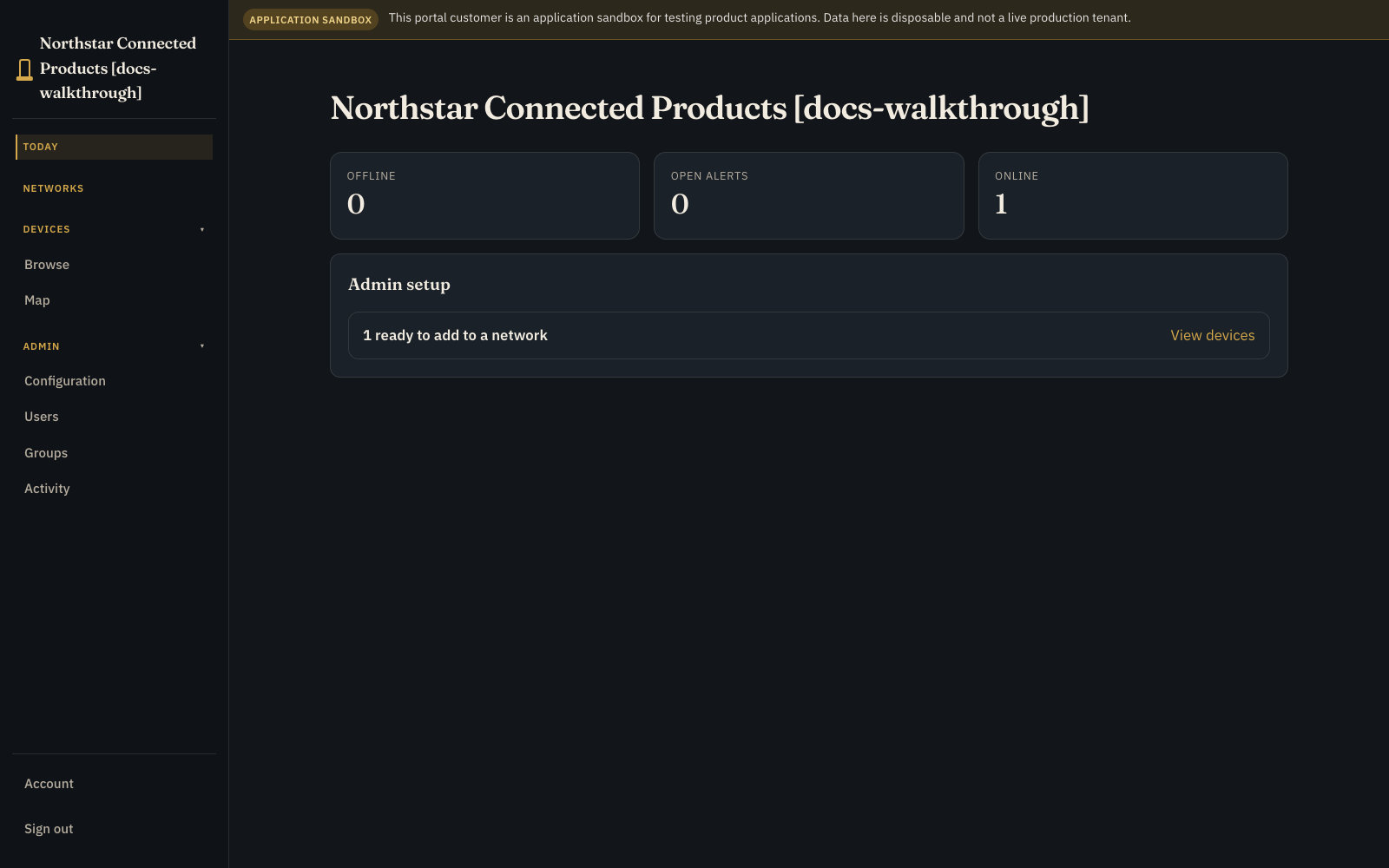
The primary portal surfaces are Today, Networks, Devices, and role-gated administration.
Today #
Today brings together the things that need attention: open alerts, unavailable devices, and application-specific work.
Devices #
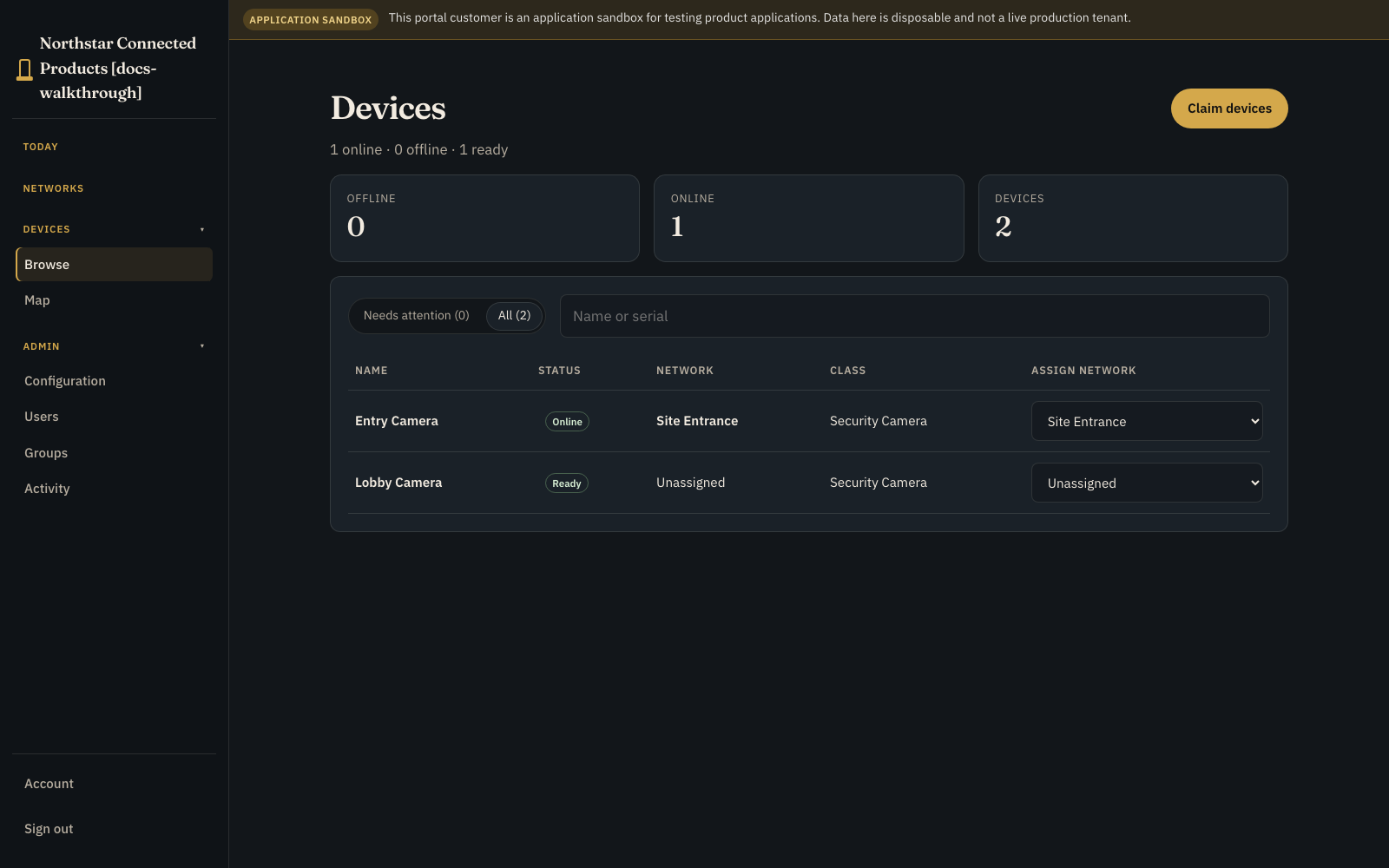
Devices shows the units available to the customer organisation, including product identity, connection state, placement, and Device Class.
A newly claimed unit can be inspected before it is placed. Once assigned to the appropriate network or site boundary, it becomes part of that customer's operating product.
Networks and sites #
The network or site view is where multiple devices become one customer system. Depending on the product, this can host HVAC zones, cameras, screens, circuits, vouchers, outload tickets, silos, tanks, gateways, or other application-specific objects.

Device #
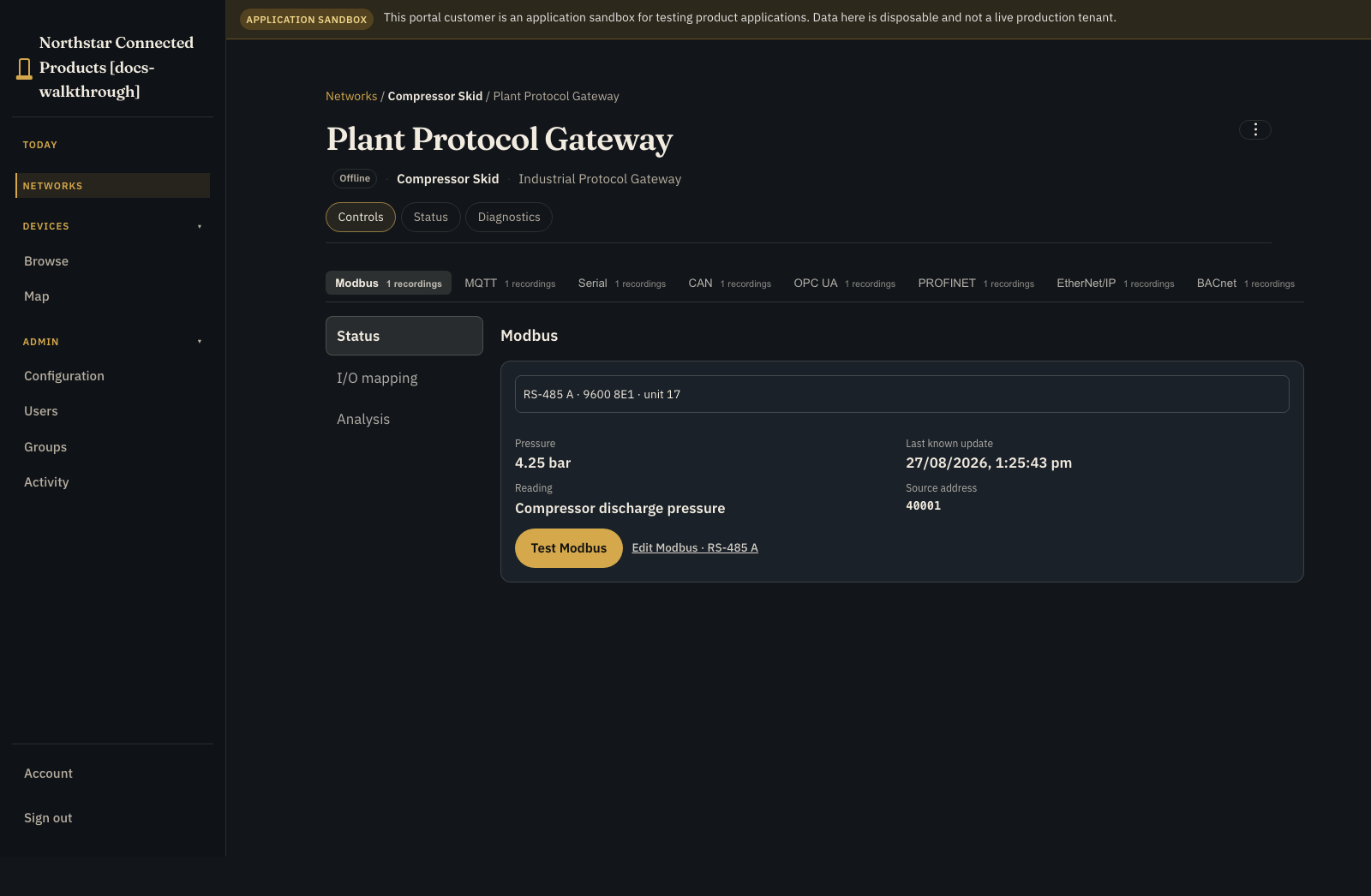
A device page combines the product UI defined by its Device Class with operational status and approved diagnostics.
Typical content includes:
- product identity and connection state;
- current measurements and historical charts;
- video or image data;
- actions and settings appropriate to the customer role;
- device-specific application controls;
- connection tests and bounded recovery actions.
Live product values come from Device Class streams. Actions and settings use the same class contract. See Design the customer product UI.
Branding and support #
The hosted portal uses a Dataplicity-provided tenant address such as https://your-vendor.dvcmgr.com and can carry your name, colours, sign-in copy, documentation link, and support route.
Self-service custom portal hostnames are not currently part of the standard setup. Treat the chosen hosted subdomain as part of the product identity and avoid changing it casually after customers are using it.
A status page can also be associated with one or more portals so customer-facing incident information has a first-class route rather than an arbitrary external link.
Roles and permissions #
Use customer-scoped roles rather than giving customers engineering access simply to expose device functionality.
Typical roles include:
| Role | Typical use |
|---|---|
| Org owner | Organisation-wide administration |
| Admin | Manage users, groups, claims, and placement |
| Network operator | Operate assigned devices and networks |
| Site operator | Operate devices at assigned sites |
| Site viewer | View assigned devices without action controls |
Engineering and Developer permissions remain on the OEM side because they can change product-wide class, software, and fleet behaviour.
Plans and availability #
The basic Customer Portal suite is a supported paid product. There is no beta, early-access, programme-enrolment, or release-channel gate for the basic suite.
| Plan | Customer Portal availability |
|---|---|
| Free | Connect and evaluate devices; Customer Portal is not included |
| Standard | One Customer Portal and one downstream customer organisation |
| Business+ | Multiple customer organisations and portals under the plan's published service limits |
Product Applications are available on Standard+ without beta, early-access, programme-enrolment, or release-channel enrolment. Their product_applications capability is an entitlement/access check, not a beta flag.
Some adjacent capabilities have separate availability, including Device Class Inventory, claim bundles, extended retention, and other enterprise functions. Use the current plan/feature information for those capabilities rather than assuming that availability of one surface enables every optional module.
The portal is the operating application around your product. It does not replace your storefront, billing system, CRM, ERP, warranty ledger, contract management, or returns logistics. See Customer lifecycle and automation for that boundary.
Verify a portal release #
Test the portal with representative customer roles before rollout:
- an administrator who can claim and assign devices;
- an operator who can use permitted controls;
- a viewer who must not see those controls.
Verify that:
- each user sees only the intended customer, sites, and devices;
- unplaced inventory makes the placement step clear;
- connection state agrees with the engineering workspace;
- product widgets handle current, missing, stale, and offline data clearly;
- engineering-only controls are absent;
- actions expose enough resulting state for the operator to know what happened;
- sign-out returns to the correct branded portal.
Choose the right customer surface #
Use a status page when customers only need selected service and incident information. Use a dashboard display for a shared screen. Use the Customer Portal when named users need to operate their own products, sites, and devices.