

Appearance
Diagnose and maintain a connector #
Start on the Linux host running the connector, then compare its status with the organisation's Connectors screen.
bash
dataplicity-connector status
dataplicity-connector doctor
dataplicity-connector devices
dataplicity-connector logsFor machine-readable results, put --json before the command:
bash
dataplicity-connector --json status
dataplicity-connector --json devicesRead-only status is locally accessible. Registration, credential rotation and changes to the service require administrator privileges. Local logs can require elevated permission; use sudo dataplicity-connector logs if your host denies access.
Read dashboard health correctly #
Open a connector name to see its device rules, permitted ports and reported gateway/tunnel readiness.
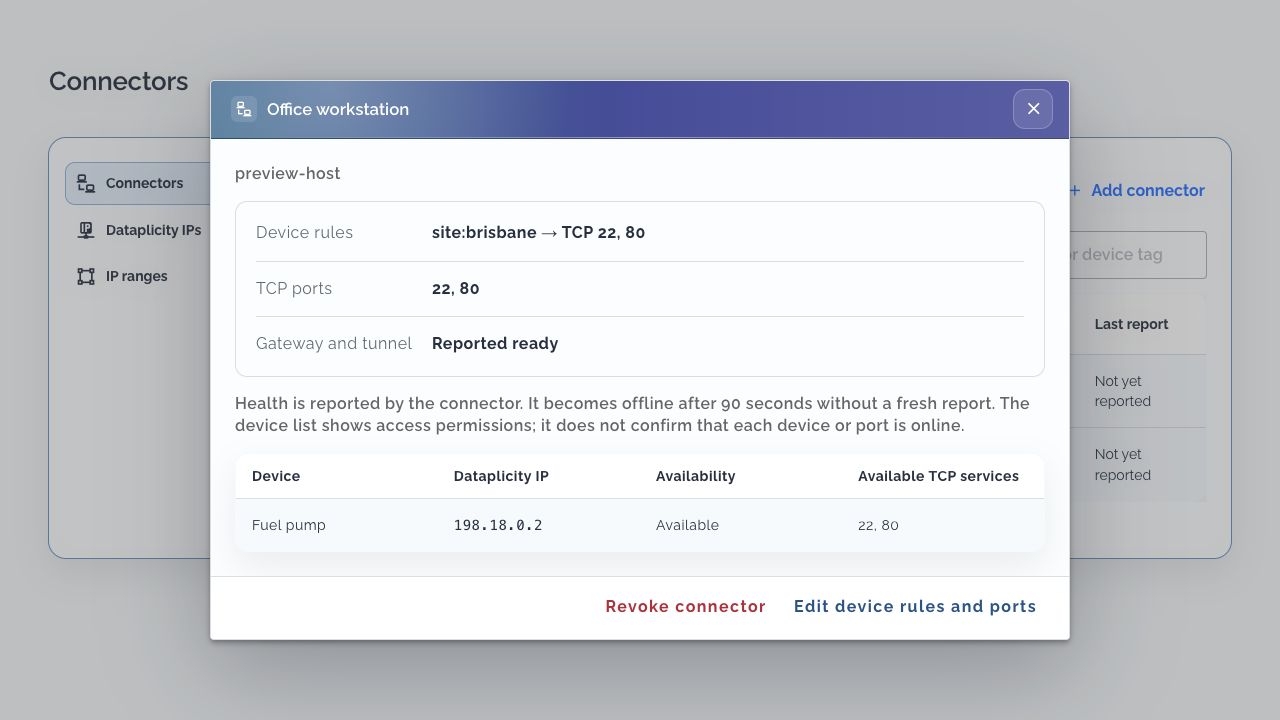
Health refreshes follow the connected host's 30-second policy check. The dashboard marks the host offline after 90 seconds without a fresh report. If the dashboard cannot refresh, its last report can be stale.
A connected host can have zero authorised devices or no ports. The inventory expresses permission; it does not prove that each device or service is online. Test SSH, HTTP or the application you intend to use, rather than ping.
Follow the symptom #
| Symptom | What to check and do |
|---|---|
| Awaiting setup | Install the correct Linux package and run the registration command from the setup dialog |
| Enrollment key expired | Create fresh setup and use the new single-use key within 15 minutes; keep it out of shell history |
| Connection failed or offline | Run doctor, inspect logs, check outbound connectivity and service status; use sudo dataplicity-connector login to retry authentication |
| Access denied | Ask an administrator to check the enrolling user's permissions, connector rules and organisation access; reinstalling does not grant access |
| Connected, but no devices | Add matching device-tag rules; check the organisation's device allowance and the enrolling user's device permissions |
| One port works, another fails | Check the device's matched rules, plan's permitted TCP ports, device-side service and authentication |
| IP listed, but connection fails | Check device online state and actual service port; confirm you are connecting from the installed host |
| Route conflict | Compare every configured range with ip -4 route on the host, including VPN and container routes; choose non-overlapping space rather than deleting another application's route |
| Multiple ranges require an upgrade | Install a current connector package supporting network configuration version 2 |
| Name fails but IP works | Check dns status, direct UDP/TCP queries and getent; follow private DNS integration |
Host reports manual_required for DNS | Keep IP access and arrange scoped configuration with the host's DNS administrator |
| Local control operation denied | Repeat the state-changing command with sudo; the daemon checks the caller's local identity |
For a device that is offline in Dataplicity, start with device connection diagnosis. Reconnecting the workstation cannot restore a disconnected device agent.
Inspect or restart the service #
bash
dataplicity-connector service status
sudo dataplicity-connector service restartYou can also inspect systemd directly:
bash
systemctl status dataplicity-connector.service
sudo journalctl -u dataplicity-connector.service --since '15 minutes ago'The daemon runs as a dedicated unprivileged service account with networking capabilities. Avoid running a second daemon manually while the packaged service is active.
Upgrade the package #
Use Installer instructions in the Connectors screen to download the current package for the host's distribution and architecture. Install it with the same apt or dnf command used during setup, using the exact downloaded filename when several packages are present.
An ordinary package upgrade preserves the host's persistent identity and DNS mode, and restarts the service onto the new binary. Expect a brief interruption; then check status, doctor, private-name resolution if used, and an actual permitted device connection. Re-enrollment is not needed for ordinary upgrades or plan changes.
Rotate the machine credential #
On a connected host, use:
bash
sudo dataplicity-connector rotate-credentialThe connector stores its machine credential beneath /var/lib/dataplicity-connector using restricted filesystem permissions. Do not copy that directory to another host or include it in support attachments. The one-time enrollment key is not retained on the host.
Retire a host #
- In Connectors, open the host and choose Revoke connector, then confirm. This prevents new authorised operations. The compliant daemon closes its tunnel and streams when its authority refresh is denied.
- On the host, stop the service and clean up owned DNS integration if required, following DNS retirement while the binary is still installed.
- Remove the package with the host's package manager when it is no longer needed.
- Review retained identity state and network guards with the host administrator before reusing that computer or reserved address space.
Revocation prevents new operations immediately, but does not retroactively cancel an already-accepted gateway operation or guarantee that a modified client will close an existing gateway socket. For a host you control, stopping the service is part of retirement.
Package removal stops and disables the service, but deliberately preserves persistent state and the service account. Connector-owned unreachable routes can also remain after stop, crash or range removal so stale virtual IPs cannot fall through to another network.
Keep those guards while applications still use the addresses. If permanently retiring a range, inspect ip -4 route and its ownership first. For the specific owned range 198.18.0.0/16, the guard removal command is:
bash
sudo ip route del unreachable 198.18.0.0/16 metric 42801 proto 186Use that command only if the exact owned guard exists and the range is being retired. Other ranges require their own exact route. Never remove foreign routes or guards still needed by another connector configuration.
Activity and support evidence #
Activity records security and lifecycle events such as enrollment, connection failure, credential changes, access denial and revocation. Successful health refreshes, byte counts, status checks and DNS queries do not create routine Activity noise. Host lifecycle observations are connector-reported, and forced termination or offline hosts cannot guarantee delivery of a final event.
For support, provide the connector name, package version, distribution and processor, approximate failure time, status/doctor output, affected device and TCP port, and relevant log excerpts. Remove enrollment keys, machine credentials and unrelated private data before sharing. Never attach the persistent state directory.