

Appearance
Connect your first Linux device #
Finish with one Linux device online in Dataplicity and a working remote shell. Use a development device that you can also reach locally for this first connection.
Before you start #
You need a Dataplicity account, local terminal access with installation privileges, and a supported Linux device with an internet connection. Raspberry Pi OS, Ubuntu and Debian are common starting points. If you are unsure about an existing image, run a Device Check first.
1. Install the agent #
- Sign in to Dataplicity.
- Open Engineering > Devices and choose Add a new device.
- Copy the generated install command and run it in the local terminal of your test device.
- Let the installation finish, then return to the device inventory.
The generated command contains a provisioning credential. Keep it private and use only the command supplied for your organisation. The device agent is separate from the Dataplicity CLI, which runs on an operator's workstation.
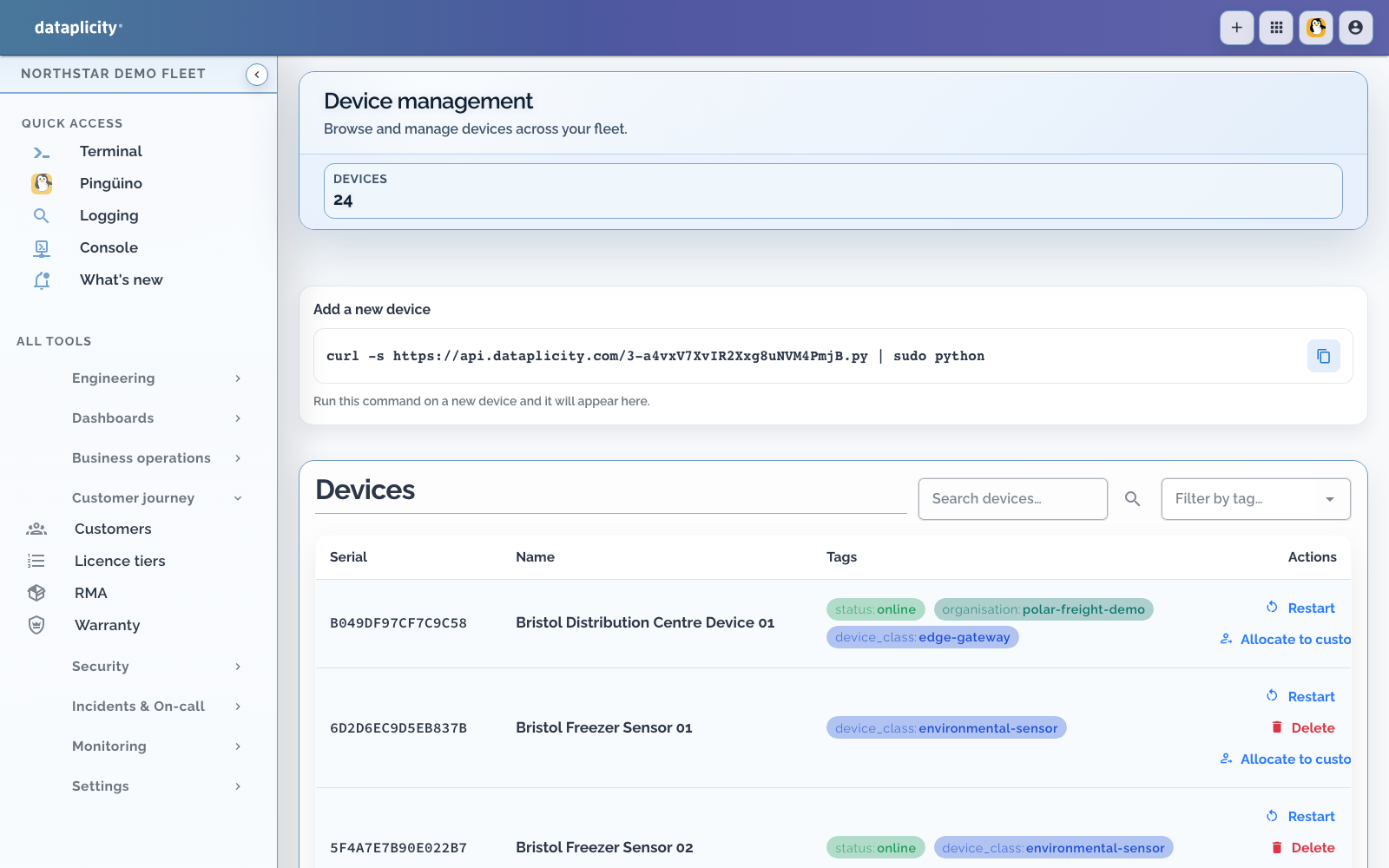
Expected result: the new device appears online. Check its identity before opening it.
2. Open a remote shell #
Open the device from the inventory and select Remote Shell. Run:
sh
hostname
whoamiCompare the hostname with the same command run locally. whoami identifies the Linux account used by this session; its permissions determine which files and commands you can access. See Using sudo when a later task needs elevated privileges.
Check it worked #
You are finished when the intended device is online and the remote command returns its hostname. You now have remote command-line access without opening an inbound SSH port or setting up a VPN.
If it does not work #
| Symptom | Next check |
|---|---|
| Installation fails | Confirm the image is supported and inspect the installer's error before retrying |
| No device appears, or it stays offline | Check outbound access, DNS and system time using network requirements |
| A previously connected device goes offline | Follow Device offline |
| The shell cannot open | Confirm the device is online and your role grants remote access |
| The hostname is unexpected | Stop and check the selected device identity against your local terminal |
Next task #
Retrieve a device file to practise collecting evidence remotely. If the device is already doing useful work, collect your first application log.
For manufacturing or fleet installation, use Choose the right agent path and Install on many devices before reusing a first-device command in an image.