

Appearance
Control connector access and IP ranges #
Configure access separately for each Linux host. A support workstation might need SSH to production devices, while a monitoring host needs HTTP to a smaller tagged group. Both use the same organisation-wide device addresses.
Install and connect the host before adding access rules. Use multiple hosts and container workloads to share the same device targets across redundant services and support tools.
Set device and port rules #
In Connectors, open the host and select Edit device rules and ports. Choose Add rule, add one or more existing device tags, enter comma-separated TCP port numbers and choose Save access rules.
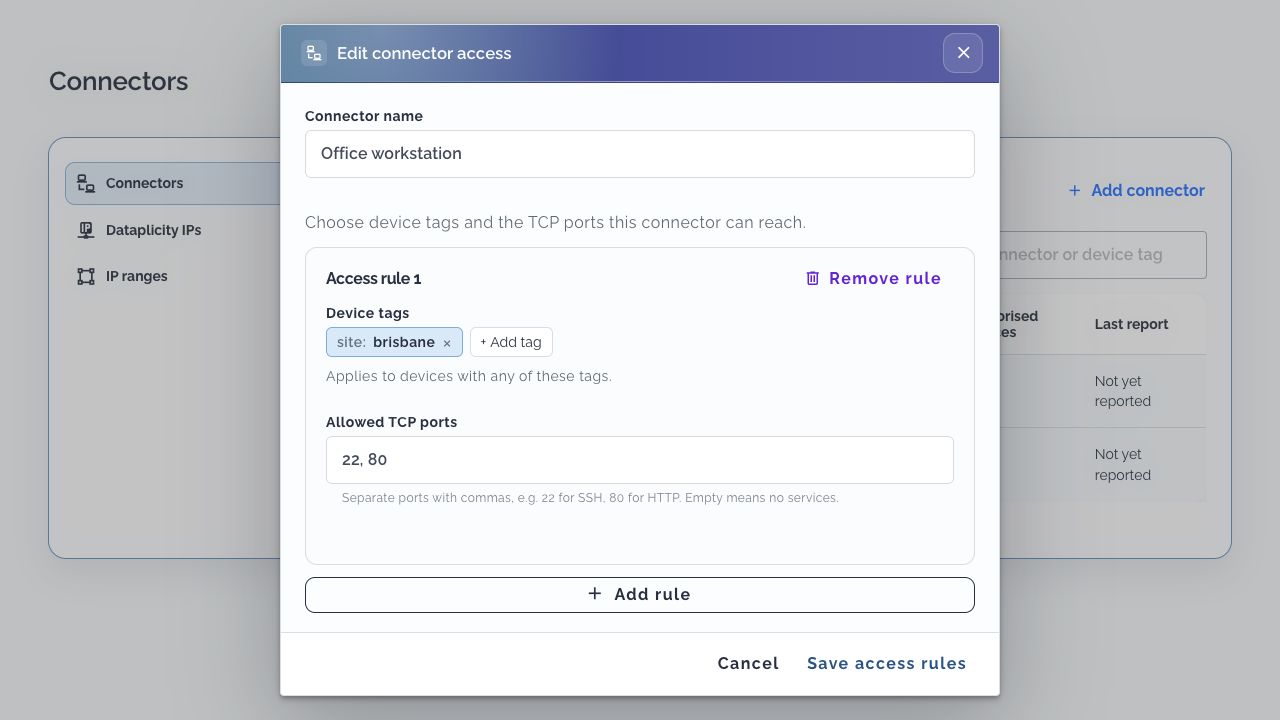
A rule matches any of its tags. For example, a single rule containing production and site:brisbane matches production devices anywhere and Brisbane devices, rather than only production devices in Brisbane. Use a dedicated tag for a combined group when that is the scope you need.
| Rule | Tags | TCP ports | Result |
|---|---|---|---|
| 1 | site:brisbane | 22 | SSH to Brisbane devices |
| 2 | role:gateway | 80, 8080 | HTTP ports on gateways |
A Brisbane gateway matches both rules and receives ports 22, 80 and 8080. A Brisbane sensor matching only the first rule receives port 22. Access to one tagged device does not widen another device's ports.
Choose specific ports from 1 to 65535; up to 100 distinct tags and 100 ports per tag are supported per connector. Your plan can restrict that list further. Empty tags/rules grant no device access, and an empty port list grants no services.
The enrolling user's current permission to access devices remains part of authorisation. A tag match alone cannot bypass device permissions or the plan's device allowance. Changes to permissions, plan, tags and connector rules are picked up during the connected host's regular 30-second policy refresh. Removed grants cancel the compliant connector's affected streams. Network changes can briefly interrupt traffic.
Manage access groups in daily operations #
There are two separate choices: device tags define group membership, and each connector's rules select which groups and TCP ports that host can use. Changing a connector's selected tags changes that host's access; it does not add tags to devices or change another connector's rules.
Group by device class or location #
Different systems can use different groupings of the same fleet. For example, assign access:class:gateway to devices in your gateway class and site:brisbane to devices installed at your Brisbane site. These are example custom tags that your team creates and maintains.
| Connector host | Selected device tag | TCP ports | Operational purpose |
|---|---|---|---|
| Gateway monitoring server | access:class:gateway | 8080 | Reads gateway health across all sites |
| Brisbane support workstation | site:brisbane | 22 | Opens SSH to devices at that site, across device classes |
| Standby monitoring server | access:class:gateway | 8080 | Uses the same targets when the monitoring workload moves hosts |
A Brisbane gateway can belong to both groups. The monitoring server reaches its health endpoint, while the support workstation reaches its SSH service at the same device IP. A gateway at another site belongs to the monitoring group; a Brisbane device in another class belongs to the support group.
Connector rules match assigned organisation device tags. They do not automatically select a device class, evaluate coordinates or derive site membership. Computed property tags such as device_class:... or location:city:... shown elsewhere in fleet tools are not automatically connector access groups. Maintain the custom access tag when commissioning a device, changing its class or moving it to another site; changing class or location metadata alone does not update that tag.
If you need only Brisbane gateways, assign a dedicated tag such as access:brisbane-gateway to that combined group. Selecting access:class:gateway and site:brisbane together would grant access to either group. Connector rules have no all-tags intersection or deny rule; matching grants combine.
Create or change group membership #
- From Dataplicity IPs, choose Manage device tags, search for the device and open its tag editor.
- Add the intended group tag, preserving the device's other tags. You can enter a new custom tag here; saving makes it available to the connector rule picker.
- Remove a previous site or access-group tag when the device should leave that group, then save. Saving device tags requires
devices.write. - Review every connector that uses the changed tag. Adding membership can grant access through all of them; removing it withdraws that matching grant, unless another selected tag still permits access.
- After the next policy refresh, check the authorised inventory and a real service request from the affected hosts.
Change one system's access #
In Connectors, open the required host, choose Edit device rules and ports, and add or remove selected tags and their TCP ports. Choose Save access rules. This updates that connector without re-enrolling it or changing the fleet's IP assignments. For a redundant service, update and verify each eligible host separately so the standby has the required access before a failover.
For a temporary maintenance window, use a dedicated tag such as access:maintenance-ticket-123, assign only the approved devices, and select it with the required ports on the maintenance host. When the work ends, remove that rule and check that the host no longer has the grant. Tags have no automatic expiry; removing this rule also does not remove access granted by another rule.
Commission, move and retire devices #
During commissioning, confirm the class and installed site, apply the intended access tags, and verify both the monitoring host's permitted application port and the support host's permitted SSH service. Also test a device outside each intended group: knowing its IP should not grant the host access.
When moving a device, remove its old site tag and add its new site tag. Check the old site's host loses access and the new site's host gains it, while a class-based monitoring host keeps its independent grant. The device IP stays the same; group membership changes the authorisation, rather than its address.
Before removing a device from a service or handing a host to another team, review overlapping tags and ports. Removing one tag is insufficient if another rule still matches. Allow for the regular 30-second policy refresh, verify the resulting inventory with dataplicity-connector devices, and test the affected TCP service. Revoking a retired connector is the way to withdraw that host's connector access entirely.
Find the right address #
Open Dataplicity IPs and search by device name, identity, serial, IP or tag. Copy the address from the device row. Use filters to narrow the inventory. On the installed host, dataplicity-connector devices shows the inventory authorised for that connector.
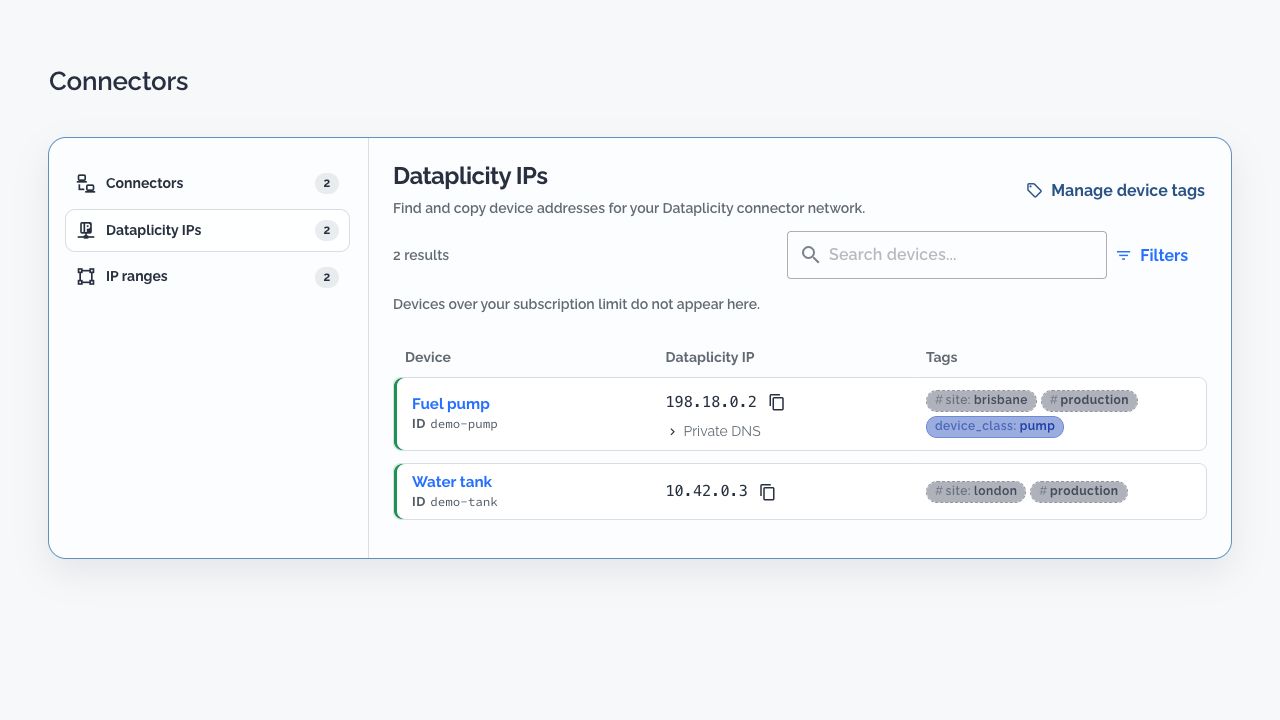
The dashboard inventory hides devices over the subscription limit. Device allowance is calculated across the organisation, oldest device first, before tag or search filters. Filtering to a smaller group does not change which devices fit the allowance. Over-limit devices retain their identity and assigned IP, but receive no connector routes, DNS answers or TCP access.
A listed address is not a reachability test. Confirm the device is online, inspect the connector's authorised services, and connect to the actual application.
Add address space #
Select IP ranges, then Add IP range. Choose a non-overlapping subnet from the supported address pools. An organisation supports up to 32 ranges. The host checks every range against its existing routes; check LAN, VPN and container address space on all connector hosts before saving.
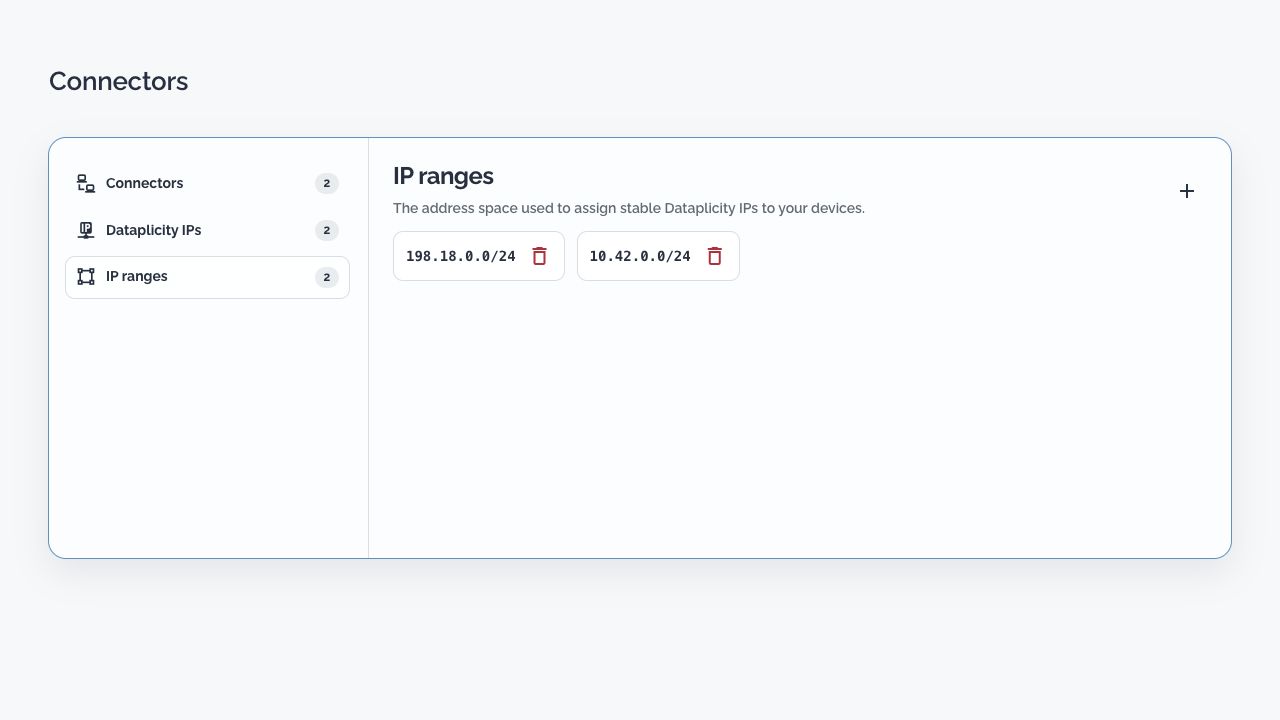
Existing ranges cannot be edited in place. Adding a range preserves current device addresses; the connector refreshes its network configuration without re-enrollment. Multiple ranges require a connector supporting network configuration version 2. If an installed host reports an upgrade requirement, update it before using multiple ranges. A server showing a fixed single range needs its supported single-range workflow.
Remove a range #
Before selecting a range's remove control:
- Add enough remaining address space to fit the fleet.
- Identify devices currently using the range and the scripts, bookmarks, firewall rules or integrations that refer to their IPs.
- Arrange to update those references when the addresses change. Prefer canonical private DNS names for scripts that should survive an IP reassignment.
- Read the device count and warning in Remove IP range?, then confirm Remove and reassign when ready.
Only devices in the removed range are reassigned. Removal is rejected if remaining ranges cannot fit the fleet, or if the last range is still used by devices or connectors. Existing streams can be interrupted during reconfiguration.
Connector-owned unreachable route guards can remain for retired ranges, preventing stale device addresses from falling through to an unrelated network. Retirement and cleanup explains when to remove them.