

Appearance
Operations integrations #
Integrations extend an operational workflow. Use the integration settings and credential scopes available to your organisation, and build external API integrations against the published Gateway API.
Chat integrations for incident operations #
Slack and Microsoft Teams are first-class destinations for Dataplicity incidents. Use them when your organisation already coordinates in chat and wants incident traffic to land in the right channel for the right kind of event, while still paging named responders through on-call schedules.
Treat chat routing and on-call paging as complementary layers:
| Layer | What it decides | Typical use |
|---|---|---|
| Chat routes (Slack or Teams) | Which kinds of incident events go to which channels | Team situational awareness, war rooms, customer-success visibility, severity-specific channels |
| On-call schedules | Which people are paged, in which tier order, on which personal channels | Mobile push, email, and in-app delivery when someone must own the incident |
Chat routes do not replace schedules. A critical outage can open an incident, post into #fleet-critical, and still escalate through on-call tiers until a linked responder acknowledges. Acknowledgement from Slack, Teams, mobile, or the Dataplicity app is the same ownership event for that incident.
Fit chat routing to your operating model #
Organisation administrators configure chat under organisation Integrations. The setup is shared for Slack and Teams: connect a workspace or tenant, add channel destinations, then create routes that decide which incidents go where.
Common patterns:
- Severity lanes. Route critical incidents to a high-signal channel, warnings to a triage channel, and keep info quiet or off chat entirely.
- Lifecycle coverage. Include opened, acknowledged, assigned, escalated, resolved, and reopened event types so a channel follows the incident from first signal through recovery, or omit noisy stages for quieter rooms.
- Recovery behaviour. Choose whether recovery posts a new notification, updates the root message, and/or continues in a thread so the channel stays readable during a long outage.
- Audience separation. Send engineering-owned severities to ops channels, and route selected customer-impacting incidents to a success or account channel without paging that whole group on-call.
- Private operational rooms. For private Slack channels, run
/invite @Dataplicitybefore adding the destination, then Test delivery health.
When you add a channel, Dataplicity can offer a default route for critical and warning incidents. Edit that route before you rely on it: adjust severities, event types, destinations, recovery behaviour, and mentions so the channel matches the team that actually works that class of incident.
Connect Slack or Microsoft Teams #
Chat integrations are available where your organisation plan includes them.
- Open organisation Integrations.
- Choose Connect Slack or Connect Microsoft Teams and complete the provider install or consent flow.
- Add one or more destination channels and confirm each destination is healthy.
- On the Routing tab, create routes that select destinations, severities, and event types.
- Open a test incident and confirm the expected channels update before you depend on the path in production.
Prefer the native Slack or Teams app over a one-way incoming webhook. Native installs support channel selection, delivery health, routed incident kinds, and interactive response. Compatibility webhooks remain available for notification-only fallbacks and can be imported when you move off a legacy Slack webhook.
Linked accounts and what responders can do #
Chat actions run as a Dataplicity user. Matching email alone is not enough.
Each person who will Acknowledge, Resolve, or use Dataplicity from Slack must:
- Hold the Dataplicity permissions required for that action in the organisation (incident responder or organisation administrator for Ack/Resolve).
- Link their Slack identity to their Dataplicity user in that organisation.
- Keep the link current if they change Slack accounts.
After linking, responders work in chat with the same organisational authority their Dataplicity account already has. They do not gain a separate, wider Slack-only privilege model.
/dataplicity Slack commands #
The Dataplicity Slack app registers the /dataplicity slash command. Type /dataplicity in Slack to open autocomplete and the usage hint for every subcommand available in your workspace.
| Command | What it does |
|---|---|
/dataplicity | Shows the installed command catalogue and usage hints for your workspace. |
/dataplicity link | Starts Slack account linking for the current user so Acknowledge, Resolve, and Pingüino run as your Dataplicity user. |
Use /dataplicity link when Slack prompts you before an action, when you join a workspace after Slack was connected, or after you unlink a previous Slack identity. You can also open the same flow from Link Dataplicity account on an incident card. Confirm the identity in Dataplicity, return to Slack, and retry.
Unlink a previous identity from the Slack account link page in Dataplicity before linking a different Slack user in the same workspace.
Respond and investigate from chat #
When a routed notification arrives:
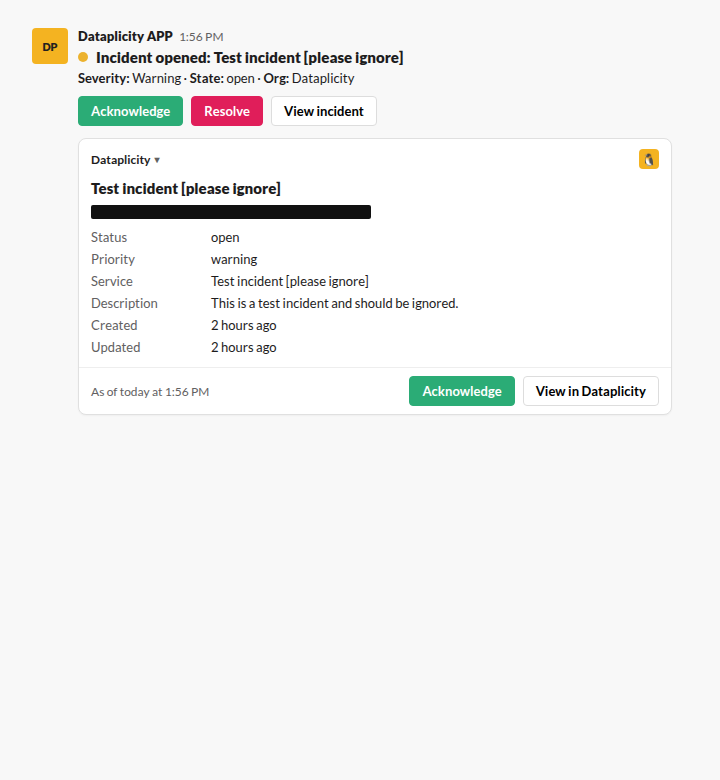
- Read severity, state, organisation, and the incident summary on the message.
- Choose Acknowledge to take ownership and stop further on-call escalation for that incident.
- Choose Resolve when recovery is verified.
- Use View incident or View in Dataplicity when you need logs, monitors, remote access, or the full timeline.
- In Slack, open Dataplicity under Agents & apps to talk to Pingüino with your linked account when you need fleet or terminal assistance beside the incident thread.
If an action asks you to link first, run /dataplicity link, confirm, then retry. See Incidents and on-call for schedule tiers and From signal to verified recovery for the wider response playbook.
Combine chat routes with on-call schedules #
Use both layers when designing the organisation process:
- Monitors and automation open a deduplicated incident with a severity and source.
- Chat routes place that incident into the channels that need shared context for that severity and lifecycle stage.
- On-call schedules page the current tier of responders on mobile push, email, or the Dataplicity apps until someone acknowledges.
- Acknowledgement from any linked surface stops further escalation, whether the responder acted in Slack, Teams, mobile, or the web app.
- Resolution and recovery behaviour close the loop in chat according to the route, and can feed status-page updates from the incident workflow when you choose to publish.
That split lets a platform team keep a quiet critical channel, a broader warning triage room, and a personal on-call rota without forcing every chat participant onto the pager path.
Hologram cellular data #
Where the Hologram module is enabled, an organisation can store protected API credentials, synchronise SIM inventory, match ICCIDs to devices, review usage, and configure high-usage or assignment alerts.
- Create a dedicated Hologram credential with only required access.
- Connect it in the organisation integration settings.
- Review matched, unassigned, and ambiguous SIMs.
- Confirm usage units and synchronisation freshness.
- Set a threshold against observed normal use.
- Test alert routing before relying on it.
ICCID matching can fail when device identity is missing, duplicated, or reformatted. Resolve ambiguity rather than choosing a device by name alone. Disconnecting the integration stops future synchronisation but does not rewrite historical device records.
Microsoft Sentinel #
Where the Sentinel integration is enabled, security activity can be exported to the configured workspace. Use a dedicated credential, validate field mapping with a test event, and monitor delivery, retry, and flush status.
An export is not proof of ingestion into a detection rule. Confirm the event in Sentinel, its timestamp and organisation context, then test the downstream rule and retention policy. Rotate credentials after exposure and keep a documented failover path for security review. For roles and investigation practice, see Security activity and detections.
Webhooks and callbacks #
Scheduled HTTP jobs, log alert rules, and supported incident workflows can call external endpoints. Give each integration its own secret, make receivers idempotent, validate signatures or shared credentials, and handle retries without duplicating work.
Completion callbacks report long-running scheduled work. Heartbeats prove that a job has reached its success point. They are related controls but have different endpoints and state.
Gateway API #
Use the Gateway API reference for external inventory and supported remote operations. Create a purpose-specific organisation API key and treat pagination, errors, and rate behaviour as part of the integration contract.
Build external API integrations with endpoints published in the Gateway API reference.
Hosted MCP #
For interactive agent tools such as Cursor, connect to the hosted MCP endpoint with an organisation API key. See Hosted MCP. Prefer mcp:read until the agent needs to mutate fleet state.