

Appearance
Support an unattended fuel forecourt #
At 06:20, a tanker driver arrives at Northgate Fuel's Riverside forecourt. There is no receptionist. Later, a customer finds that Pump 4 will not start; another notices that the bin beside the air station is overflowing. The remote operator needs to know which site and asset need attention, what the person observed and whether someone needs help now.
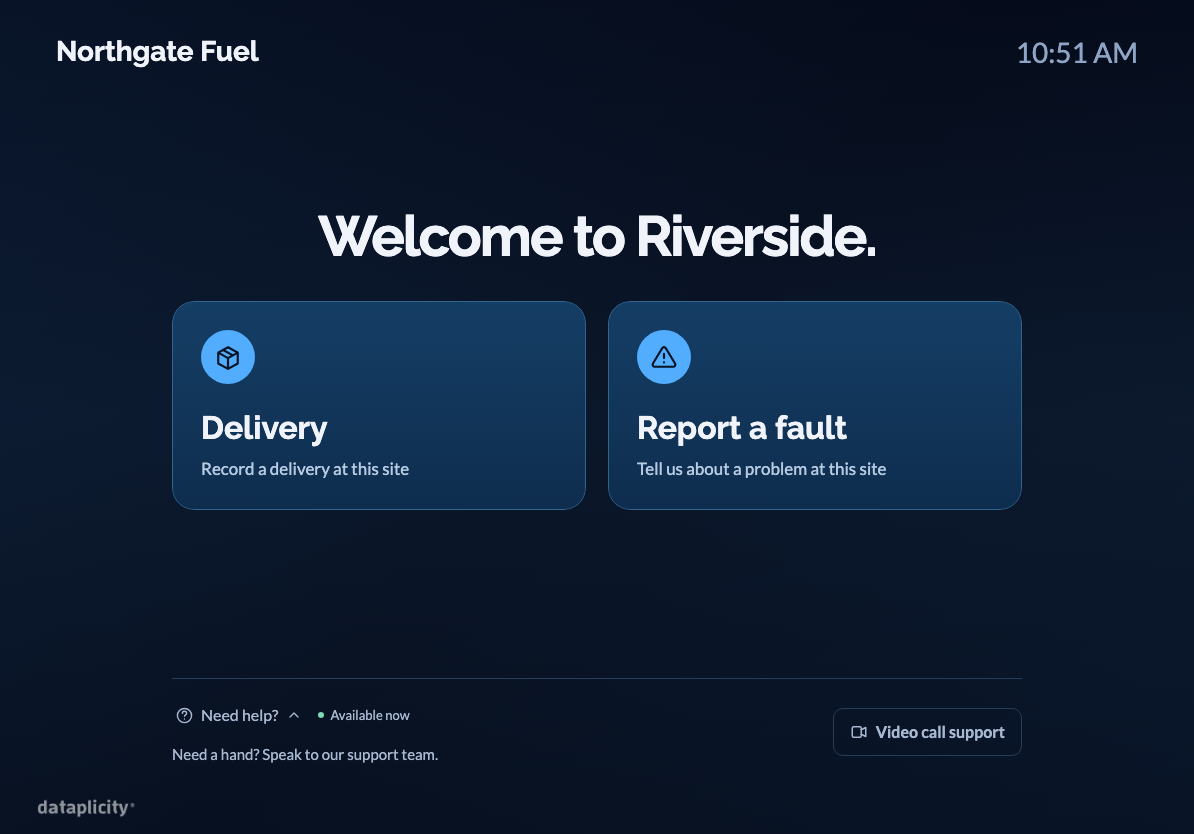
Northgate puts a dedicated iPad kiosk at the site's customer help point. Drivers record deliveries there. Customers report a fault or call support. The remote team works in the Dataplicity web app, with the site already attached to the kiosk's records and calls.
This walkthrough covers customer assistance, delivery records and site fault reporting. Pump control, payments and fuel management remain with your existing forecourt systems and operating procedures.
Northgate Fuel, Riverside and the people below are fictional examples. Use their setup as a pattern for your own locations. The screenshots use fictional example details and configured screen content.
Start with the handover your business needs #
Priya manages several forecourts. She wants each shift to begin with three answers: what arrived, what needs fixing and which customer still needs a response. Dan is the remote support operator. Maya is the delivery driver. Their shared reference is Riverside, not a tablet serial number or an ambiguous message about “the pump”.
| Person and moment | What they do at the kiosk | What the remote team receives |
|---|---|---|
| Maya arrives with a delivery | Scan the prepared delivery QR, review it and confirm | A delivery record at Riverside with the submitted reference and fields |
| A customer finds Pump 4 unresponsive | Report a fault and identify Pump 4 | A submitted record with the asset, symptom and requested contact details |
| A customer needs someone to speak to | Open Need help? and call support | An incoming request identifying Riverside and its kiosk |
| The cleaner finds a full bin | Report the location and condition | A report that can be handed to the facilities team |
For this first installation, Priya offers Delivery and Report a fault, plus support calling. She leaves ordinary visitor check-in off. Contractors who later need formal sign-in and induction can have a separate journey.
Set up Riverside and its public iPad #
You need a dedicated iPad with Dataplicity Visitors installed, a web account authorised to configure Visitors, and staff access for the people reviewing records. For calling, the organisation's calling service must be available and a Customer Support operator must be on call.
Open Visitors → Settings → Sites. Create Riverside and confirm its time zone, address and location details. Enable Visitors.
Write the welcome message: “Record a delivery, report a problem or speak to our support team.” Add your collection notice and choose retention periods.
Create the following types under Visit types and set their Welcome screen action.
Type Welcome screen action Fuel delivery Delivery Pump or payment fault Report a fault Facilities or cleaning issue Report a fault Enable these types on Riverside. Disable all Check in types for this installation. The welcome screen then offers deliveries and faults without a check-in/check-out journey.
Open the app on the iPad. In the web app, choose Settings → Kiosks → Pair kiosk, enter its six-character code and assign it to Riverside.
Confirm the organisation and site on the iPad, name it Riverside help point and select Public Kiosk.
Keep the iPad powered, connected and secured at a help point suitable for public use. Choose the mounting position through your site's equipment and installation approval process. Configure Guided Access or your iPad management policy to keep the device in its kiosk role.
Before continuing, use the iPad itself: the correct site name should appear, the intended actions should be available and a person standing at the help point should be able to read and reach the controls.
Record the morning delivery #
Priya agrees a delivery QR format with the supplier. Maya's docket carries a QR containing these example fields:
json
{
  "Waybill": "00018427",
  "Supplier": "Example Fuel Logistics",
  "Product": "Diesel",
  "Declared litres": 18000,
  "Vehicle": "DEMO-42",
  "Delivery point": "Riverside diesel fill point"
}The QR contains the JSON itself. A QR that opens a tracking website is a different format. Keep waybills and other identifiers quoted so leading zeroes survive; use a flat object with simple values rather than nested data. Arrange a supplier or dispatch process that can produce compatible codes, then try a real printed sample at the mounted iPad.
At 06:20, Maya:
- Selects Delivery and, if prompted, the delivery type.
- Holds the docket QR in front of the iPad camera.
- Checks the displayed supplier, waybill, product and declared quantity.
- Chooses Confirm delivery and waits for the recorded or locally saved confirmation.
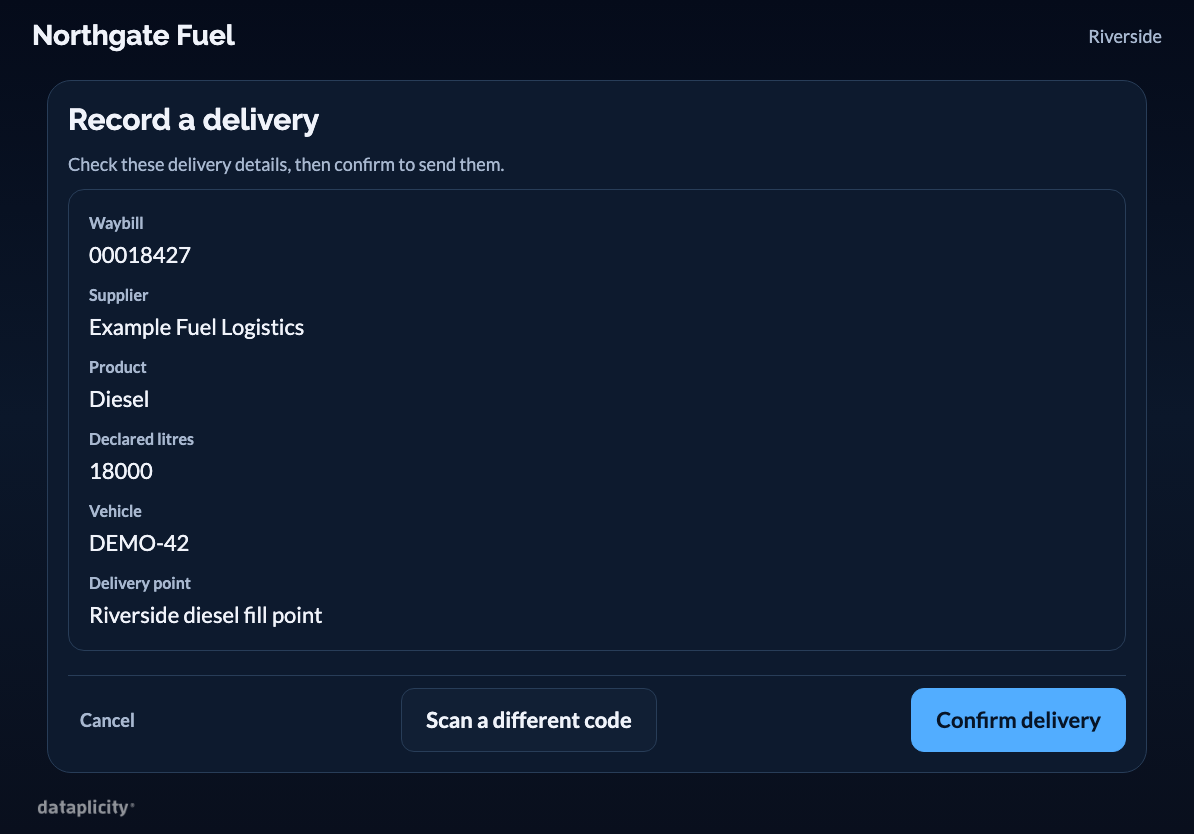
This scanned-delivery path records the delivery without signing Maya in as a person on site. If a contractor must also check in or complete an induction, configure and follow that separate journey.
Dan opens Visitors → Deliveries, selects Riverside and finds waybill 00018427. He can inspect the scanned fields, search the delivery feed and export the permitted filtered records. In a later supplier query, the team can find what Maya submitted at that kiosk rather than reconstructing the handover from scattered calls.
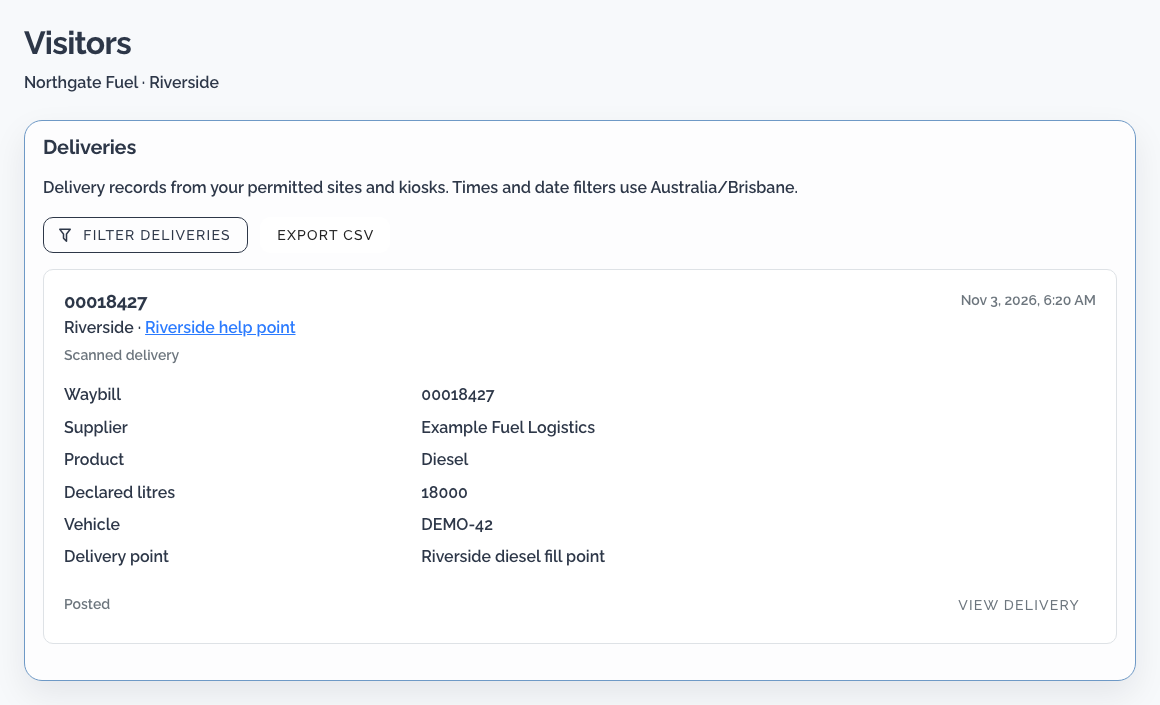
The declared litres are a submitted docket value. Complete your existing unloading, quantity reconciliation and acceptance procedure before marking a fuel delivery accepted in your business records.
Tell the receiving team #
Priya opens Settings → Deliveries and explicitly enables Send delivery arrivals to a messaging channel. She adds the receiving colleagues to that channel and checks their notification preferences. The arrival summary gives them a shared place to pick up the work.
Check both the delivery record and its message status during the trial. A delivery can be recorded even if its notification has not arrived. The channel summary shares delivery information with its members; give access to the people who need it.
Turn a fault report into a useful maintenance handover #
At 09:10, a customer finds Pump 4 unresponsive. Priya has configured Pump or payment fault with questions the remote team can act on:
| Question | Suggested input | Why Dan needs it |
|---|---|---|
| Which pump or payment point? | Required choice: Pump 1, Pump 2, Pump 3, Pump 4, Payment terminal, Other | Identifies the affected asset |
| What happened? | Required choice: Will not start, Payment problem, Display problem, Other | Helps choose the next check |
| What did the display say? | Text | Carries the customer's observation |
| Tell us what happened | Long text | Adds context for the handover |
| How can we contact you? | Configure contact collection for this flow | Supports a reply when needed |
Customise the type's effective flow and preview it. Remove irrelevant host-selection or induction steps from this report journey. The app still follows the configured record flow, including the identity details it asks for; test the whole submission rather than just the questions preview.
The customer selects Report a fault → Pump or payment fault, identifies Pump 4, describes the symptom and submits. Dan opens the Riverside record in Visitors and reads the answers. The recorded site and explicit asset choice let him hand the issue to the right responder.
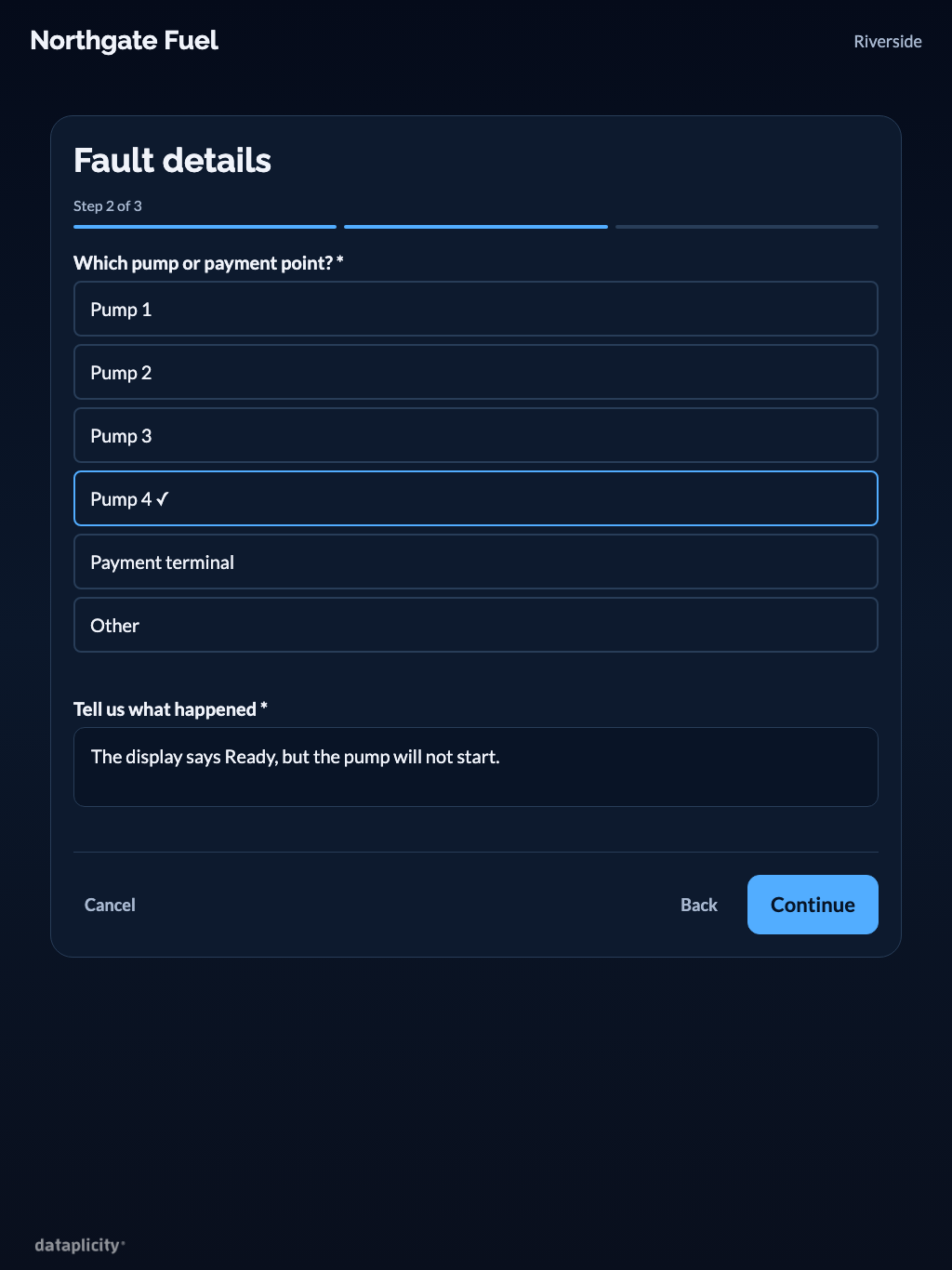
For Facilities or cleaning issue, use a different set of choices: Toilets, Air/water station, Bin by Pump 1, Bin by air station, Lighting, Other. Ask what needs attention, with choices such as full, damaged, leaking or unavailable and a short description. A cleaner's “Bin by air station is full” report can then become a specific job on the next round.
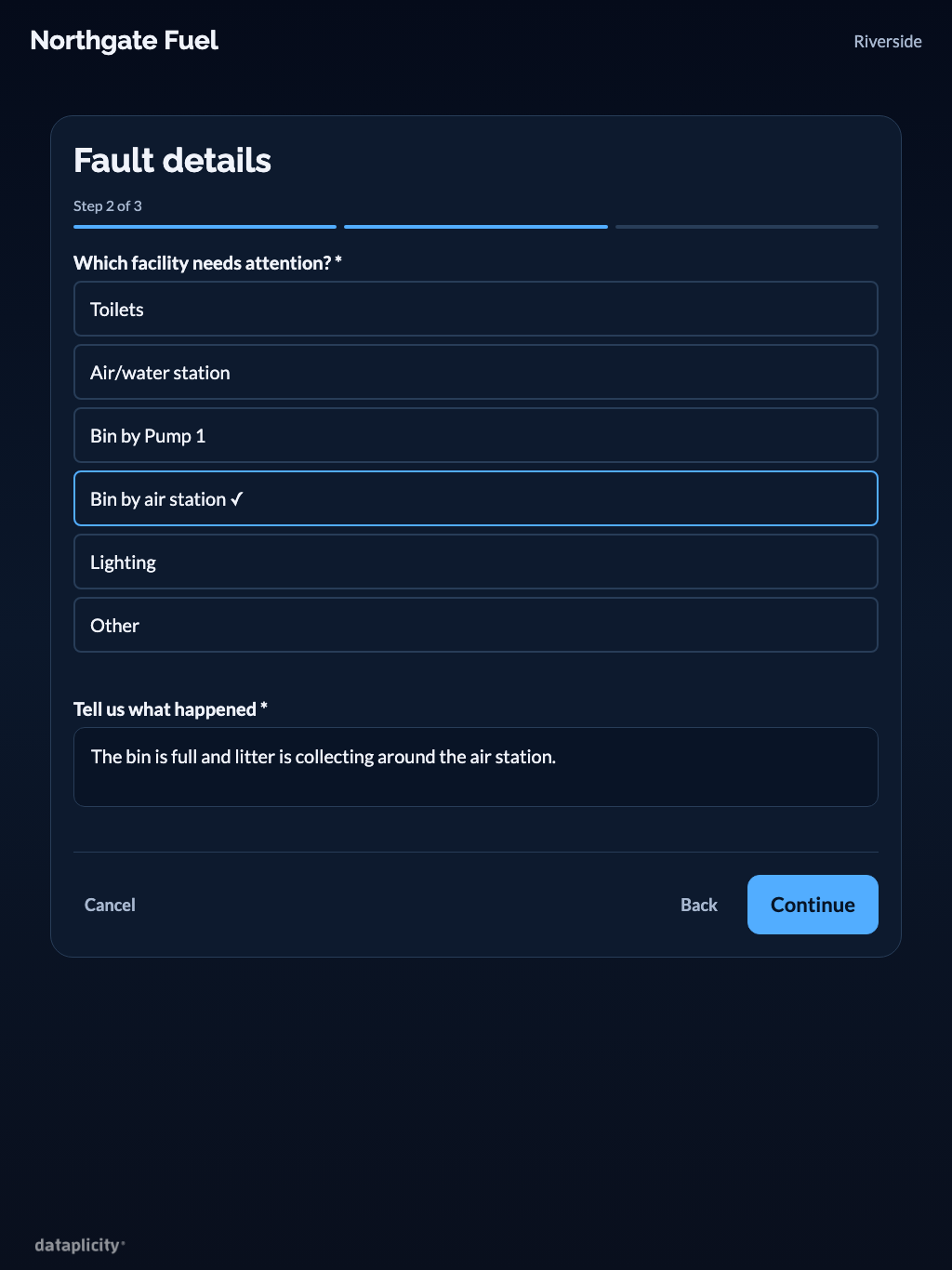
Fault reports are captured through the Visitors record flow. Dan assigns the response in Northgate's maintenance process and records the outcome there. Submitting a report does not automatically create a repair work order or establish that the equipment is safe or fixed.
Speak to the customer with the site already identified #
The Pump 4 customer wants help immediately. Priya has enabled customer support calls in Riverside's site settings. Dan has opened Customer Support in the web workspace, chosen an on-call end time and enabled incoming-call audio. His browser stays open and connected.
At the iPad, the customer opens Need help?. When support is available, they choose Video call support and allow the requested camera and microphone permissions. They do not need a Dataplicity account.
Dan receives a site-assistance request identifying Riverside and Riverside help point, with the enrolled site location context. He answers and asks which pump is affected. The caller can speak, exchange messages and use the camera controls during the conversation. The fixed iPad shows what its camera can see from the help point; use the asset identifier to discuss equipment elsewhere on the forecourt.

The fault report and support call are separate records. Dan checks the report or asks the caller for its details, then records the response and next owner in the team's normal workflow. Site context reduces the opening questions; it does not establish an automatic link between every report and a call.
If Dan cannot resolve the issue, he gives the customer the next step and hands the work to the responsible team. Verify recovery through the site's equipment checks before closing the maintenance job.
Make the unavailable path useful #
Priya also configures an after-hours message with Northgate's actual hours and alternative contact method. The kiosk shows this when nobody is available; an unanswered call eventually shows the fallback too. Test that text from the public screen.
Keep the site's emergency instructions visible and follow the existing emergency procedure for immediate hazards. The kiosk's support availability describes the team's ability to take a call.
Add contractor arrivals when the business needs them #
If Riverside later needs a record of contractors entering the site, add a Contractor type with Welcome screen action → Check in. Enable it at Riverside, configure the required details and host, and publish and assign the relevant induction. The welcome screen gains Check in and Check out while retaining delivery and fault reporting.
A contractor completes the configured sign-in and induction before starting the site's work procedure. Staff can review the submitted arrival and induction evidence in Visitors. This gives the contractor a distinct journey from a customer reporting a broken bin.
Rehearse a shift before installing at every site #
Run one delivery, one pump report, one facilities report and one answered support call on the mounted iPad. Find each submitted record in the web app and let the next shift act on the handover. Then try an unavailable operator and a connection interruption.
Check Settings → Kiosks for last sync and pending submissions. A locally saved delivery may still need to reach the central feed. Reconnect the same iPad and confirm it synchronises; live calling needs internet access.
Roll out the pattern to a second location once staff can reliably identify the site, understand the submitted information and own the next action. Give each kiosk a recognisable name and check site permissions so colleagues see the locations they are responsible for.
Apply the pattern to your business #
At a warehouse, the delivery reference might be a consignment and the fault location a loading bay. At a depot, it might be a vehicle, gate or wash station. Start with the handover your staff need, make the kiosk ask for that context and test what the next person can do with the resulting record.