

Appearance
Internet connection #
The Dataplicity agent needs a working outbound internet route. If the device is already on a customer or site network, skip this page and use Firewall requirements instead.
The examples below use Raspberry Pi for a lab or bench device. The same network principles apply to other Linux-based IoT hardware.
Wired Ethernet connection #
Consumer routers are usually configured to issue an IP address to your devices via DHCP as soon as they are connected. In most cases, connecting via wired Ethernet is as simple as plugging a standard Ethernet cable between your device and your router or switch.
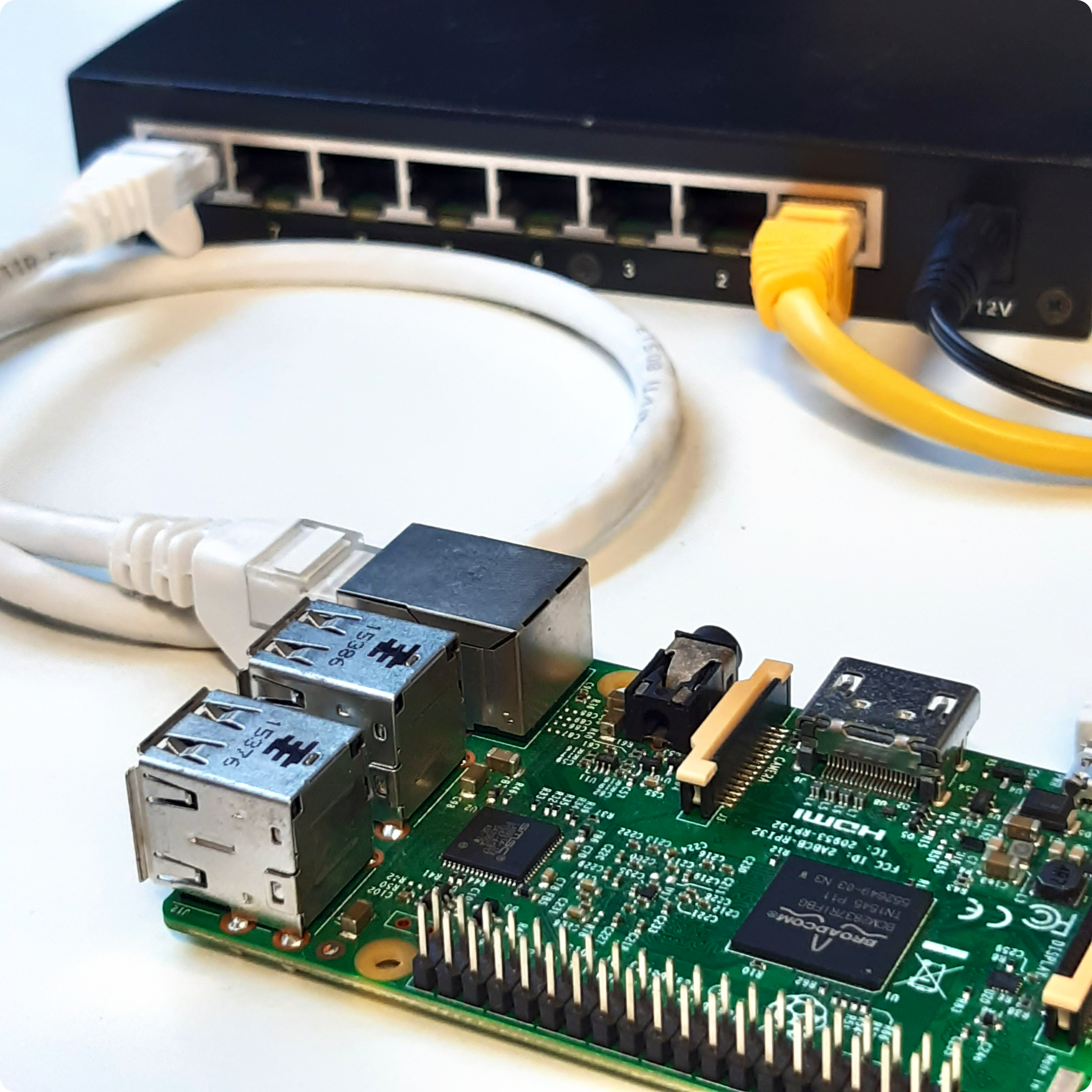
Troubleshooting an Ethernet connection #
Test the connection on a PC or laptop first. If your PC can reach the internet on the same cable, the device usually can too.
Possible issues:
- A damaged Ethernet cable
- DHCP service disabled on the device, so no IP address is assigned
- USB-to-Ethernet adapter driver issues - try the built-in Ethernet port first
- Router or ISP fault - power-cycle the router and contact your ISP if needed
Wireless connection #
Raspberry Pi WiFi setup
These steps apply to Raspberry Pi 3 or newer running a recent Raspberry Pi OS image (2021 or later).
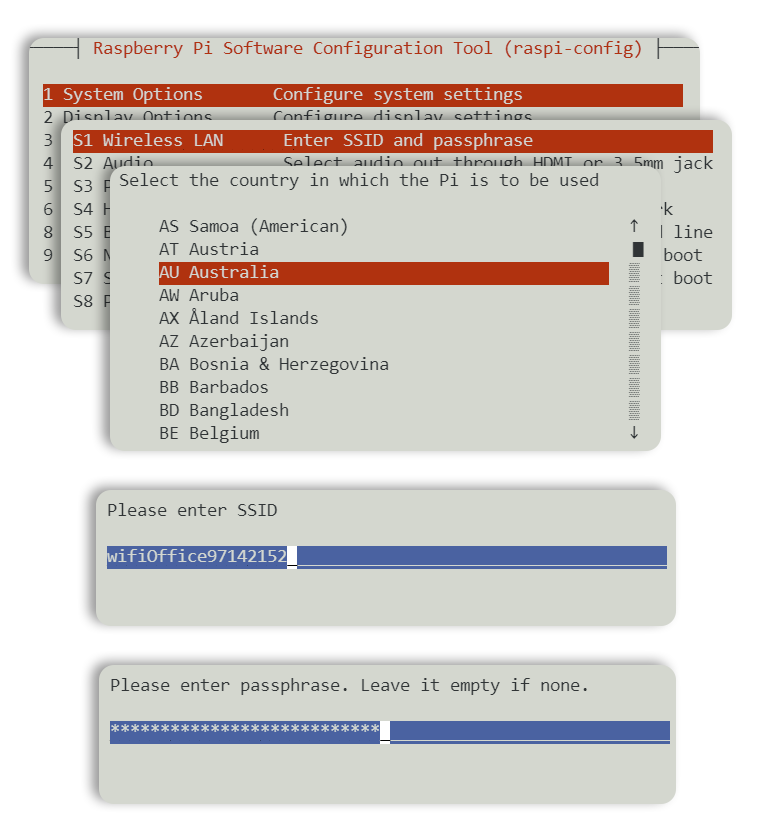
The fastest way to configure WiFi on Raspberry Pi is with raspi-config:
text
sudo raspi-configSelect your country, enter your WiFi network name and password, then reboot. After reboot, a background service will connect to your network.
Test your connection #
Ping is the most common way to verify connectivity:
shell
sudo ping -c 5 www.google.comIf you see an error like ping: unknown host www.google.com, the connection is not working.
Find your IP address #
shell
hostname -IOnce your device has internet access, proceed to install the Dataplicity agent.