

Appearance
Private boards #
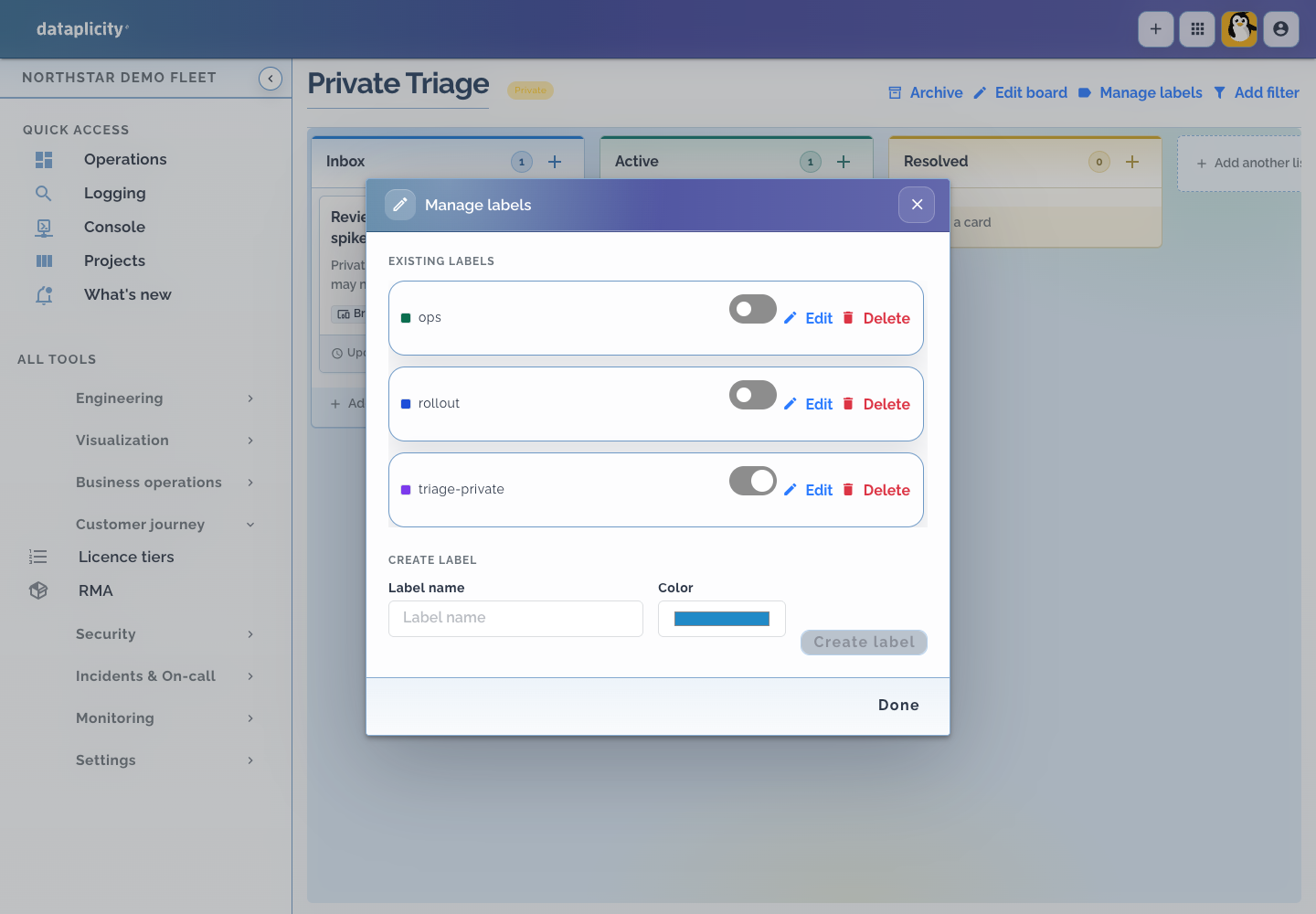
Use an organisation-visible board for normal shared delivery work. For sensitive investigations, restrict access to members of groups whose board access tags match one of the board's assigned labels.
Make a board private #
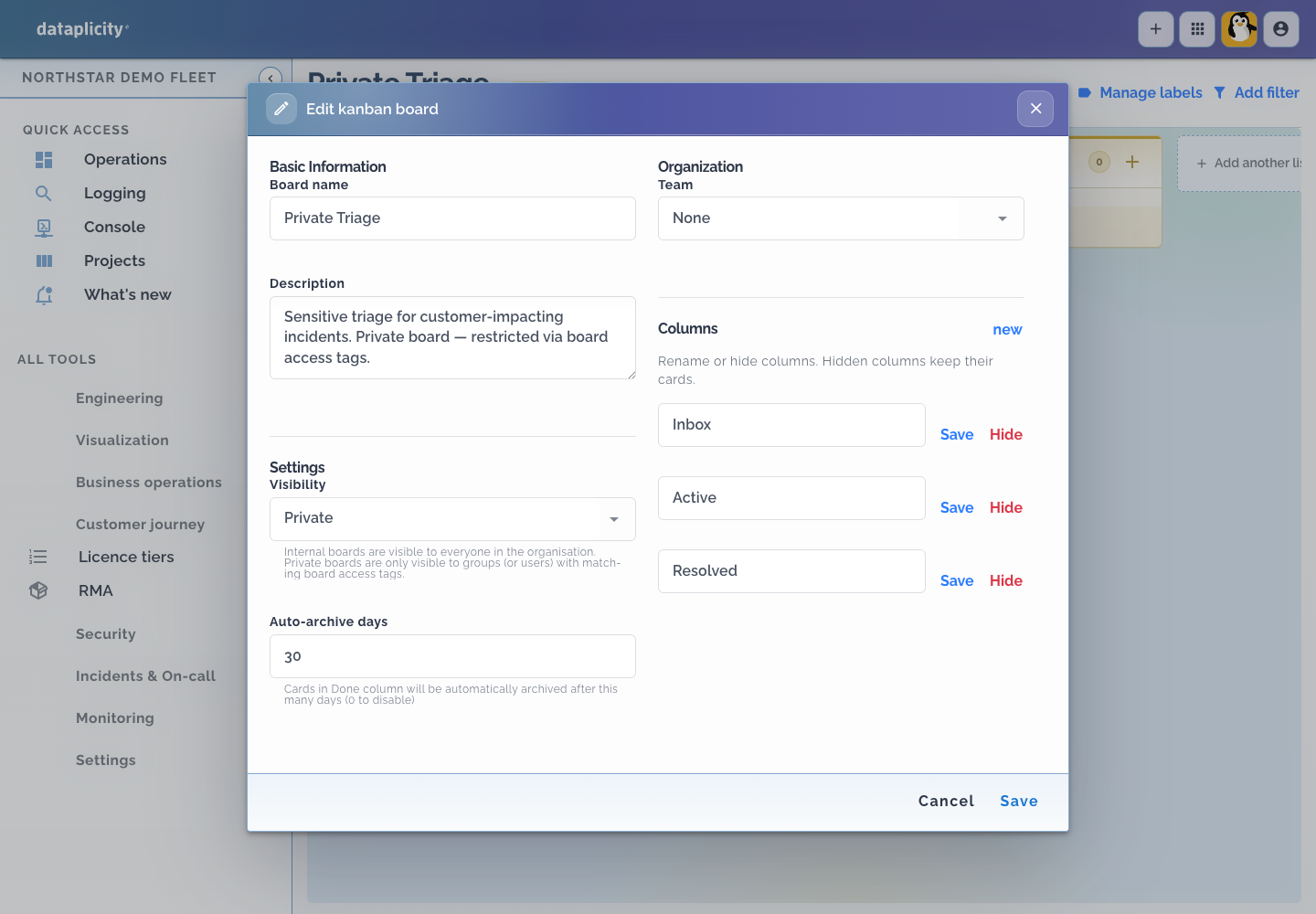
- Open the board and select Edit board in the page header.
- Under Settings, set Visibility to Private.
- Select Save.
The visibility field is shown only to users with boards.admin.
Choose who can open it #
- A board administrator selects Manage labels on the board.
- They create or enable at least one label for access control, such as
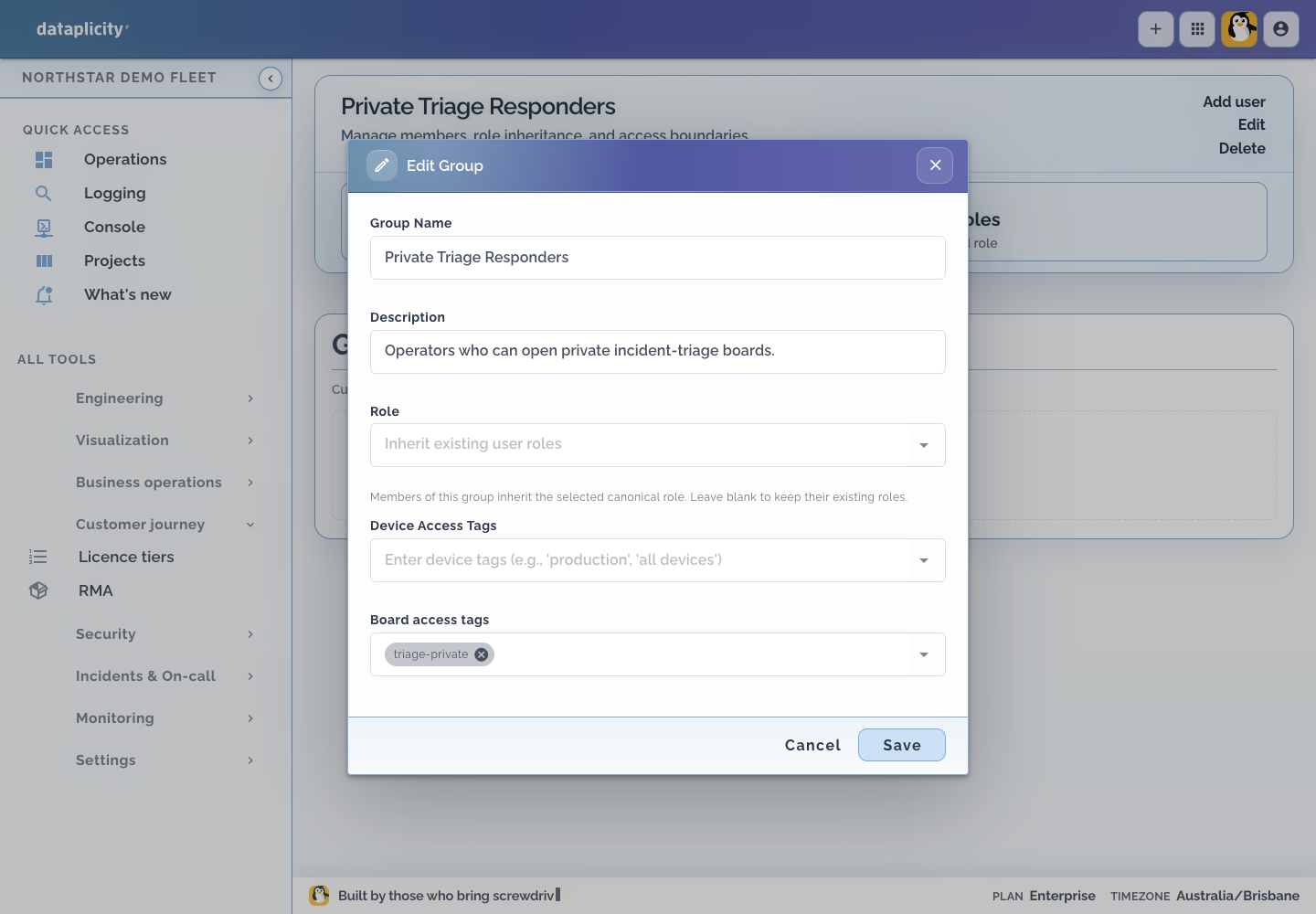
triage-private. - An organisation administrator opens Settings → Groups, then opens or creates the group that should have access.
- They select Edit and add the same value under Board access tags.
- They add the intended operators to that group.
Tag matching is case-insensitive. A private board with no assigned labels is visible only to board administrators.
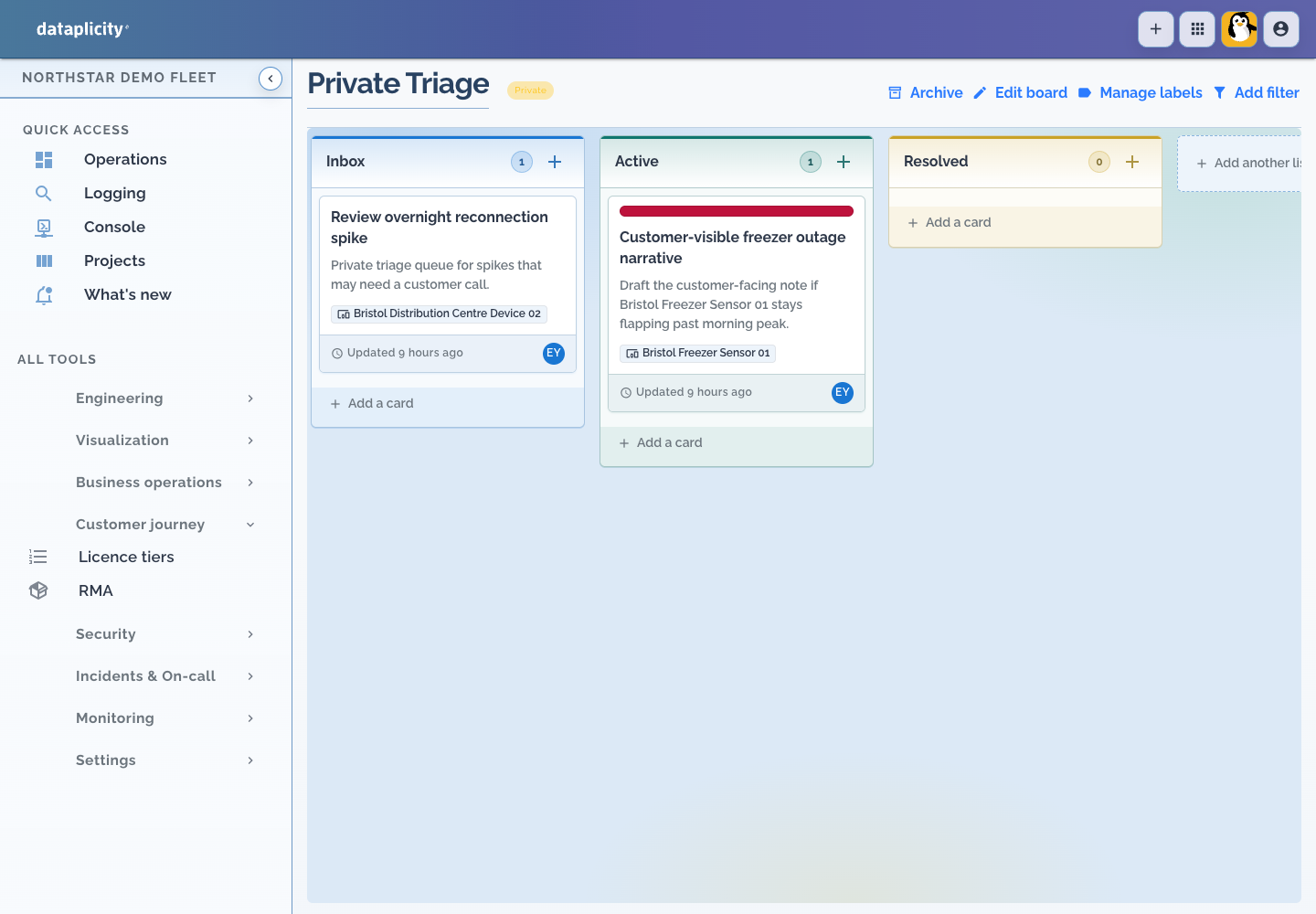
After saving, permitted users see a Private badge beside the board name.
Permissions #
Board access does not replace access to a linked record. A user must still have the relevant device, incident, monitor, or other product permission.
Creating and updating board work requires boards.write. Changing visibility, managing board labels, and deleting boards requires boards.admin. Viewing also depends on organisation membership, module access, and matching access tags for private boards.