

Appearance
Multi-factor authentication #
Dataplicity supports time-based one-time passwords and WebAuthn credentials such as security keys and platform passkeys.
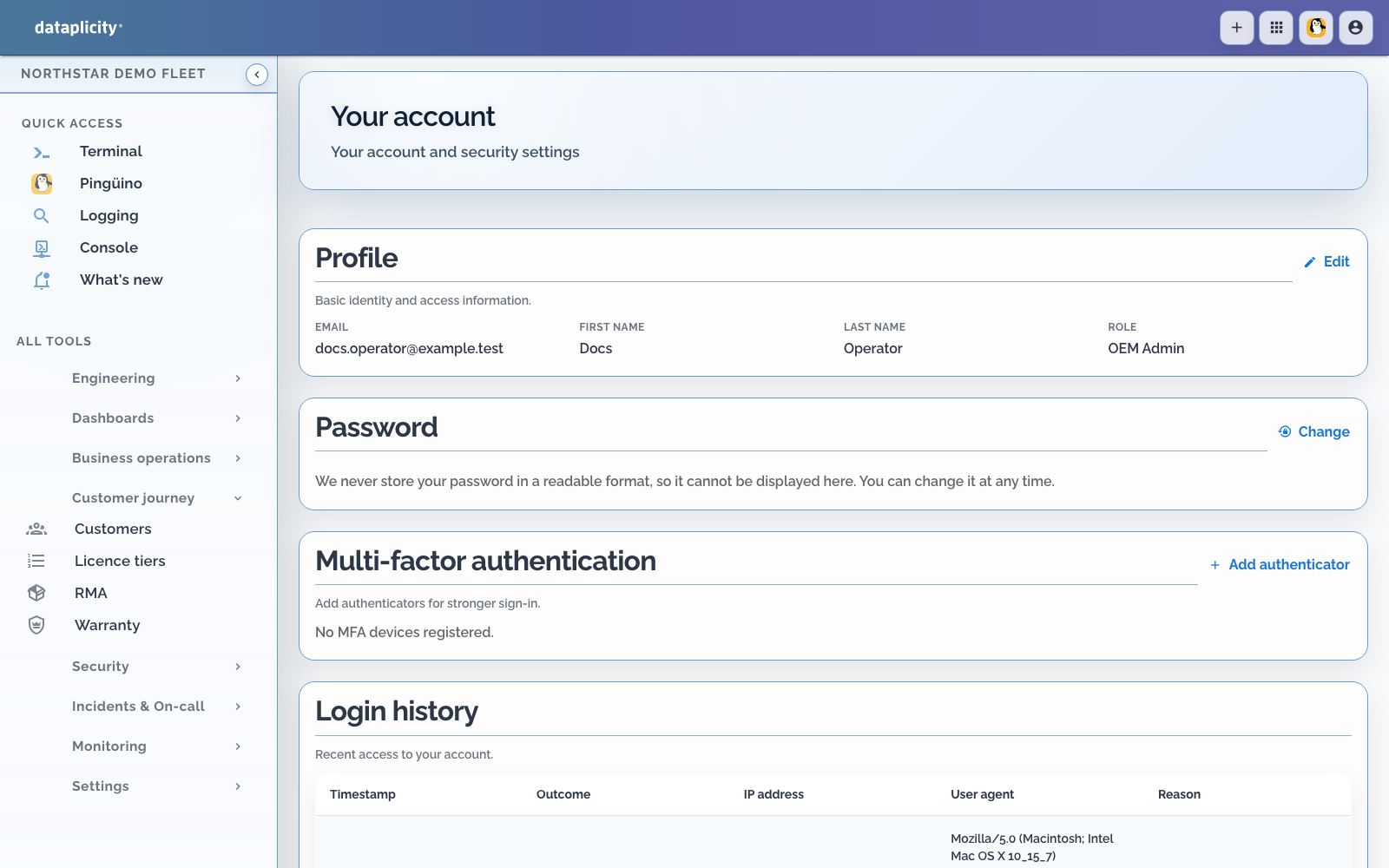
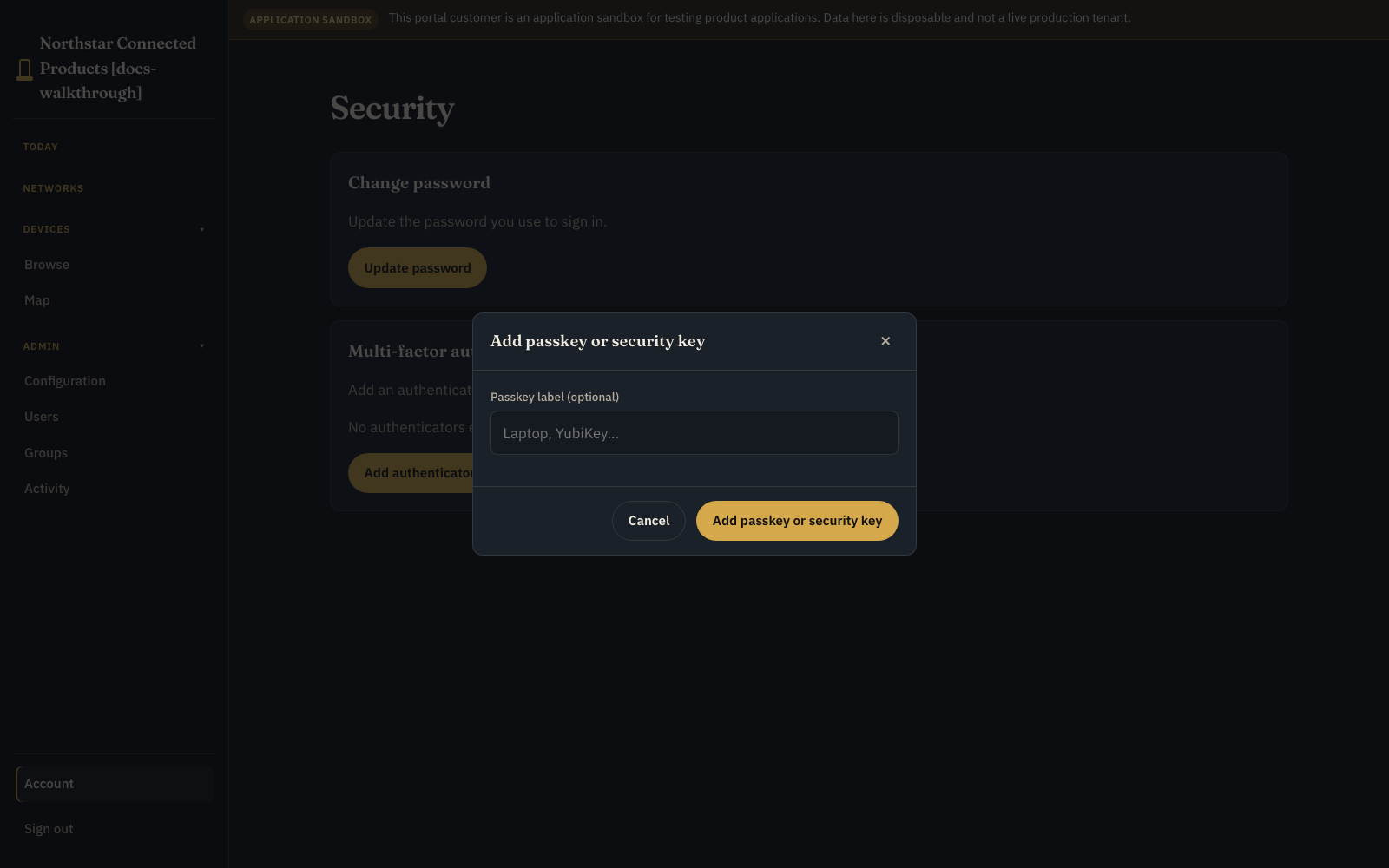
In a branded Customer Portal, open Account > Security. Add authenticator and Add passkey each open a focused modal. Account shows the Signed in as identity.
Enrol an authenticator app #
- Open your profile security settings.
- Choose the authenticator-app option.
- Scan the QR code with your authenticator or enter the setup secret.
- Enter a current code to complete verification.
- Sign out and test the next login before ending your existing session.
Codes depend on accurate device time. If every code fails, enable automatic time synchronisation on the device that generates them.
Enrol WebAuthn #
- Choose the security-key or passkey option.
- Follow the browser prompt to create the credential.
- Give the credential a recognisable name.
- Test it in a separate signed-out browser session.
WebAuthn requires a compatible browser and authenticator. Platform passkeys can depend on the operating system account or synchronisation service.
Recovery and removal #
Enrol more than one factor when your policy permits it. Before deleting a factor, confirm another login method works. If all factors are lost, contact support@dataplicity.com without sending a password, MFA code, or reset link.
Review login history after an unexpected challenge. Change the account password, remove unrecognised factors, revoke exposed API keys, and notify an organisation administrator if compromise is possible.
Organisation SSO policy and personal MFA are separate controls. Follow the identity provider's MFA policy when SSO is mandatory.