

Appearance
Build an Oxford train departure board #
A train pulls out. The board still says it’s due. The clock is ticking, so from across the concourse everything looks fine. How would you spot the fault from another town?
Build a Waterloo-inspired split-flap sign for Oxford (OXF). It shows six departures, booked times, platforms and revised estimates. Behind the sign, a Screen Player Device Class reports the rail feed’s health independently of the player process. A Product Application ties those readings to the particular screen an engineer needs to investigate.
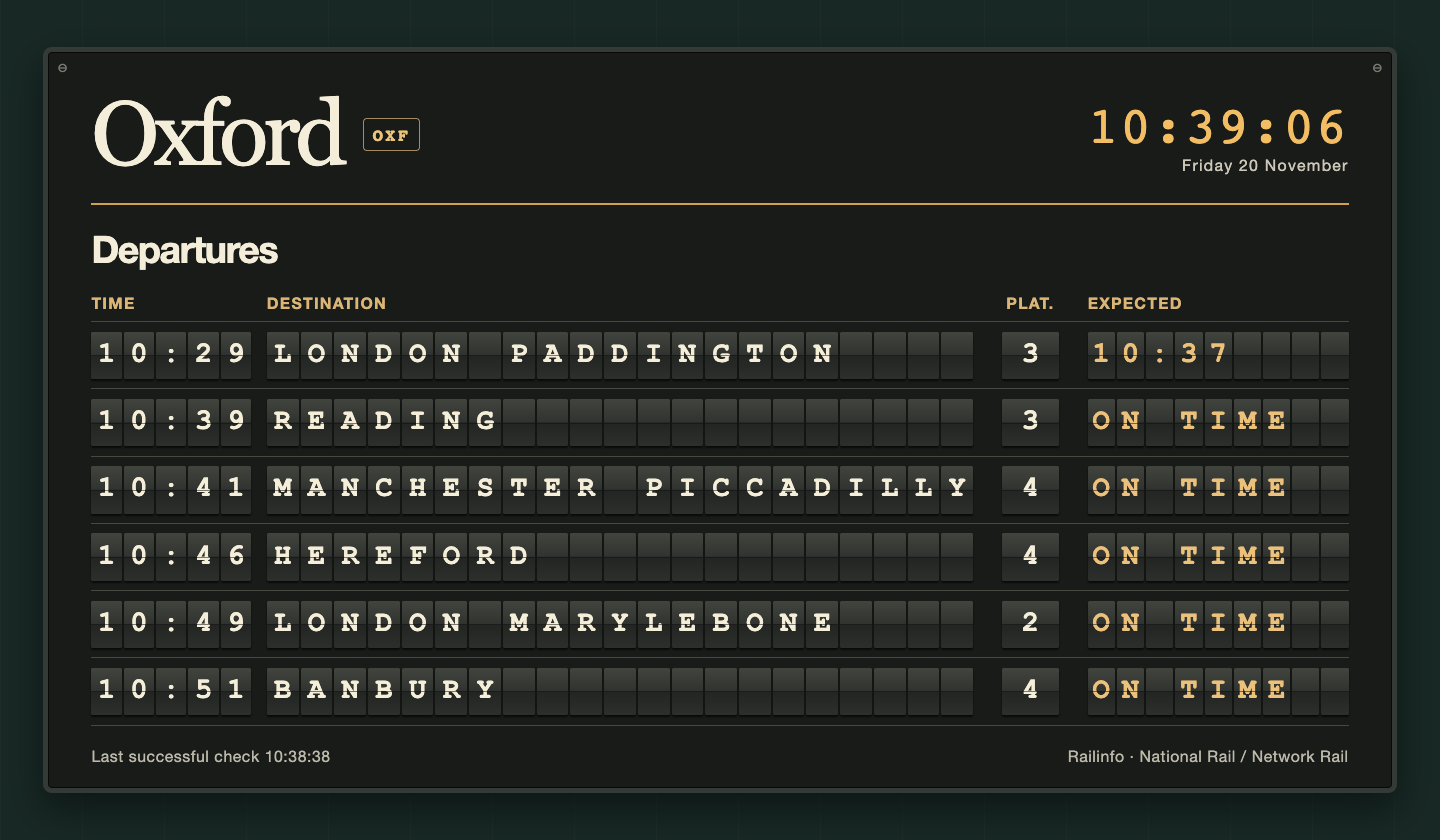
Captured from the running container. The clock and train times use Europe/London.
Put the sign on screen #
You need Docker and a browser. The container polls the public Railinfo Oxford board every 30 seconds. Railinfo derives its data from Network Rail and National Rail and provides a keyless API. Railinfo API and fair use
Download the Oxford player source bundle. It contains the two display pages, Python player, kiosk launcher and Dockerfile. To run it locally:
sh
curl -fsSLO https://docs.dataplicity.com/examples/oxford-board.zip
unzip oxford-board.zip
cd oxford-board
docker build -t oxford-board:1 .
docker run -d --name oxford-sign -v oxford-board-history:/data -p 127.0.0.1:18741:8080 oxford-board:1Open http://127.0.0.1:18741/ for the passenger view and http://127.0.0.1:18741/engineering for the comparison. The ordinary web view is read-only. The comparison will say Awaiting first kiosk acknowledgement until you connect the designated kiosk. With a browser closed or obscured the rail collector keeps running.
Put the same sign on HDMI #
On a Linux computer with Python 3.9+, system time-zone data and Chromium, connect a monitor by HDMI and log into its graphical desktop. Extract the same bundle. From its directory run:
sh
python3 board.pyIn a second terminal on that desktop, from the same directory and as the same user, run:
sh
python3 kiosk.pyThe launcher opens Chromium full-screen using a dedicated browser profile. If the desktop extends over two monitors, select the HDMI monitor as the primary display in the desktop’s display settings first. Open http://PLAYER-IP:8080/ from another browser on the same trusted network for a copy of the passenger view, or add /engineering to compare the two states. The native player keeps the latest 2,048 revisions, the last kiosk-confirmed revision and its pairing key under ~/.local/state/oxford-board.
You can also run the player in Docker and drive an HDMI monitor from the Linux host’s graphical session. Copy the pairing key to a user-only directory on that host, then point the launcher at the published port:
sh
install -d -m 700 "$HOME/.local/state/oxford-kiosk"
(umask 077 && docker exec oxford-sign cat /data/kiosk.key > "$HOME/.local/state/oxford-kiosk/key")
python3 kiosk.py --player http://127.0.0.1:18741 --key-file "$HOME/.local/state/oxford-kiosk/key"Read the engineering view #
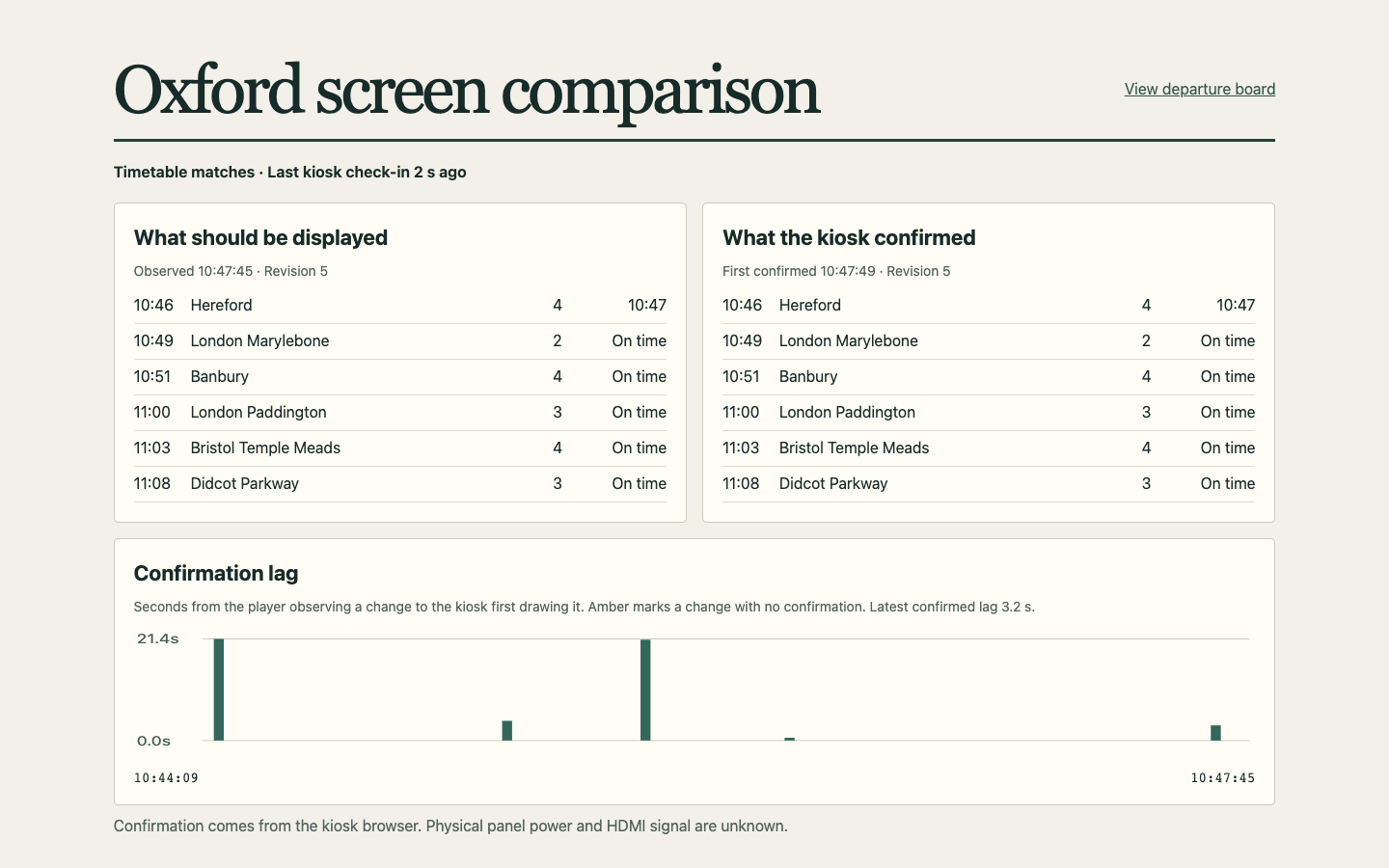
What should be displayed is the latest timetable the player accepted, including an unavailable notice when the feed fails. What the kiosk confirmed is the last revision the designated browser acknowledged after rendering. Changed rows are highlighted. Look at the last kiosk check-in as well as the revision number: an unchanged timetable can still be confirmed healthy every five seconds. The browser can confirm drawing the sign; a physical panel’s power, input selection and cabling need separate observation.
The Confirmation lag chart shows the last 32 changes in order. For each change, the clock starts when the player first observes the revision and stops at the first matching kiosk acknowledgement. Repeated confirmations leave that measurement intact. An amber mark means that revision was never confirmed or is still waiting. This measures player-to-kiosk lag. The rail API does not supply the original station update time in this response.
Give Engineering the right signals #
In Engineering → Device classes, create Oxford Screen Player. Under Engineering → Software → I/O, select that class and create the following streams. Use the IDs exactly as shown. Choose Keep history for the feed state and age so you can examine an outage after it clears.
| Stream ID | Type | What an engineer learns |
|---|---|---|
player_state | Text | A fresh running sample means the publisher loop is executing. Check sample time if updates stop. |
feed_state | Text | live after a successful current-date Oxford response, unavailable after a failed check or 90 seconds without a fresh response. |
feed_age_s | Metric, seconds | Elapsed time since this player last fetched a valid board. An identical response fetched successfully resets the age. |
departures_count | Metric | Number of rows in the last successful response. Zero is a valid timetable result. |
rendered_generation | Text | Fingerprint of the last revision acknowledged by the designated kiosk. It can stay constant while the train list is unchanged. |
display_state | Text | unknown on this container. A physical panel needs its own power or display sensor. |
expected_board | JSON | Latest revision, sign contents and the time the player first observed them. |
confirmed_board | JSON | Contents and first confirmation time of the last revision the kiosk acknowledged. |
confirmation_lag_s | Metric, seconds; Keep history | One measurement per confirmed change, timestamped at first confirmation. A superseded unconfirmed revision has no lag sample. |
For agent delivery, assign a dedicated demo player to the class. In Engineering → Software, package the same image as a class container, release it in a Build and apply the Build to that player. Give the container access to the field agent’s loopback broker. On an enrolled Linux test machine you can also run the image with --network host so it shares that loopback interface. In that mode the sign listens on the host’s port 8080. Use a trusted demo network. Build and deploy a class container · Stream broker contract
The player sends each value to POST /v1/streams/{binding_id} using DP_STREAM_BROKER_URL or the default agent endpoint at http://127.0.0.1:18765. No Dataplicity credentials go into the image. Open the class stream preview and check for a new sample time. On a laptop with only the display container running, broker publication failed in the logs is expected. Local rail collection and rendering continue.
Bind the readings to a screen #
Open Engineering → Applications and create an empty Product Application called Oxford Departure Boards. From its build journey, choose Bind hardware roles and bind Oxford Screen Player to the role signage_player. Open Data and add a configuration model called Screen. Give it a name, a player device field bound to that role, and stream-derived fields for Expected board, Confirmed board, Confirmation lag, Feed state, Feed age and Last rendered generation. Select the player device field, the corresponding class stream, and the latest-value aggregation for each derived field.
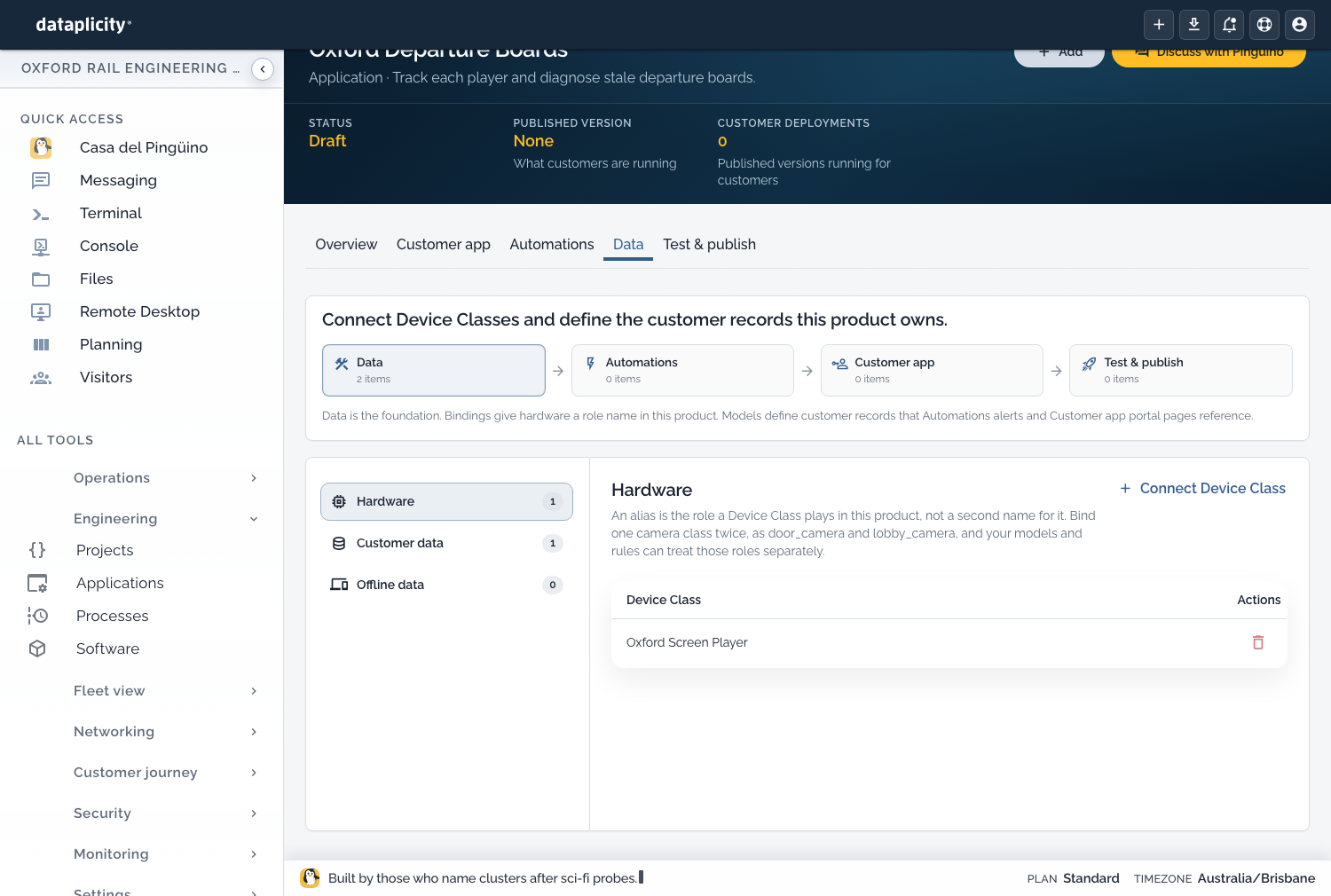
The record gives the device an operational identity such as Oxford café entrance. Engineering can compare individual stream samples, while the application model defines how any screen using that role gets its current values. Keep the changing train list in the player. A new service or platform change does not require a Product Application release. Design a Product Application
Check that Dataplicity received the readings #
Open the player’s Live data in Engineering. Compare the generation in expected_board with confirmed_board, then inspect the history of confirmation_lag_s. During the Oxford demo, field agent 0.1.73 delivered all nine streams and the backend returned eight historical confirmation measurements. The quickest confirmation took 0.123 seconds and the slowest took 21.45 seconds. Those numbers came from the running player and a virtual kiosk browser. To measure your HDMI installation, run the launcher on its desktop and repeat the check.
Reproduce the stuck-board fault #
Leave the browser open. Pause only the rail collection step inside your demo container:
sh
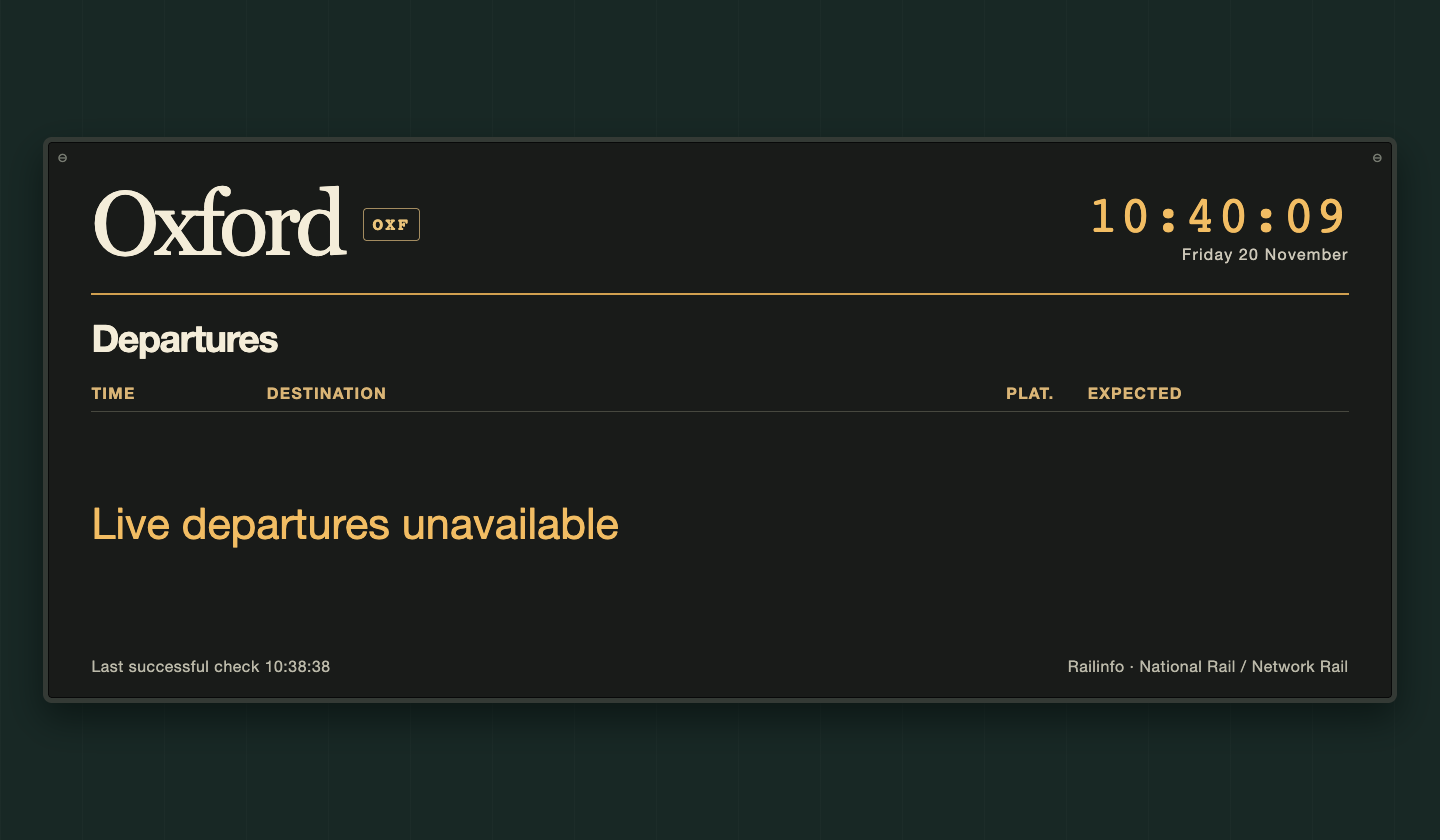
docker exec oxford-sign touch /tmp/oxford-feed-pausedWithin roughly 35 seconds, the sign clears the departures and says Live departures unavailable. The clock keeps ticking and Last successful check stays at the old time. In Engineering, look for fresh player_state = running samples alongside feed_state = unavailable and a rising feed_age_s. Allow another publication interval and agent delivery time for those readings to appear. The combination tells you where to look before restarting anything.
Restore the feed on the same player:
sh
docker exec oxford-sign rm /tmp/oxford-feed-pausedOn the next successful poll, the rows return, the check time advances and feed age falls again. In the field, use Remote Shell on the player host to inspect docker logs --tail 30 oxford-sign if you launched it with that name. The server also exposes /board.json with the last fetch and browser acknowledgement times. A fresh fetch with an old rendered_at points you towards the browser. A recent browser acknowledgement still leaves the physical panel and its cable to check.
Try a missed display update #
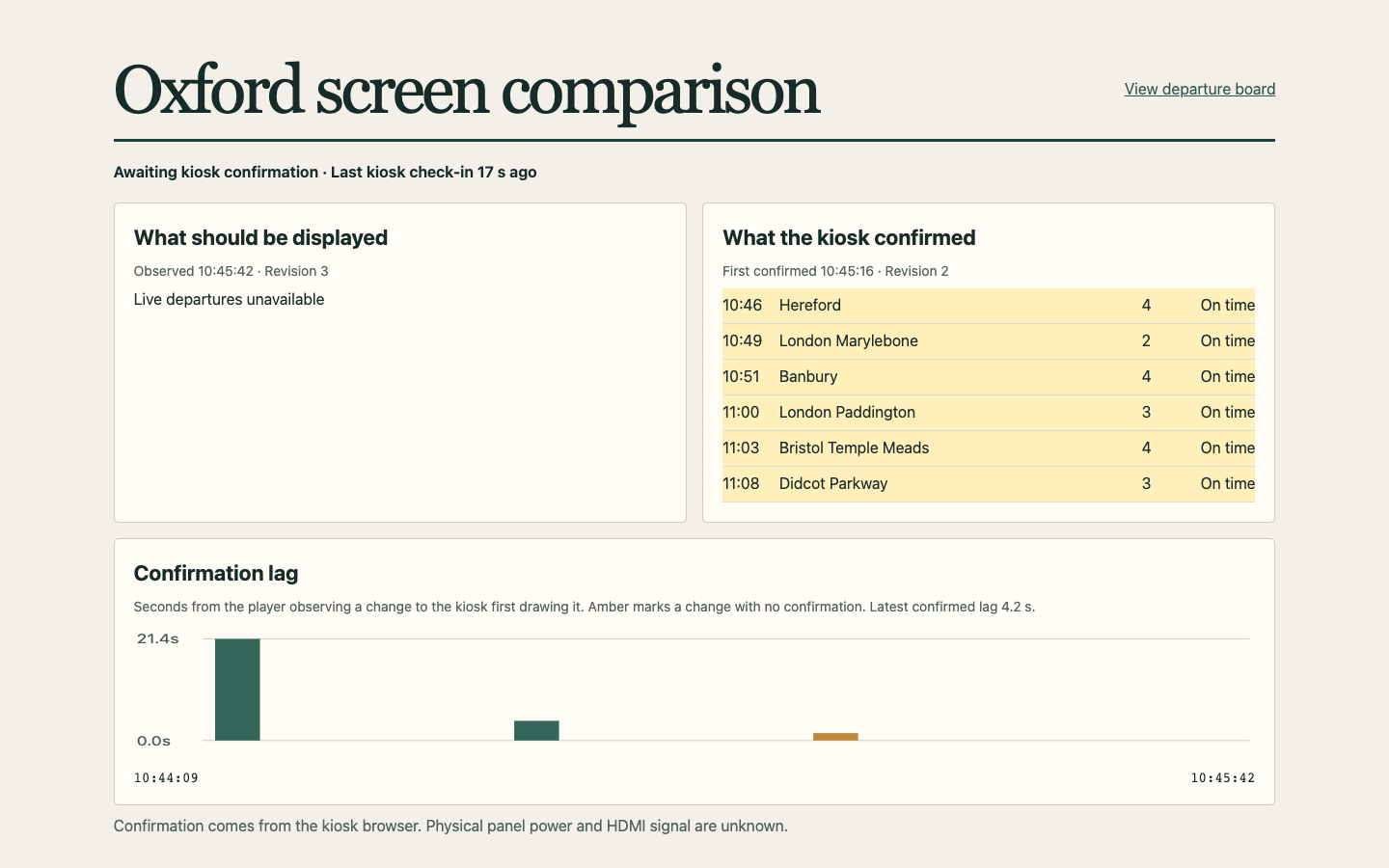
Close the designated kiosk and leave the passenger web view and engineering comparison open. Wait for the next timetable change, or run the feed-pause exercise above. The expected revision advances while the confirmed revision stays behind. An ordinary web viewer cannot clear the discrepancy. Relaunch the kiosk. The two revisions should match and the chart should gain a measurement for the wait. Compare that measurement with the historical confirmation_lag_s stream in Engineering.