

Appearance
Device web hosting #
Wormhole lets you host a website or web service from a Linux device at https://<yourdevice>.dataplicity.io/ - no port forwarding, firewall exceptions, or dynamic DNS.
The example below uses NGINX on a Linux device, but the same steps apply to any web server on a supported Linux device.
Before you start #
- The device has internet access and the Dataplicity agent installed
- Port 80 is available on localhost (Wormhole forwards only to
localhost:80) - You can run privileged commands - see Using sudo
Install a web server #
shell
sudo apt install -y nginxNGINX starts automatically after installation on Debian-based systems.
Enable Wormhole #
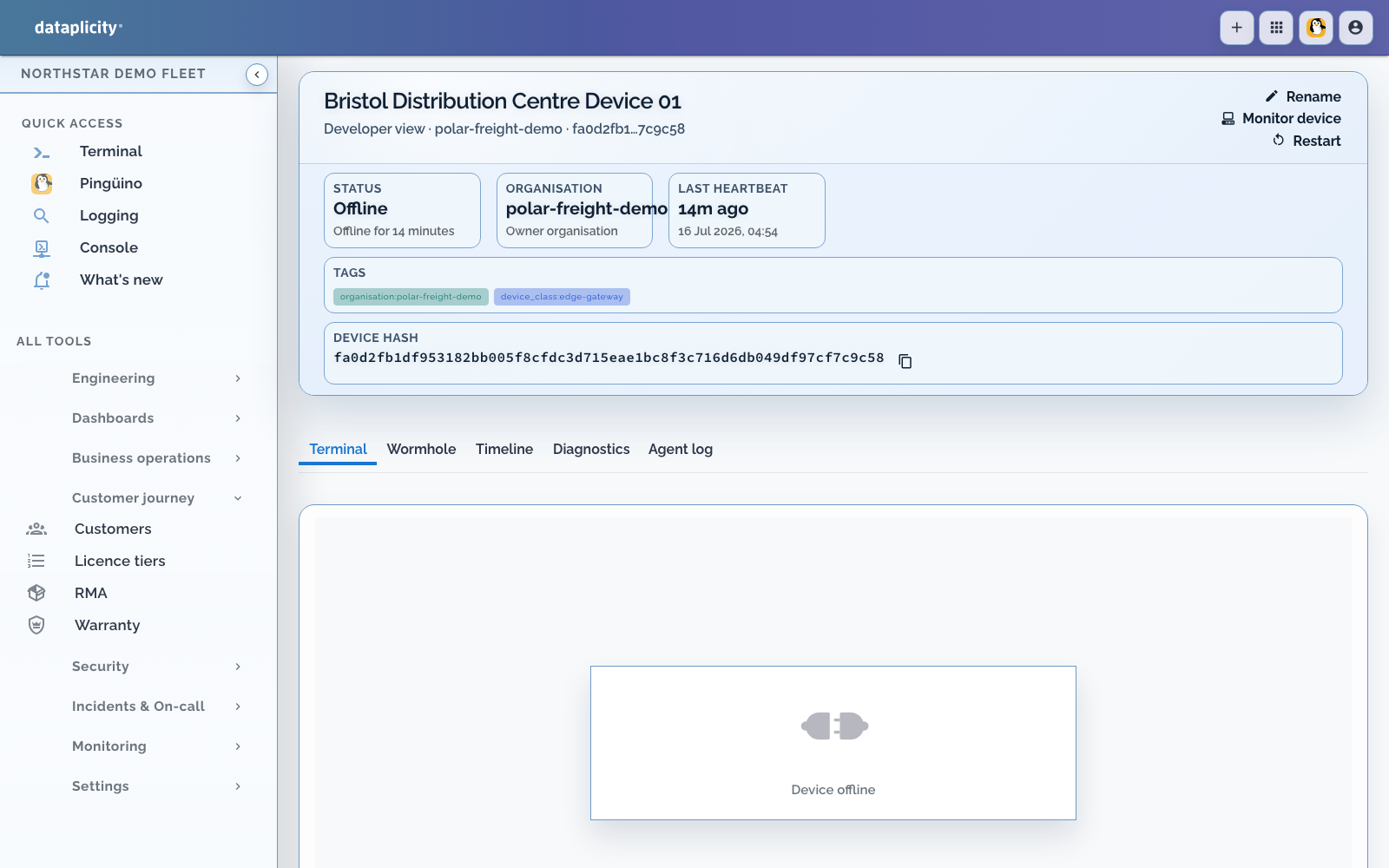
- Open the device in your Dataplicity dashboard
- Enable Wormhole in the device options
- Copy the Wormhole URL (similar to
https://ABCD-EFGH-1234-device.dataplicity.io/)
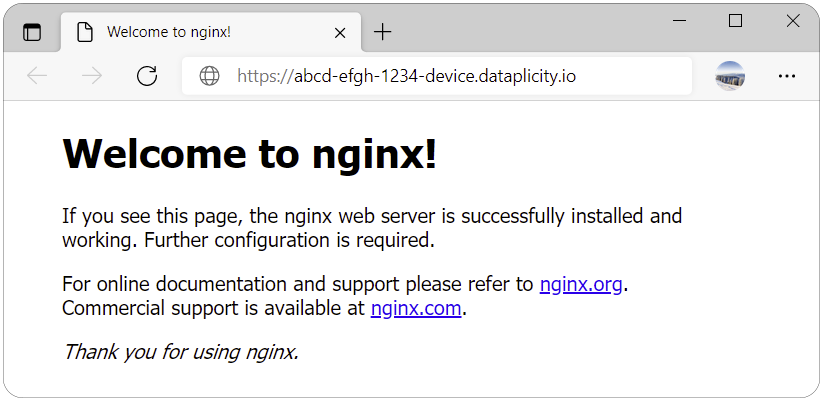
Open the URL in your browser. The NGINX default page is served from the device - wherever it is on the network.
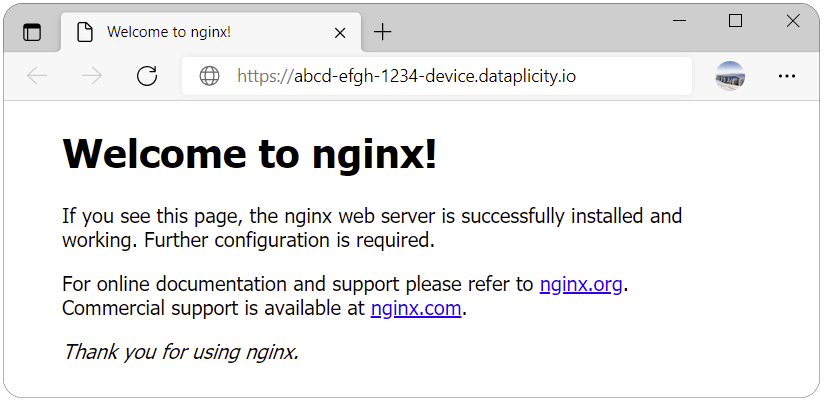
The site moves with the device. Take it to a customer site, a lab, or a hackathon - the URL stays the same.
Security considerations #
❗️ Enabling Wormhole exposes the web service on your device to the internet. That is the point - but secure the application itself.
- Wormhole listens on localhost; you do not need port 80 open to the wider internet
- Use application-level authentication for anything beyond a demo
- Consider a host firewall as defence in depth
- Read Wormhole security
When to use this #
- Device-hosted control panel or configuration UI
- REST API reachable from automation scripts
- Demo or prototype web interface during development