

Appearance
Installing for mass production #
Dataplicity's one-line install is useful for development devices. For production fleets, integrate your account-specific install command into a controlled provisioning process instead of typing it on each unit.
Before you start #
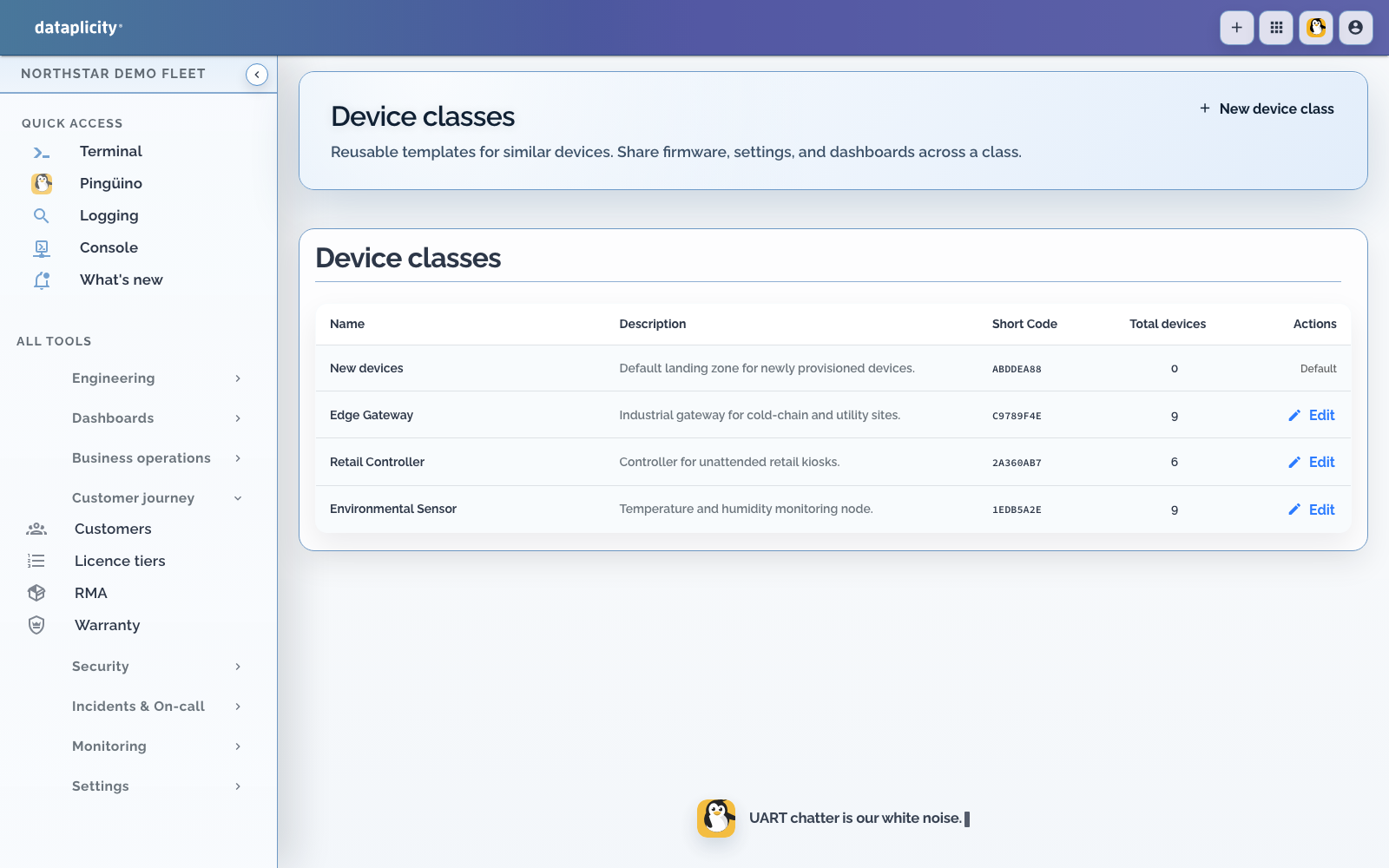
- Define the device classes, customer ownership, and site metadata your fleet needs
- Confirm each device has outbound network access and a reliable system clock
- Use a staging organisation and non-production hardware to test the full flow
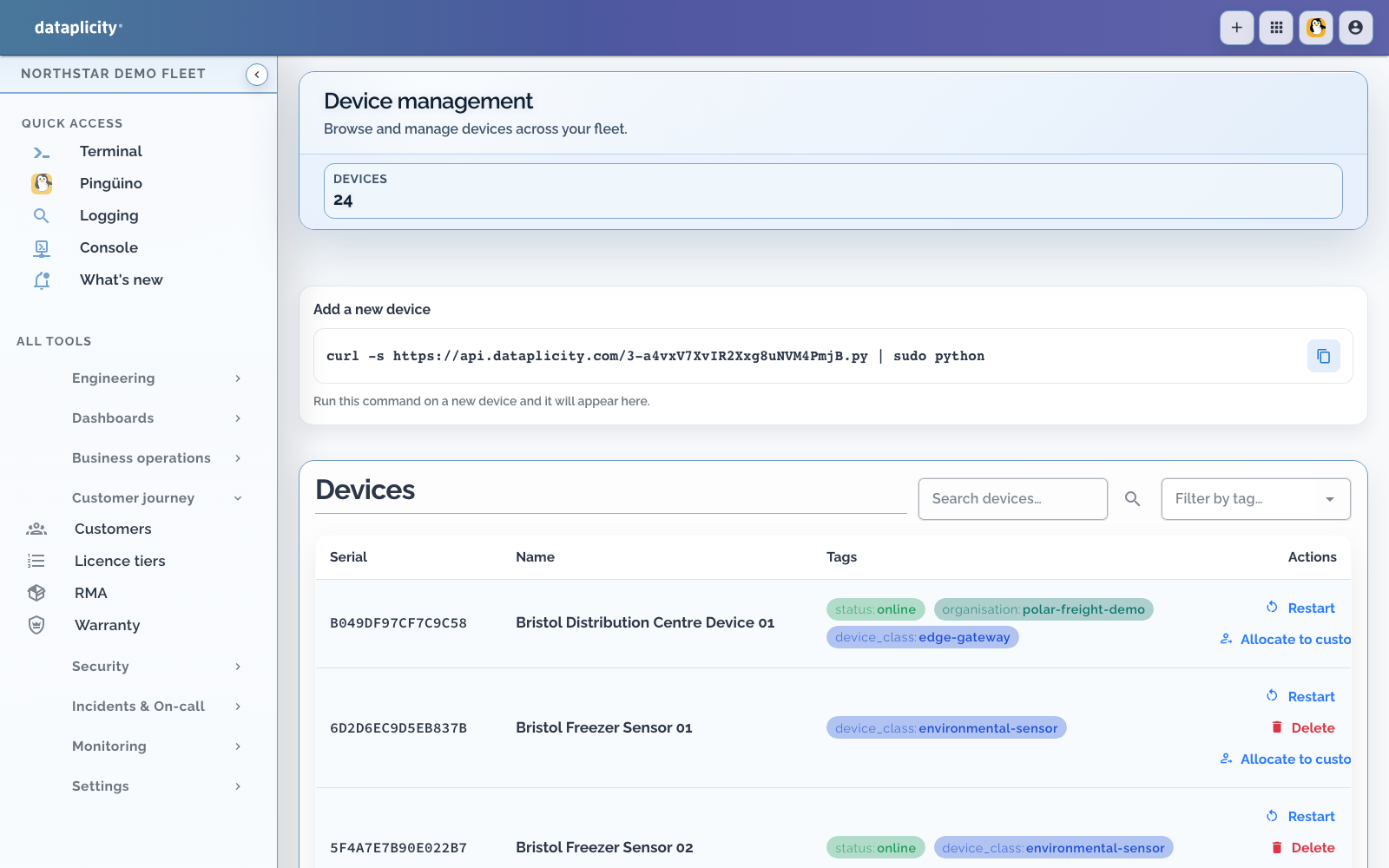
- Copy the complete install command from Add device in the app
The install command is scoped to your account. Treat it as provisioning material and do not publish it in firmware repositories, support tickets, or documentation.
Choose a provisioning stage #
Run the install command from the stage that already injects device-specific configuration:
- Factory image customisation
- First-boot provisioning
- Your configuration management system
- A secure commissioning process at the deployment site
Run the installer independently on every physical device so each receives its own identity. Clone the image before agent registration.
Make provisioning repeatable #
Your provisioning step should:
- Wait for working DNS, HTTPS access, and a valid system clock
- Run the dashboard-provided install command
- Record success or failure in your manufacturing logs
- Apply supported class, customer, site, and release metadata where those surfaces are enabled
- Retry safely after transient network failures
- Remove temporary credentials or installer material
Confirm registration through the device inventory or supported API. These signals remain stable across changes to agent paths, process names, and private files.
First-boot validation #
Commission a small staging batch before changing the production image:
- Boot each unit on a network that resembles a customer site
- Confirm a unique device appears in the inventory
- Check its name, class, tags, online state, and any enabled customer or site context
- Open its support workspace and verify the capabilities required by your team
- Confirm logs and monitors are reporting before shipment
- On supervisor installs, run
dataplicity rauc-ready. TreatFAIL(except missingcasync) as an image-layout defect before you enable managed OS updates. Missingcasyncstill allows full artefact download.
Production checklist #
- [ ] Pin the image and application versions used for each manufacturing batch
- [ ] For managed RAUC OS updates, complete the RAUC image OTA requirements, including
dataplicity rauc-readyon a representative factory image. UseDP_REQUIRE_RAUC=1only when that image must not ship unless the probeable checks pass. - [ ] Keep the install command out of public source control
- [ ] Apply customer and site context
- [ ] Configure NTP and outbound network access
- [ ] Test retries and power loss during commissioning
- [ ] Confirm every unit receives a unique Dataplicity identity
- [ ] Validate logs, monitors, and support access on staging devices