Appearance
Operate sites and native applications #
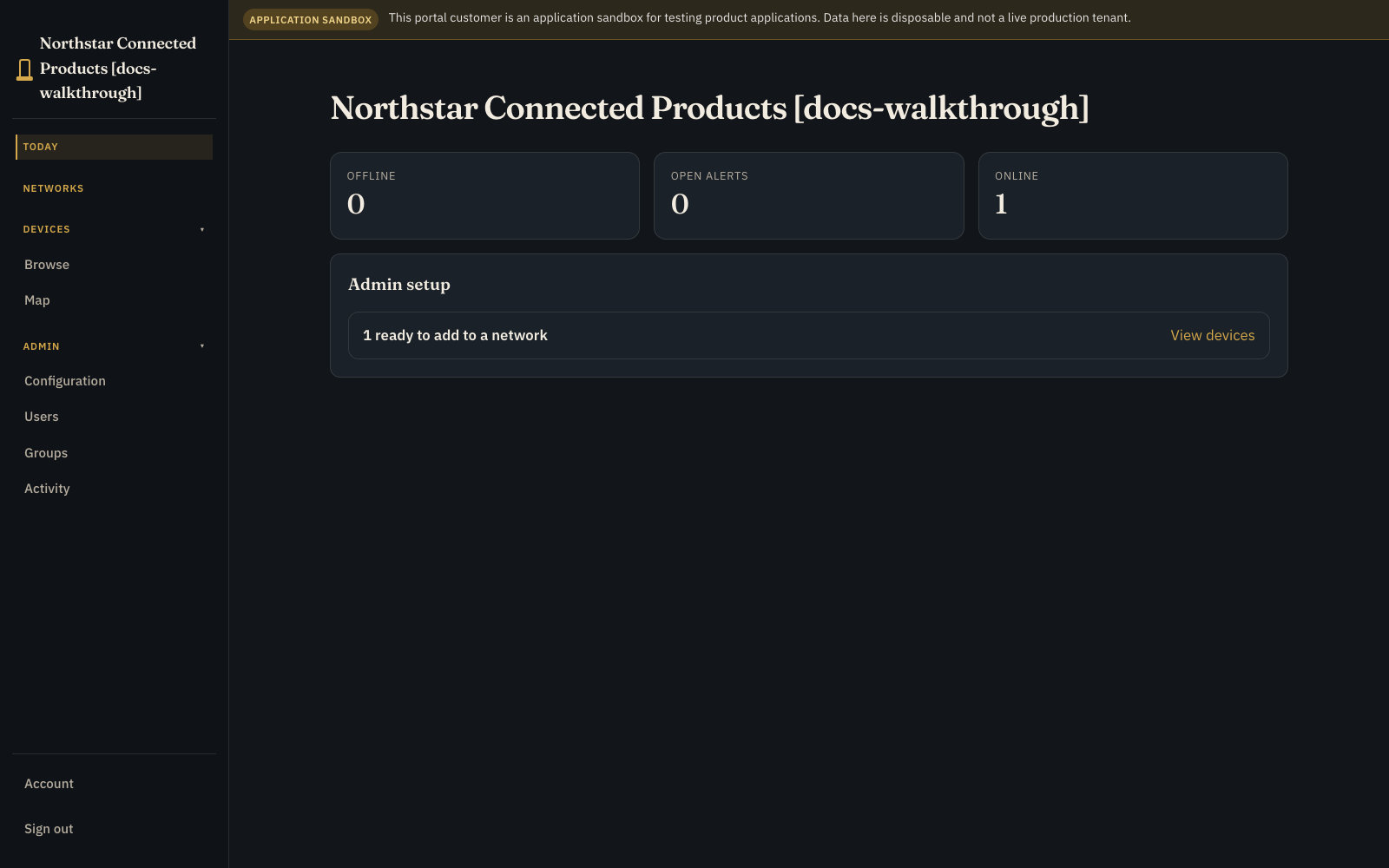
Use the customer portal to see what needs attention now, work across the equipment at a building, yard, venue, or site, and inspect or control one device. Native applications put site-wide work on the network and device-specific work on Controls, with Status and Diagnostics beside it when you need connection context.
Find the right place #
Use the main navigation in this order:
- Today for work that needs attention now.
- Networks for a building, yard, venue, plant, or other operating place.
- Devices for inventory, placement, and one physical unit.
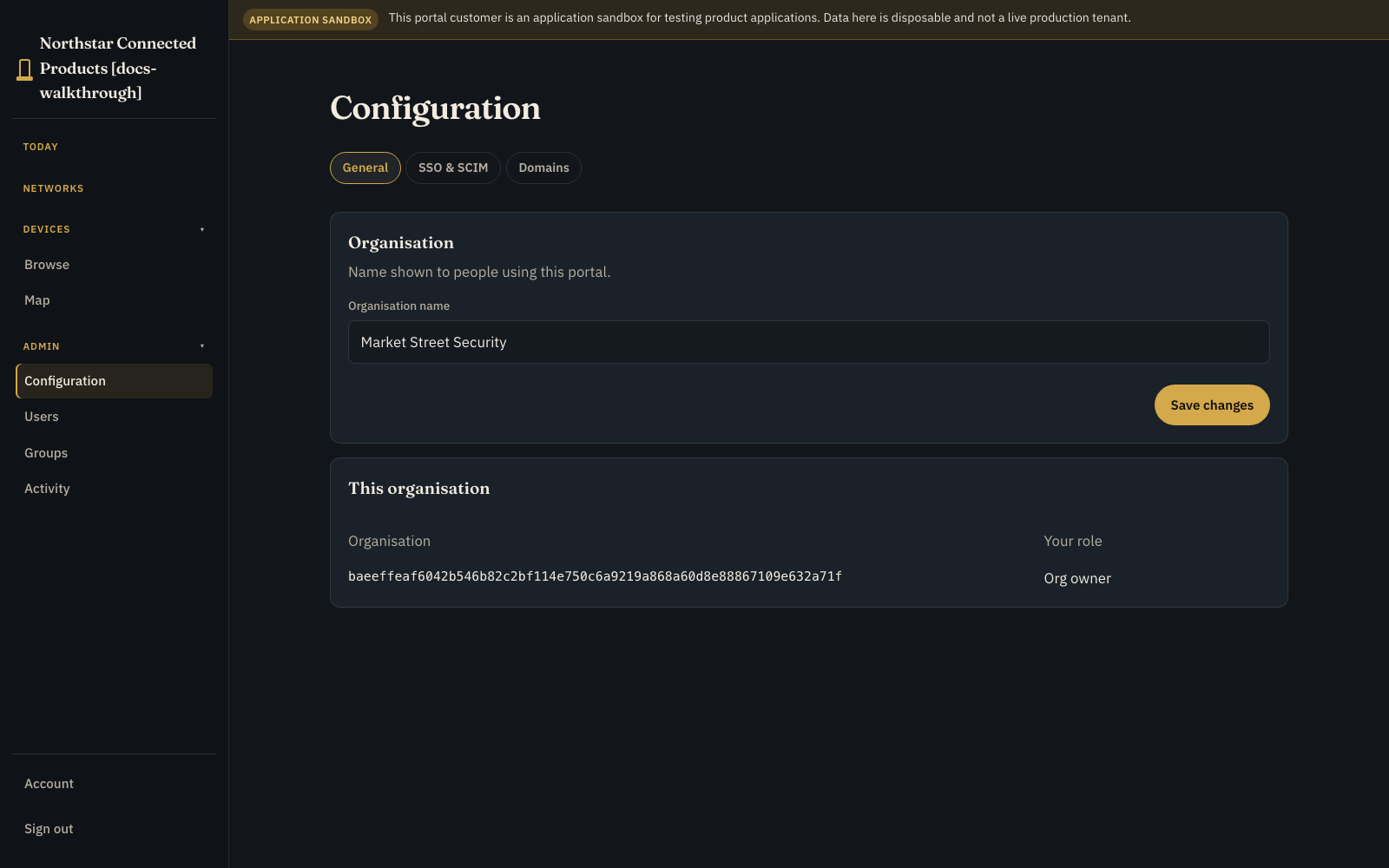
- Admin for role-gated organisation configuration, users, groups, and other customer administration.
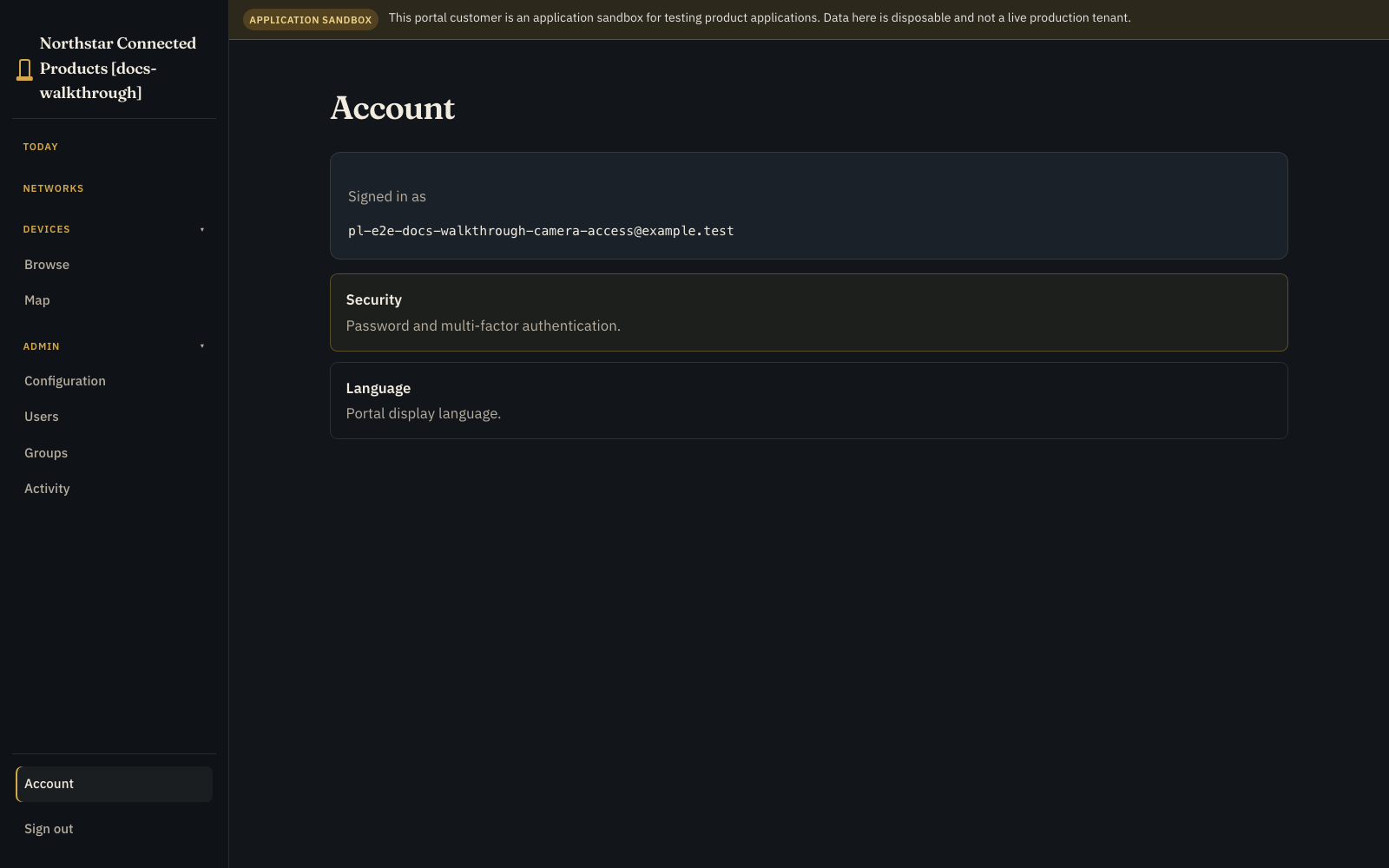
Open Account from the user menu for your own identity and security. It is available from every page.
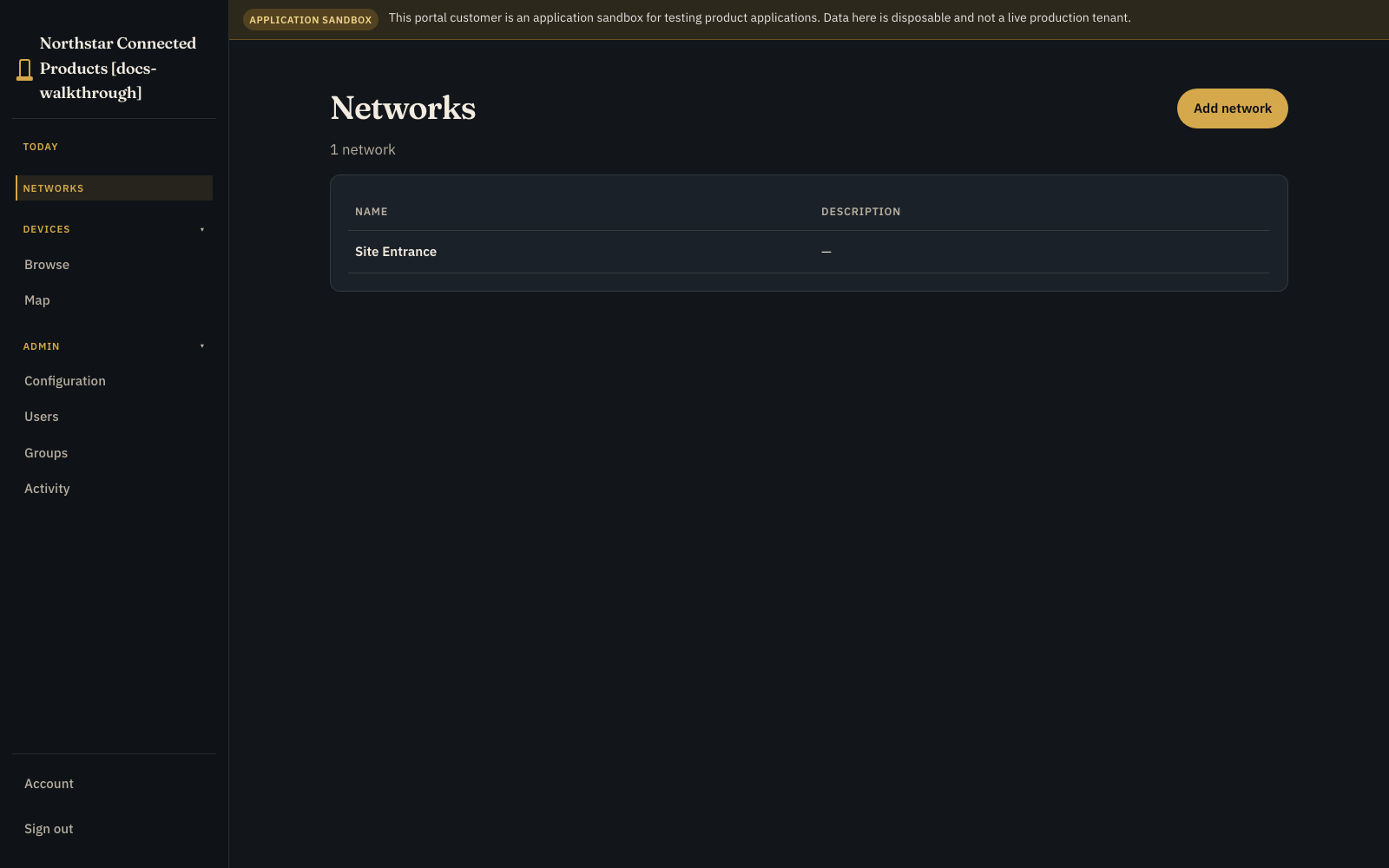
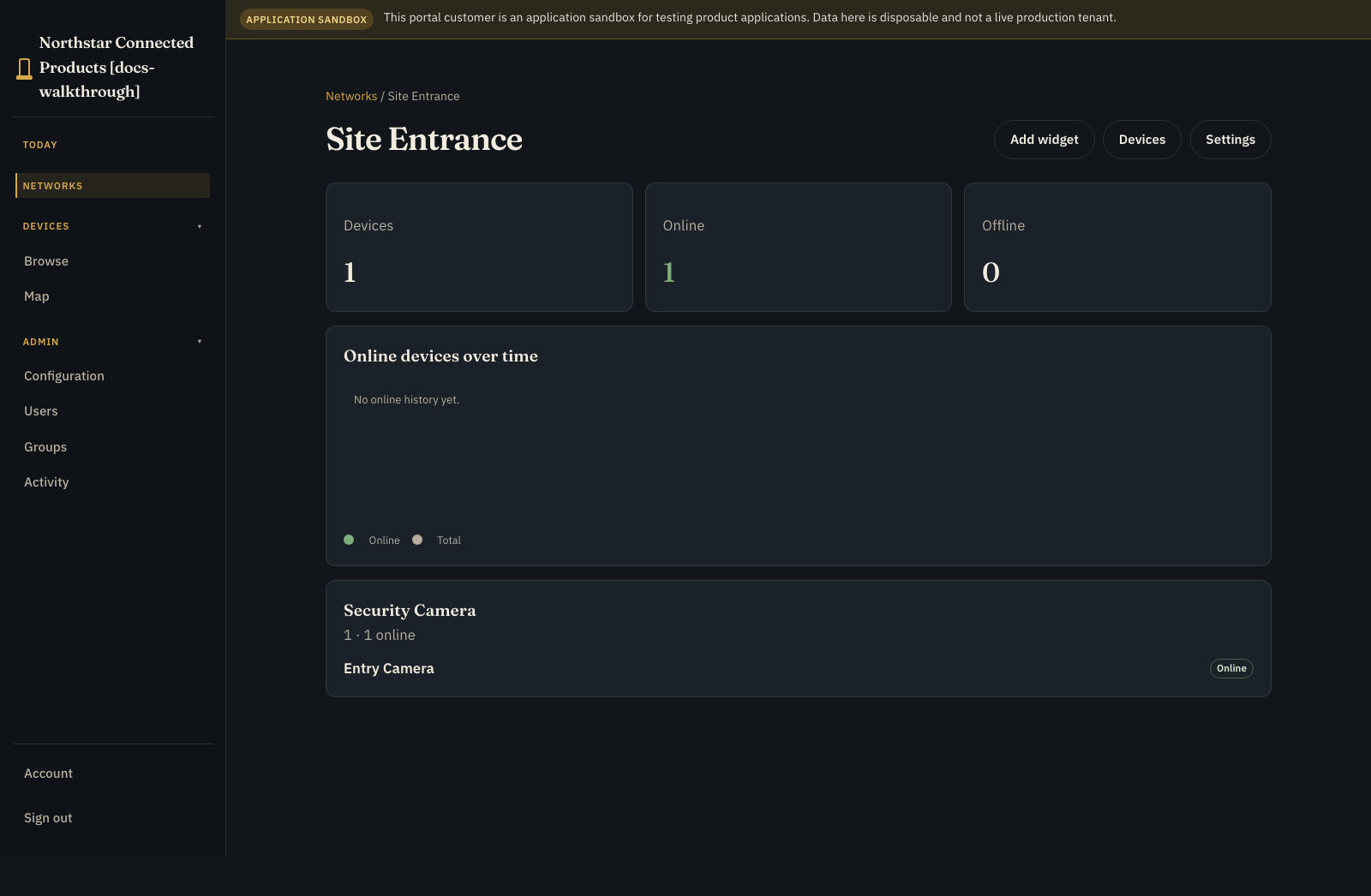
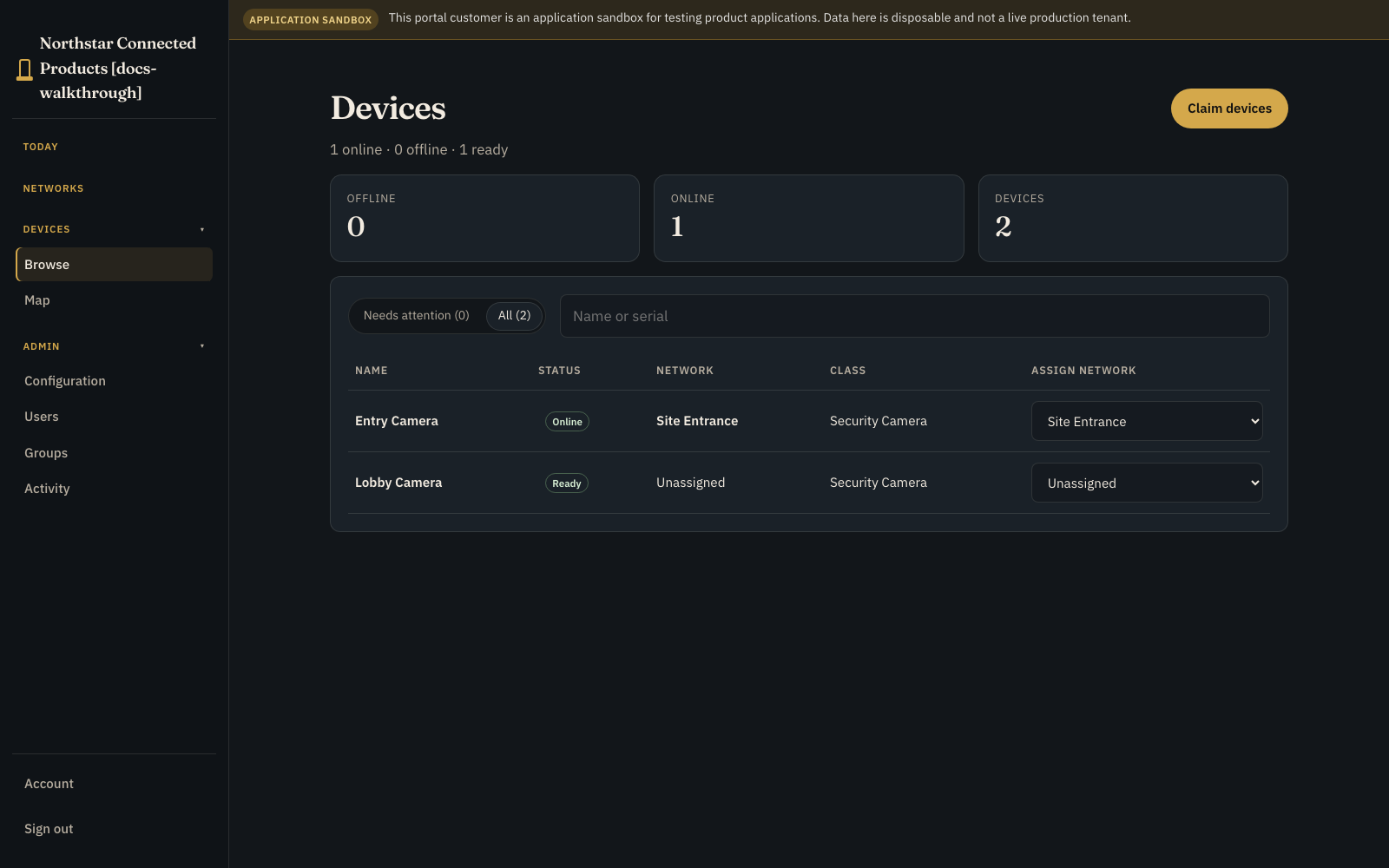
Understand Ready and Enabled #
An online device that is not yet assigned to a network is Ready. It is in inventory and waiting to be placed. An Enabled device belongs to a network and can take part in native application work at that place. A device that is offline and unassigned is Dormant.
The plan allowance stored by the service is separate from these operator states. Assign a Ready device to the correct network before expecting it in an application workplace.
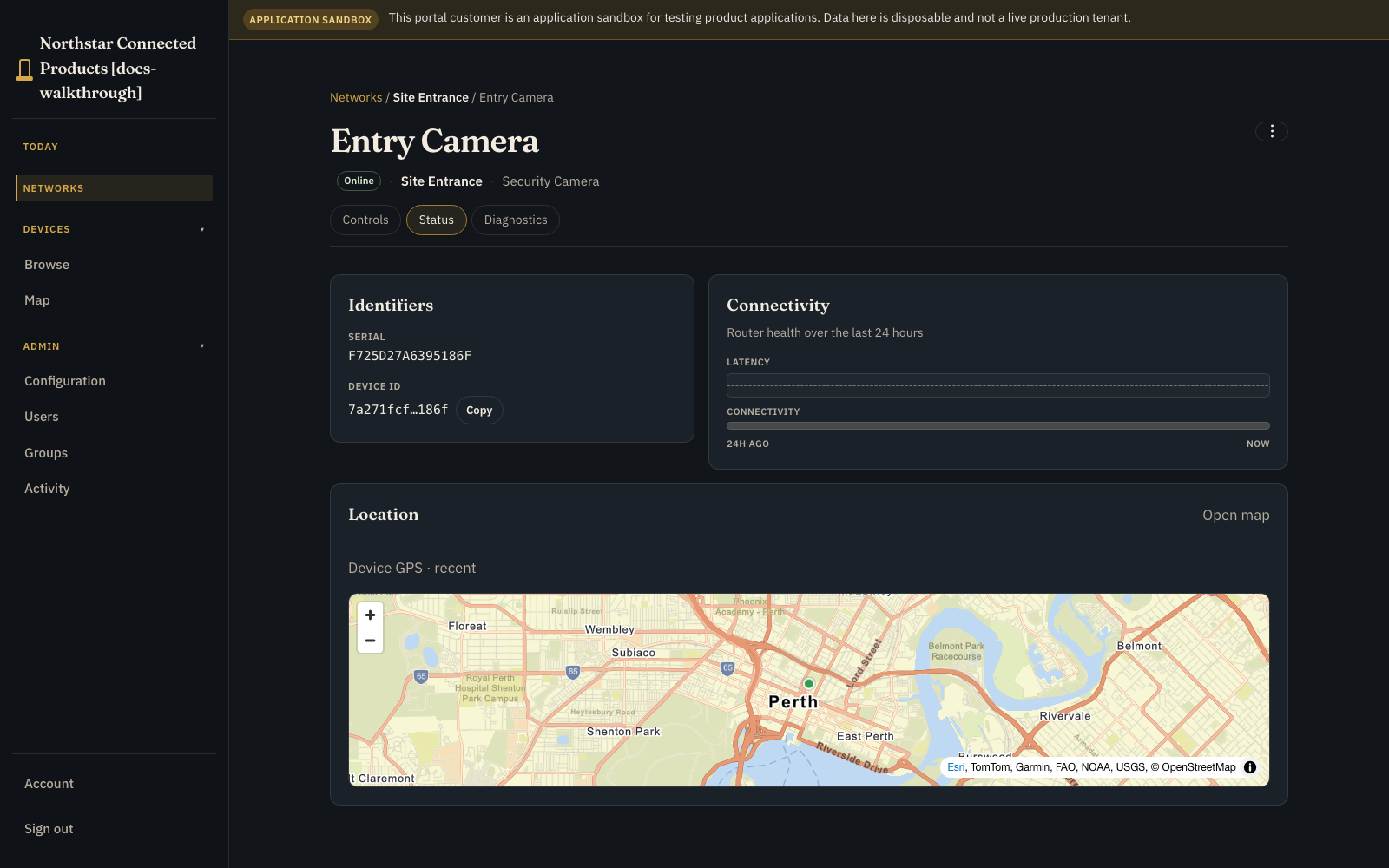
Use the device tabs #
An enabled device can show three tabs:
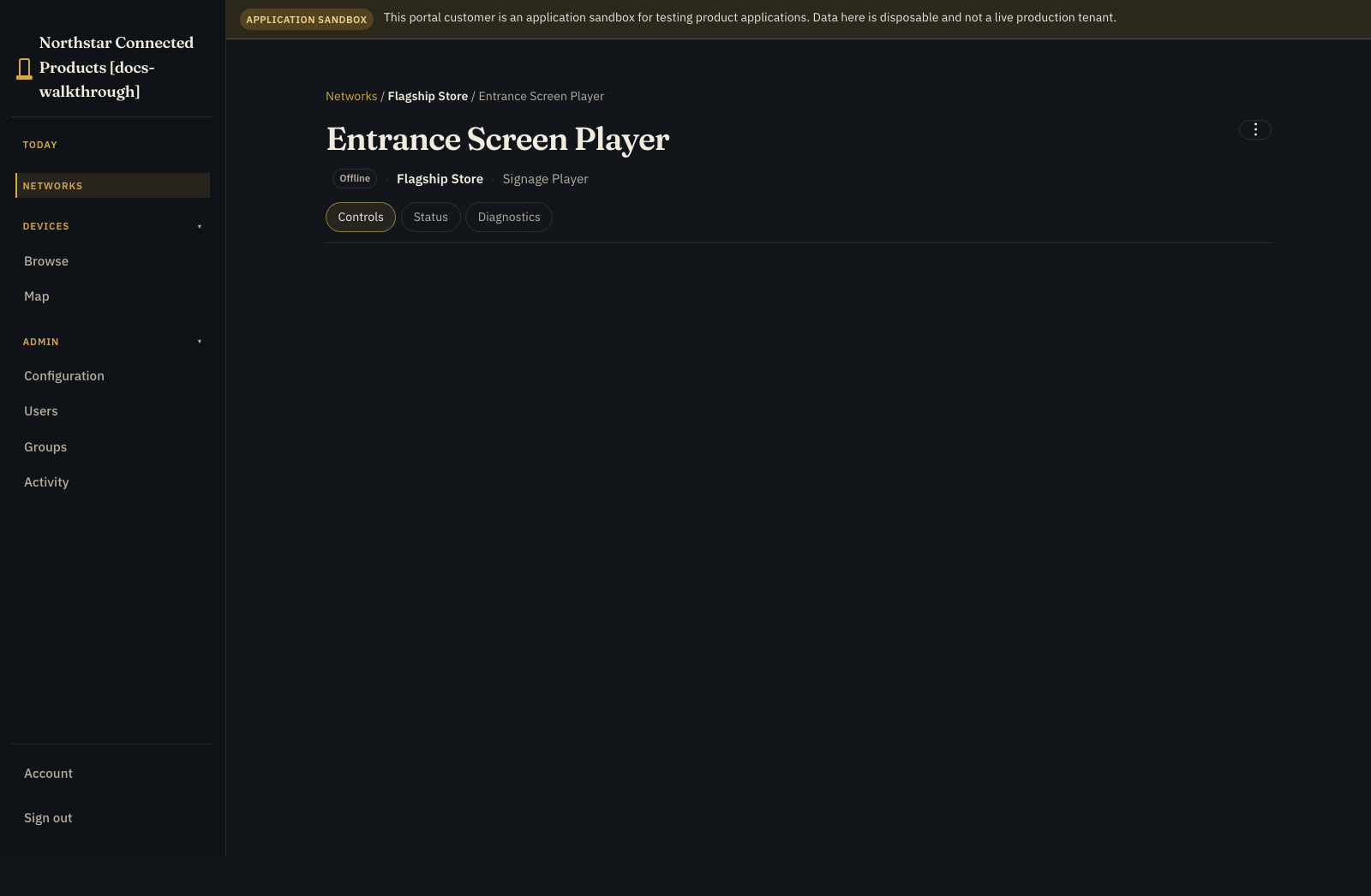
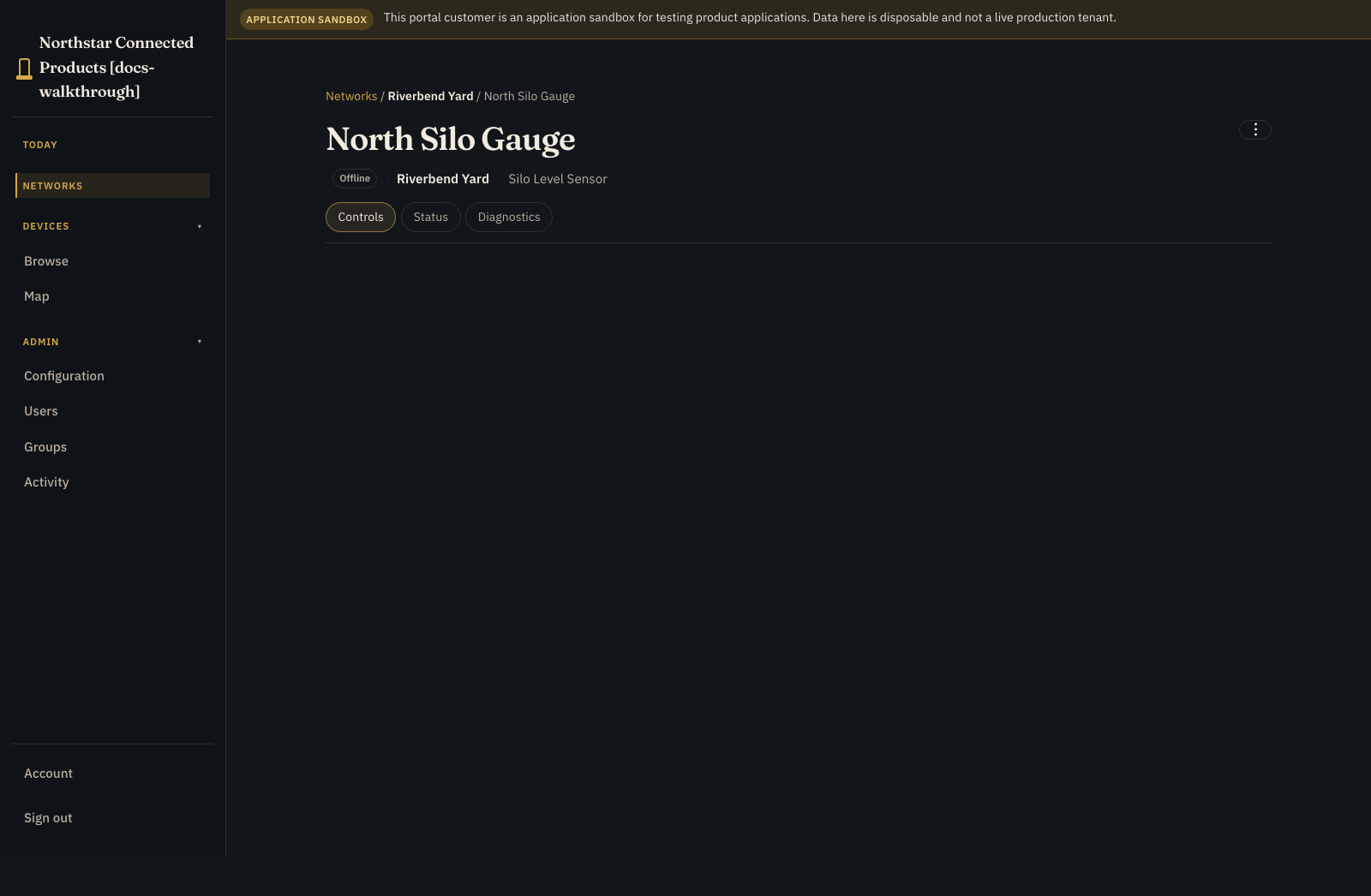
- Controls contains the vendor-designed Device Class UI and any native application layer for this device.
- Status contains identity, location, presence, and connection quality.
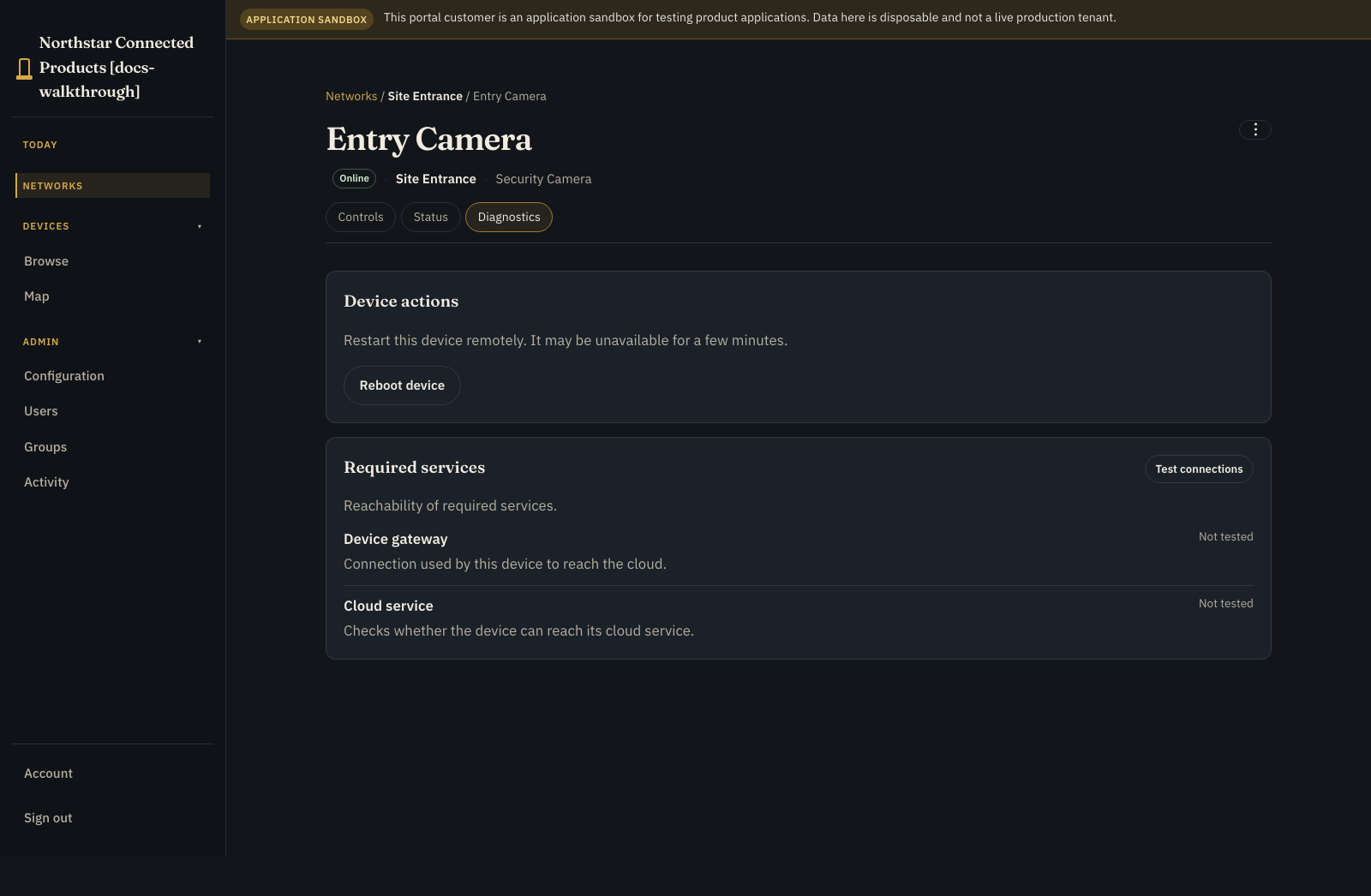
- Diagnostics contains connection tests and permitted recovery actions.
Choose the device or network surface #
| Native application | Product workplace (composition) | On device Controls |
|---|---|---|
| Industrial gateway | Plant attention for this site | Gateway status, I/O mapping, and traffic analysis |
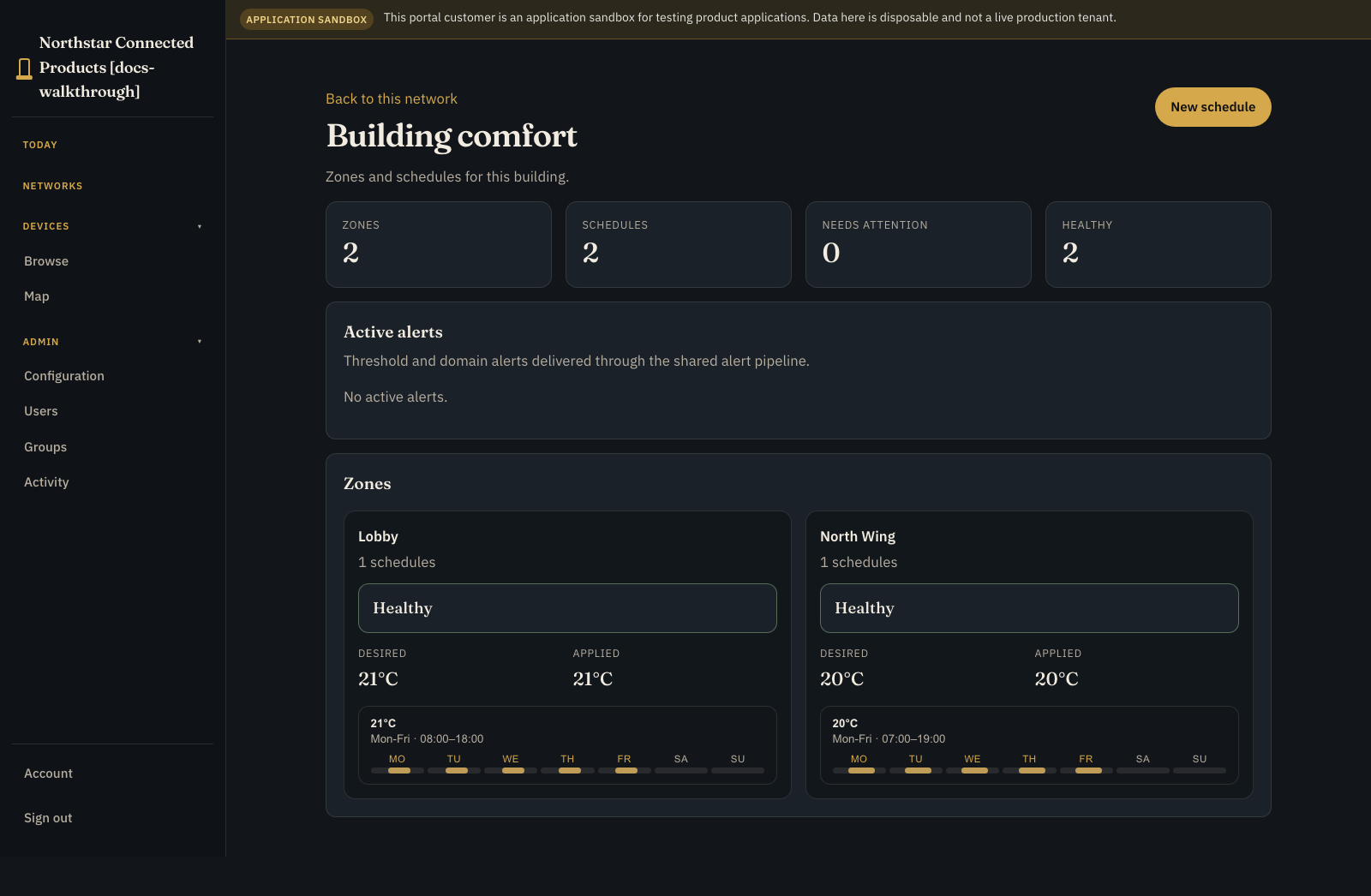
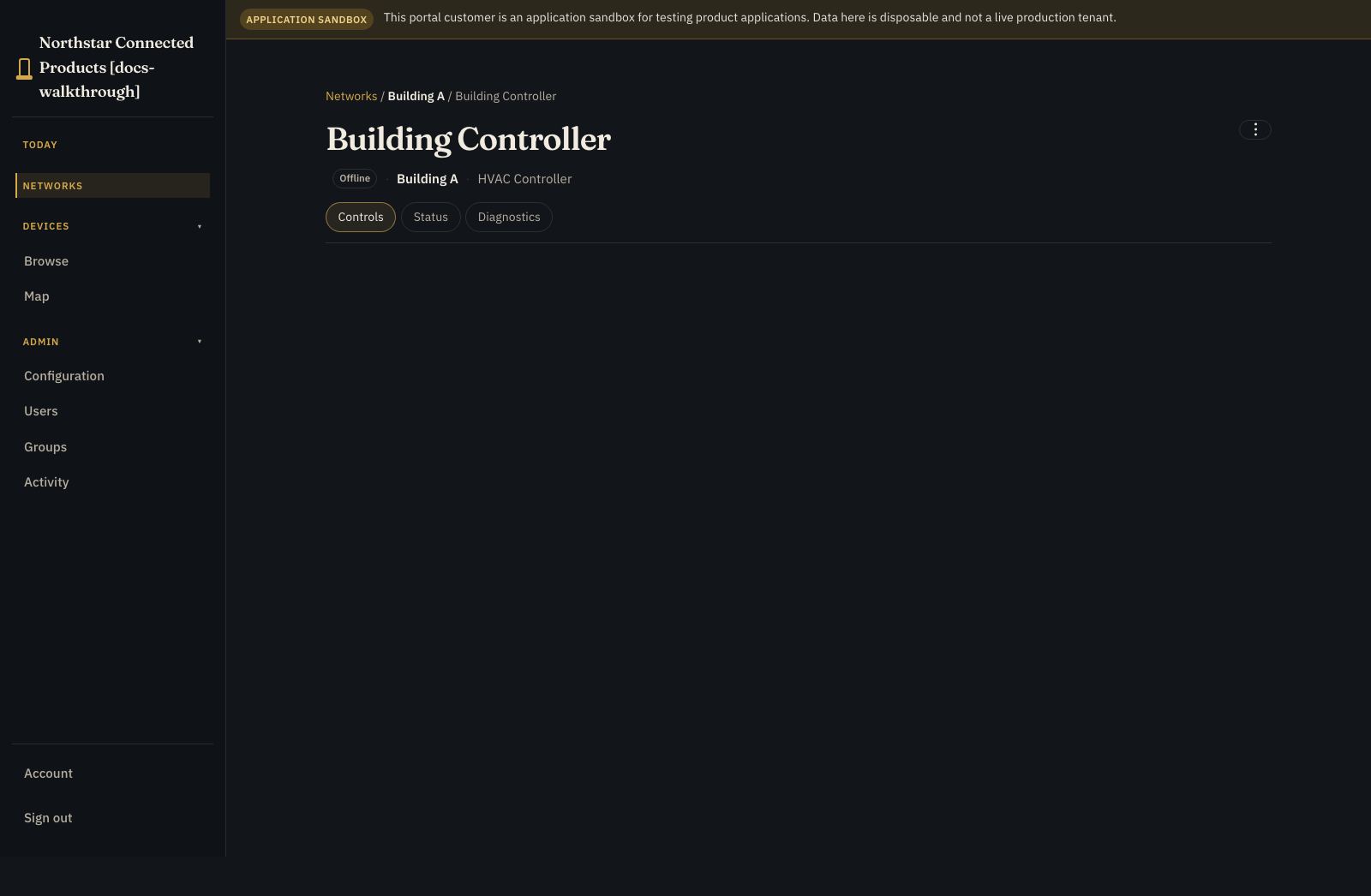
| HVAC schedules | Building zones and schedules (timeline when published) | This controller and its local context |
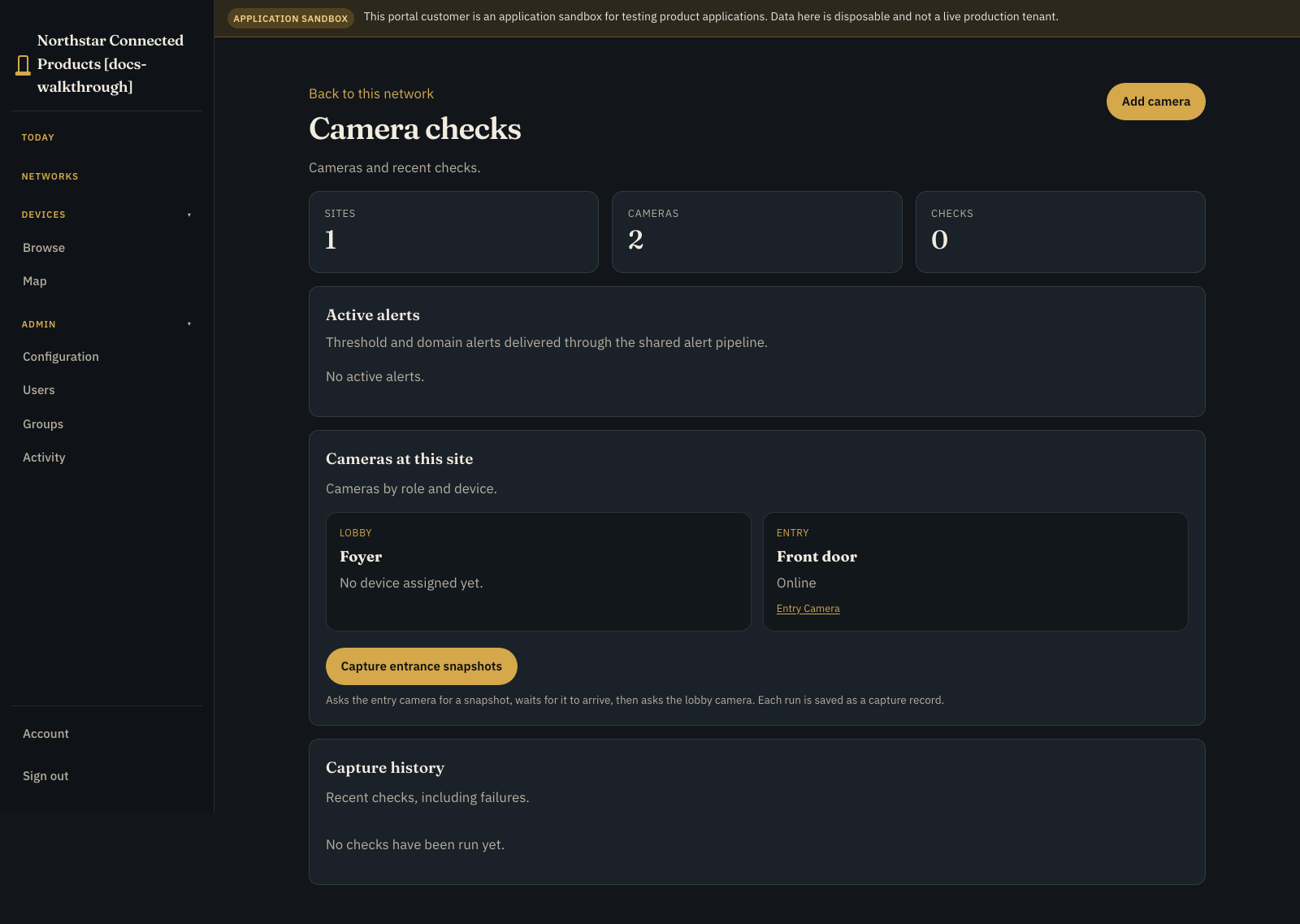
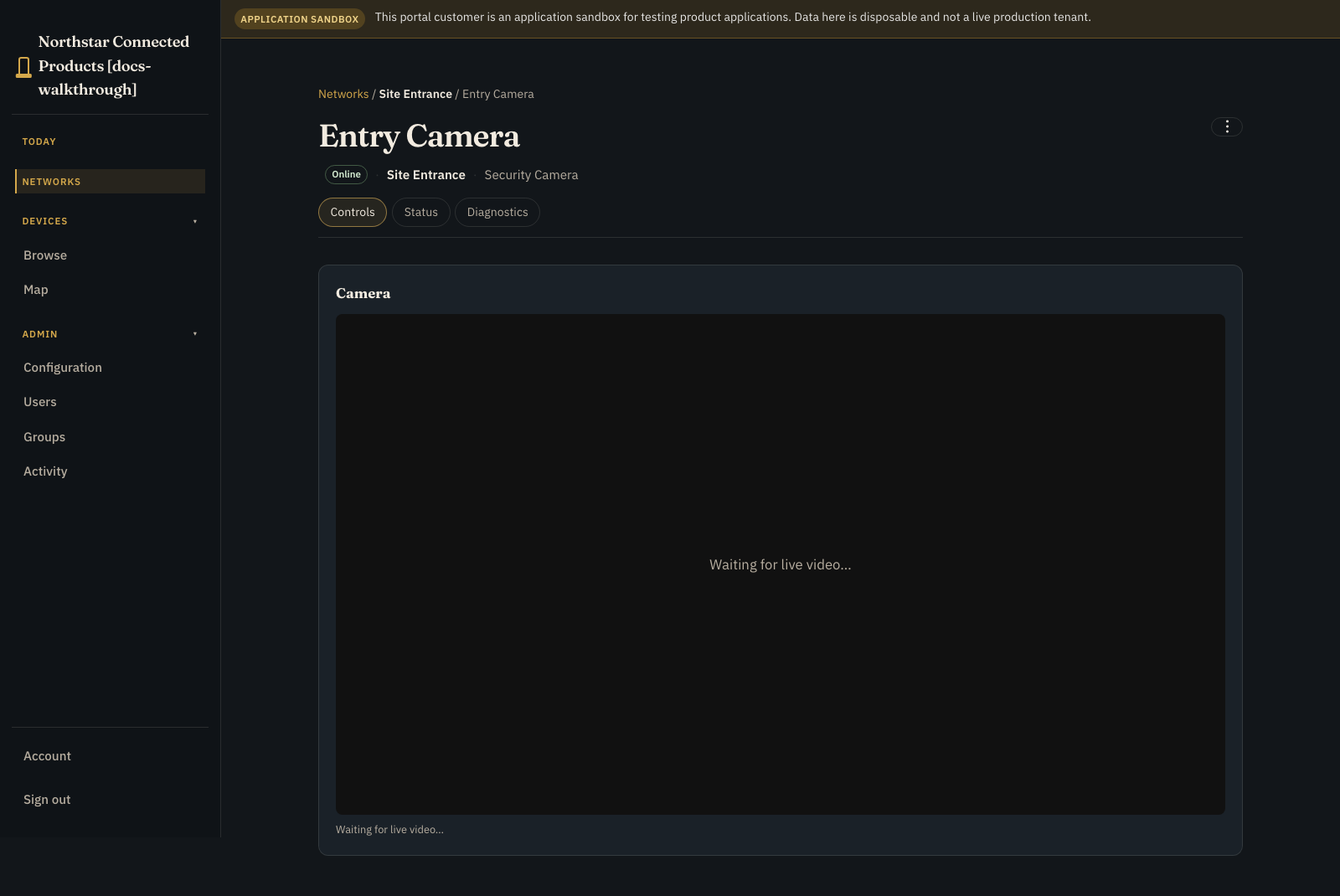
| Camera access | Site cameras and checks | This camera and its vendor controls |
| Remote signage | Venue screens and content health (timeline when published) | This screen and its player state |
| Energy site | Capacity page for circuits, boards, generator, and solar facets | This meter, generator, or solar controller |
| Paid Wi-Fi | Venue vouchers and sessions (ledger when published) | This access point |
| Grain outload | Board (and ledger) for load tickets with transaction facets | This bay or gateway class UI |
| Silo monitoring | Capacity page: current fill, volume history, optional camera | This silo sensor and its level |
Industrial gateway #
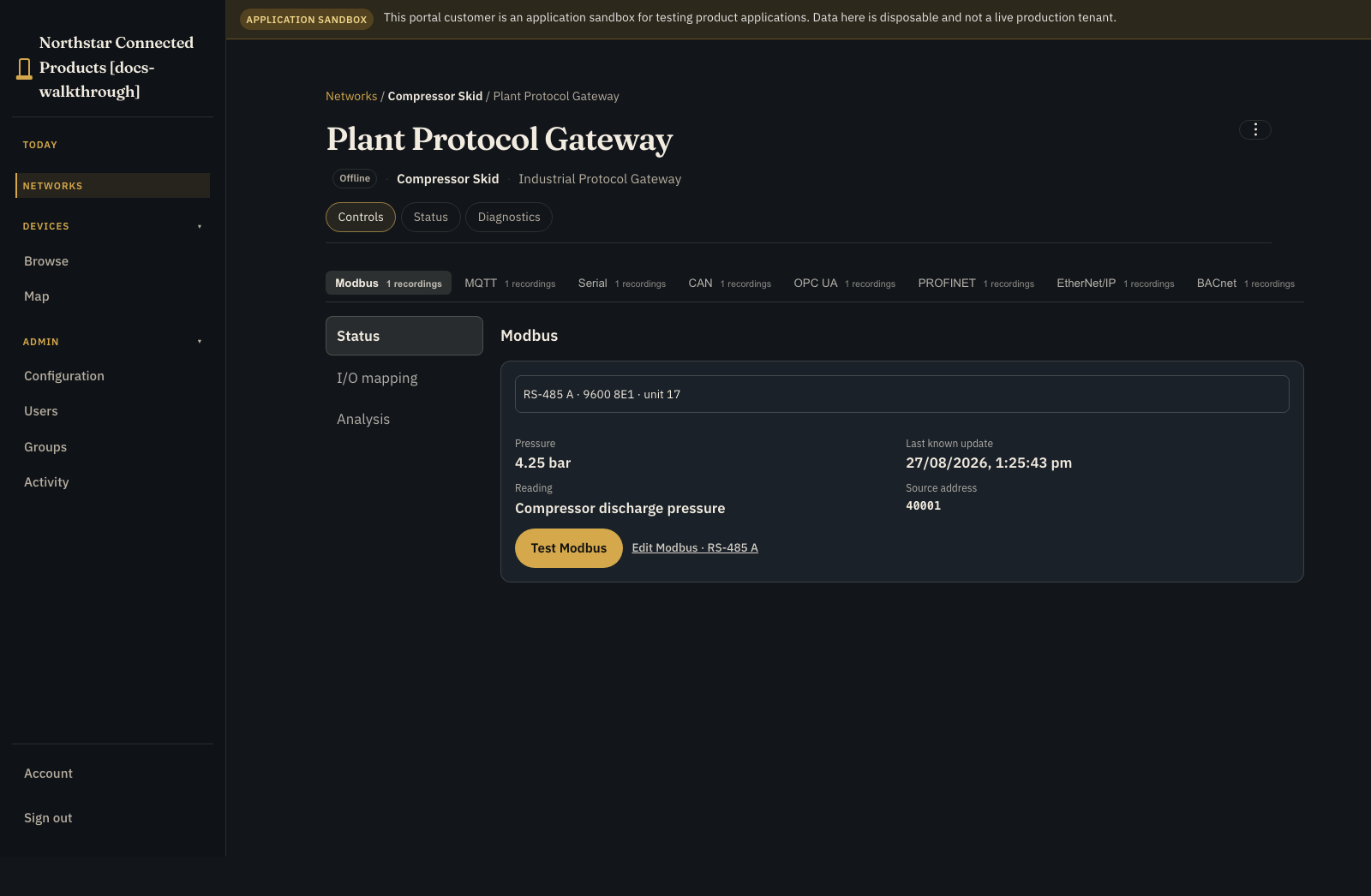
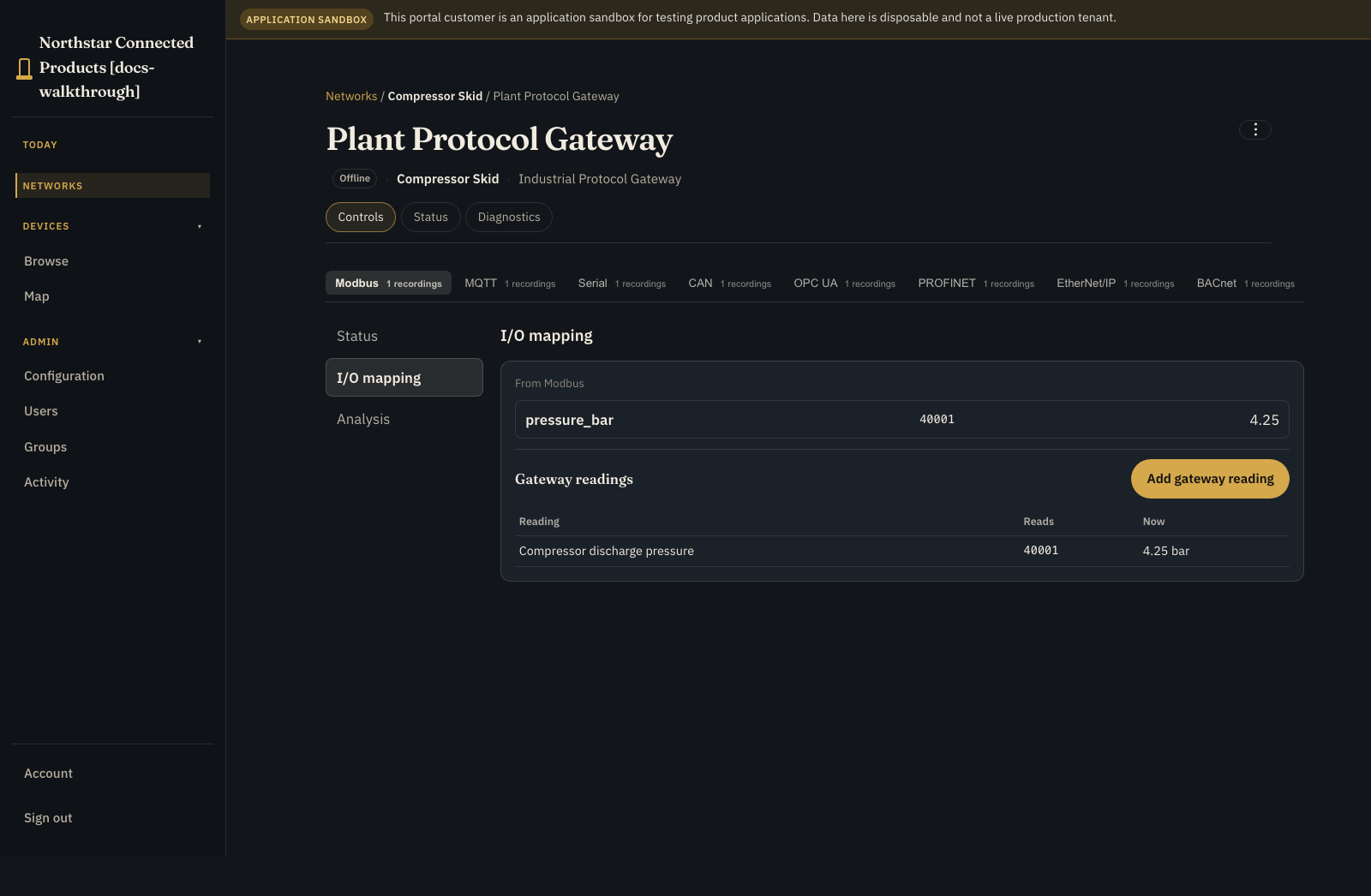
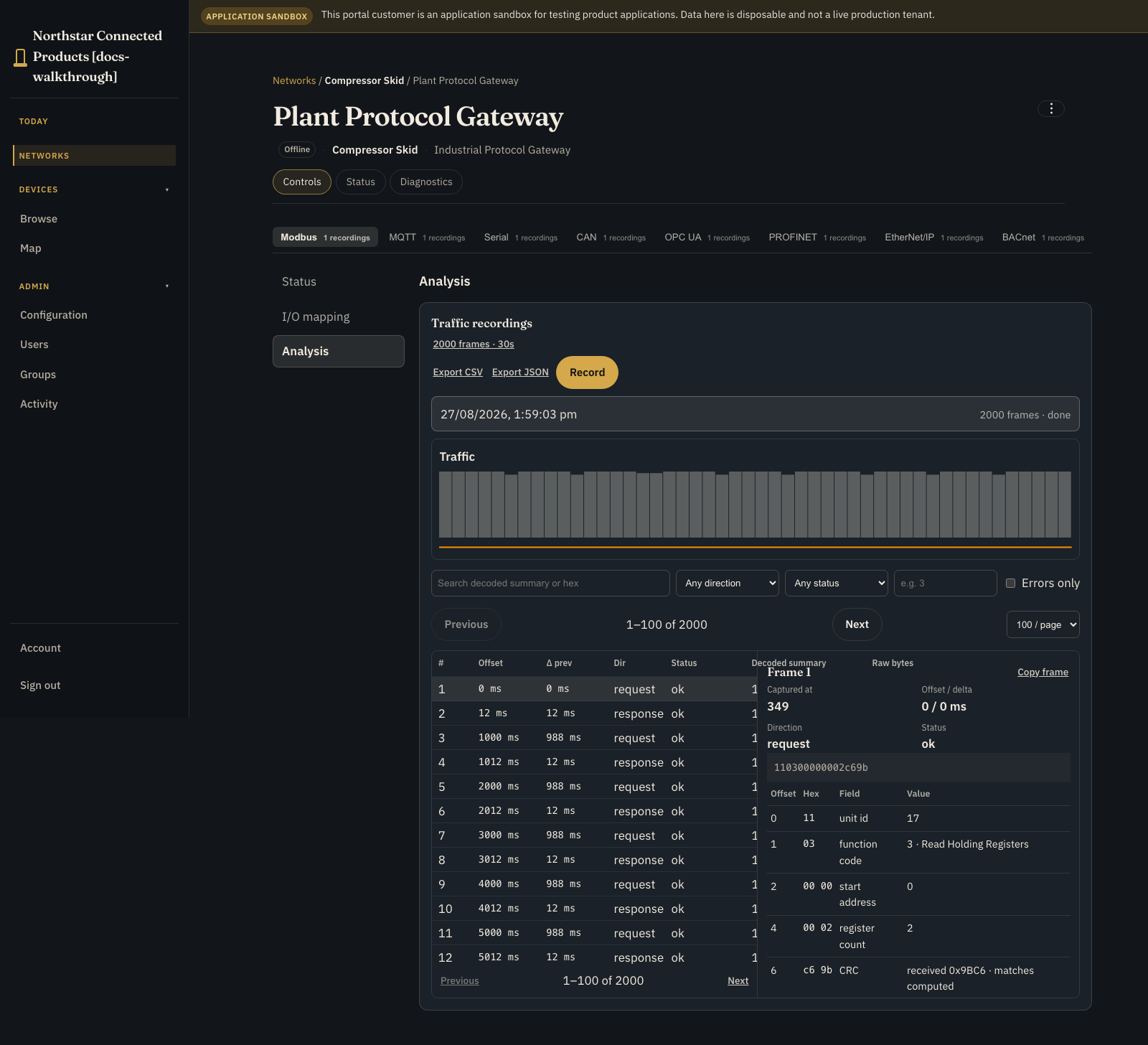
Open the enabled gateway and stay on Controls. The workbench sections are Status, I/O mapping, and Analysis.
HVAC schedules #
Open the building from Networks for all zones and schedules. Open one controller for that device's state and controls.
Camera access #
Use the network workplace for site cameras and checks. Use device Controls for the live or recorded experience supplied by that camera's Device Class.
Remote signage #
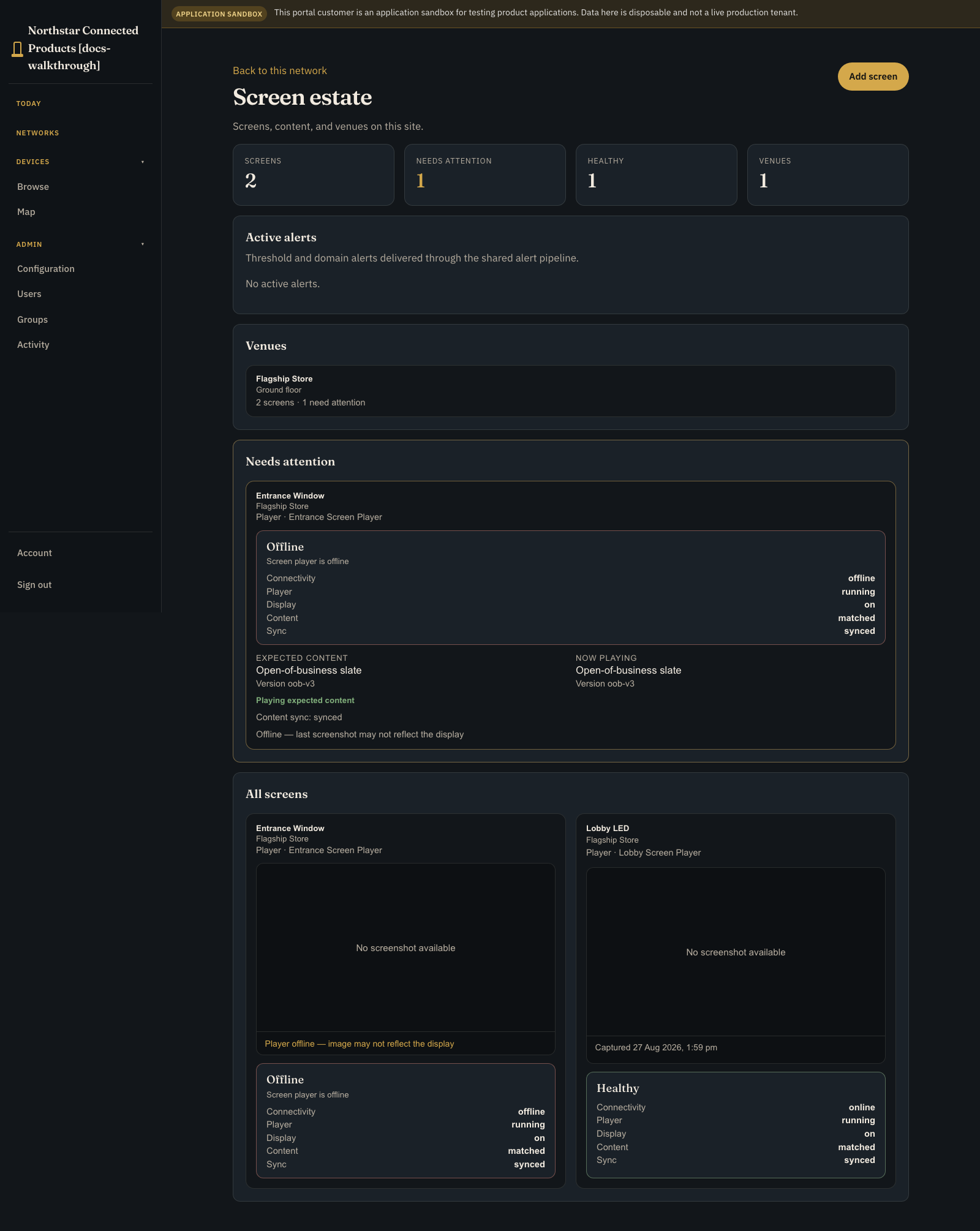
Open the venue for all screens, expected content, player state, and exceptions. Open a screen device for that player's controls.
Energy site #
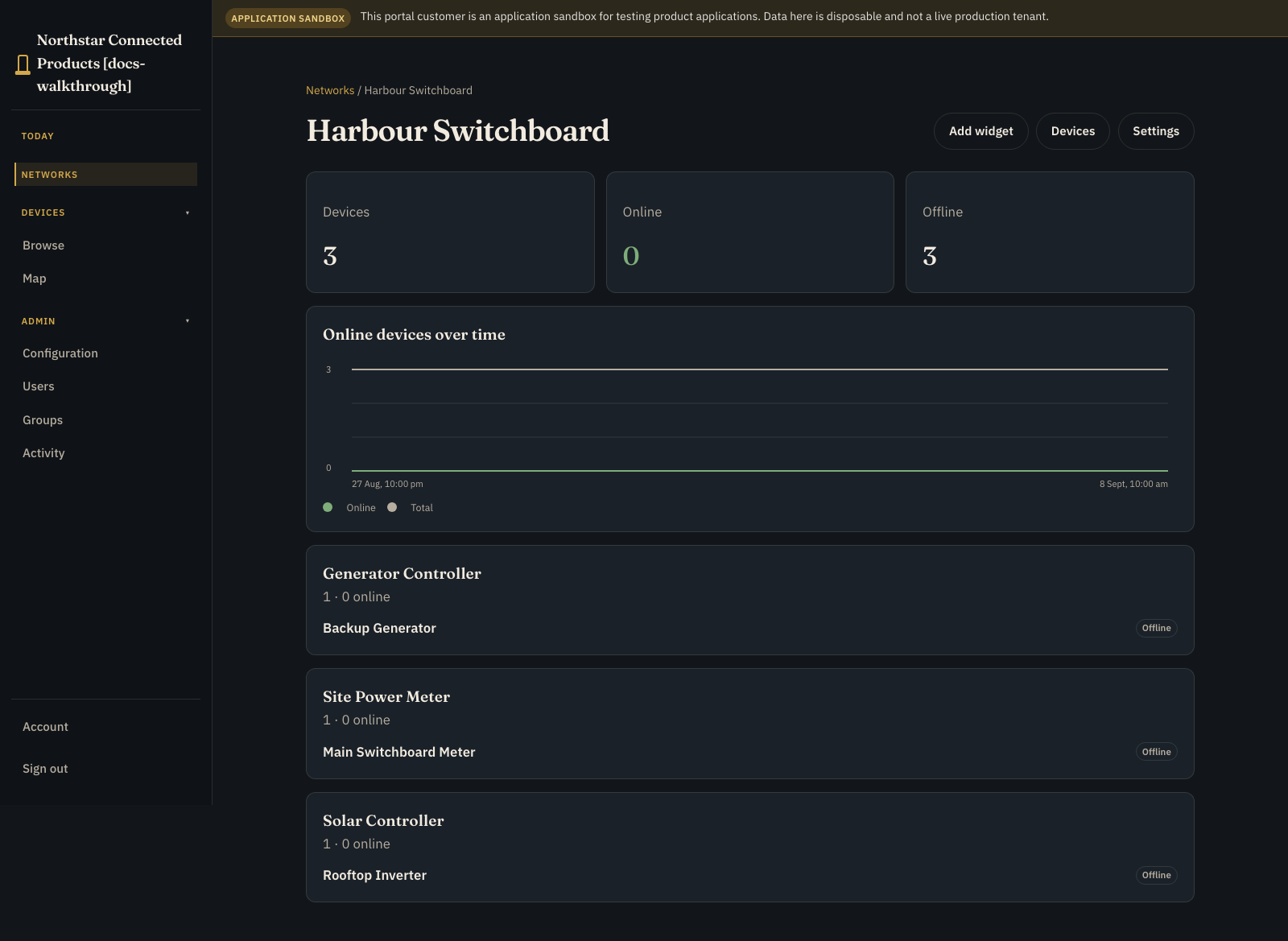
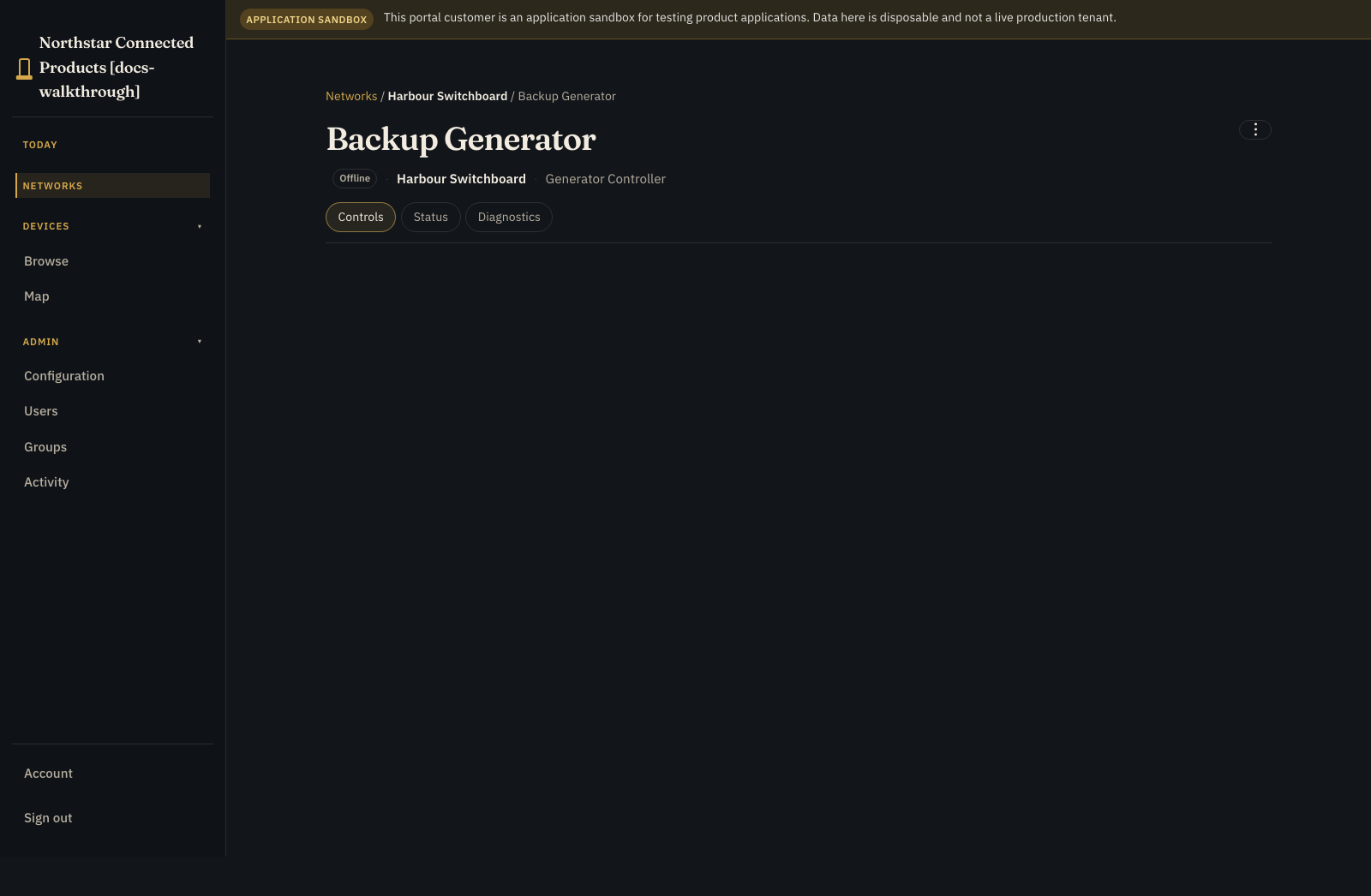
Use the site's capacity composition workplace for circuits and optional generator and solar facets. Open one device for the meter or controller that reports those values. The network place page remains inventory and placement.
Paid Wi-Fi #
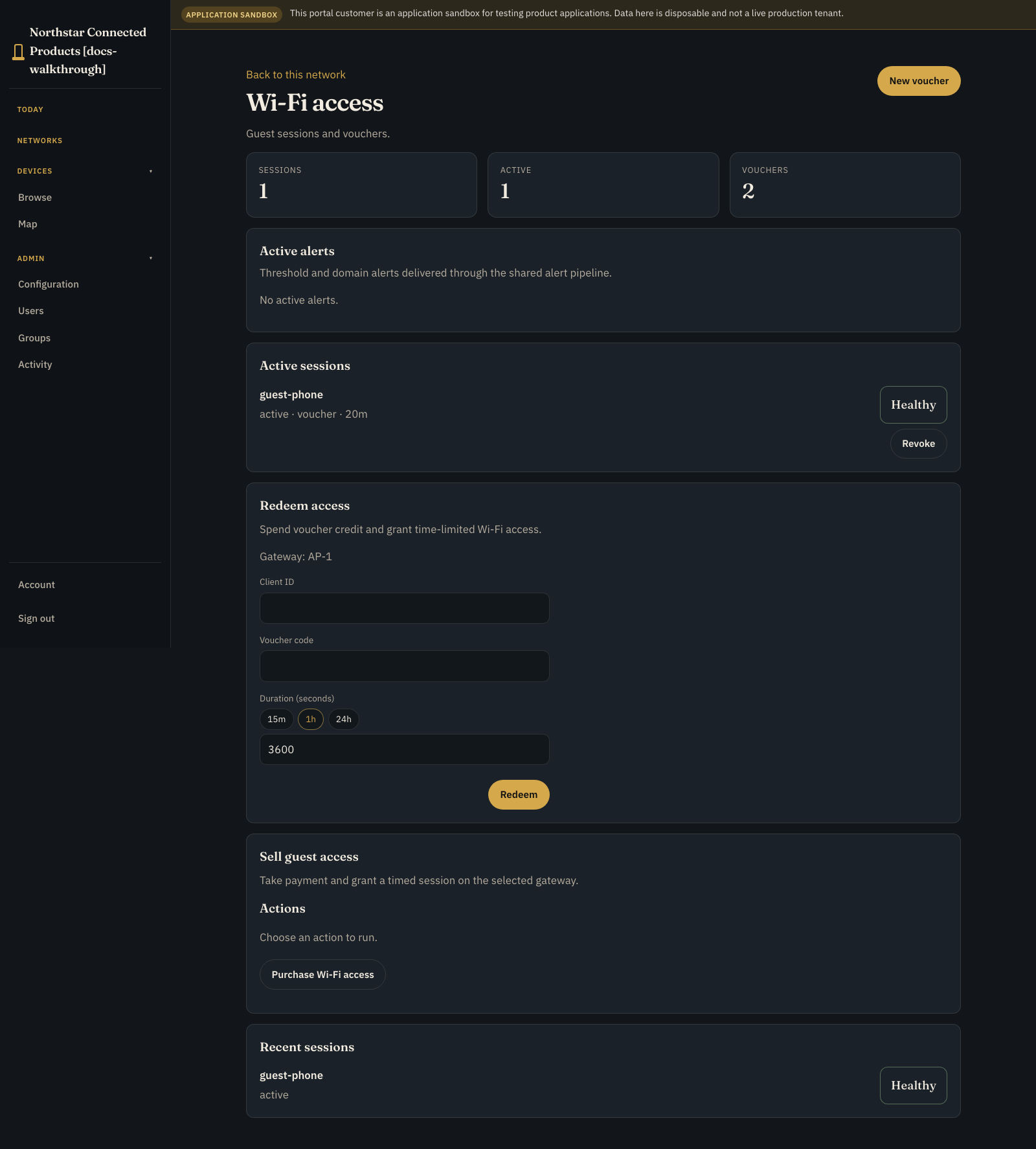
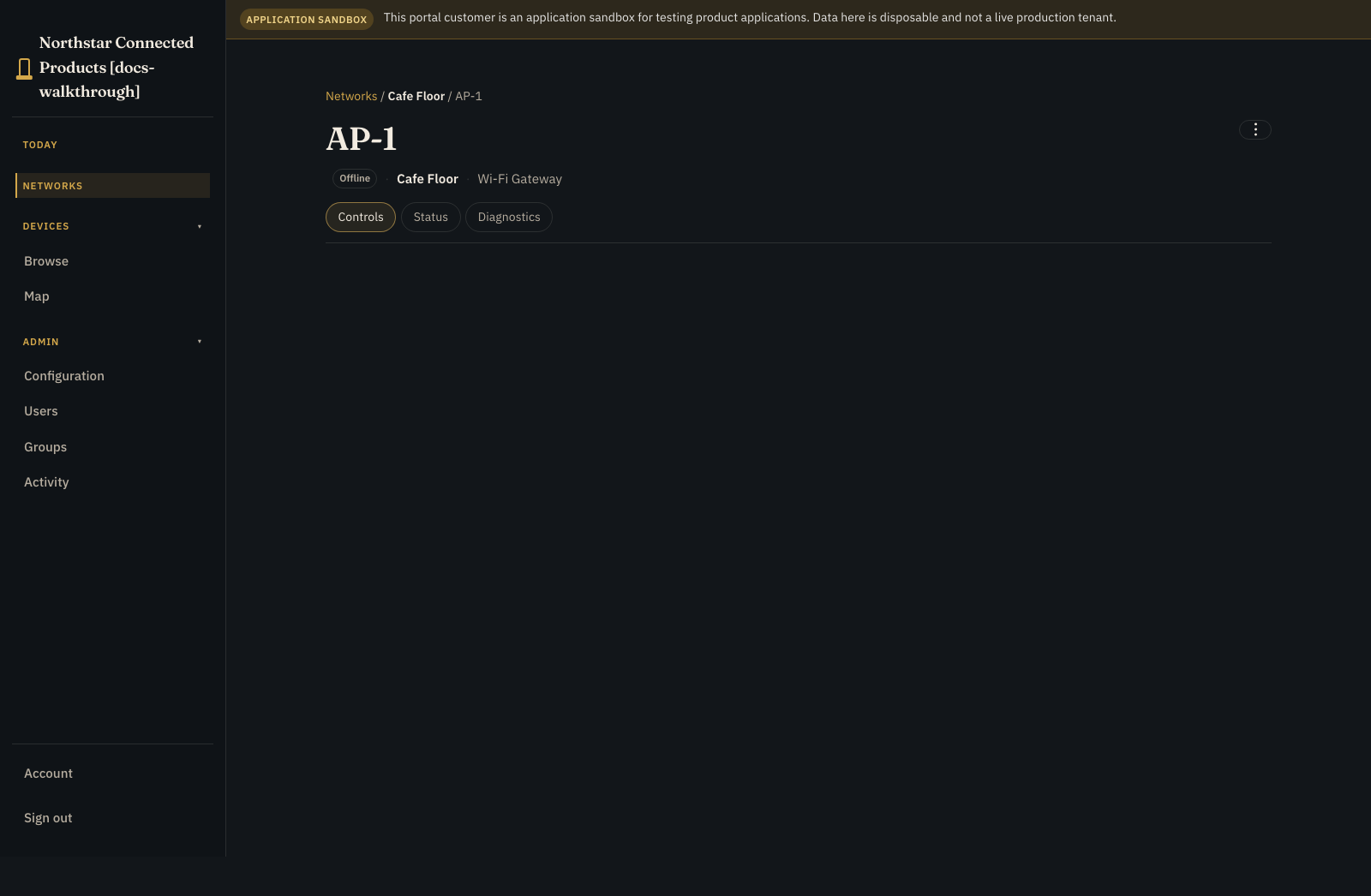
Use the venue workplace for vouchers and access sessions. Use device Controls for this access point and its vendor-supplied controls.
Grain outload #
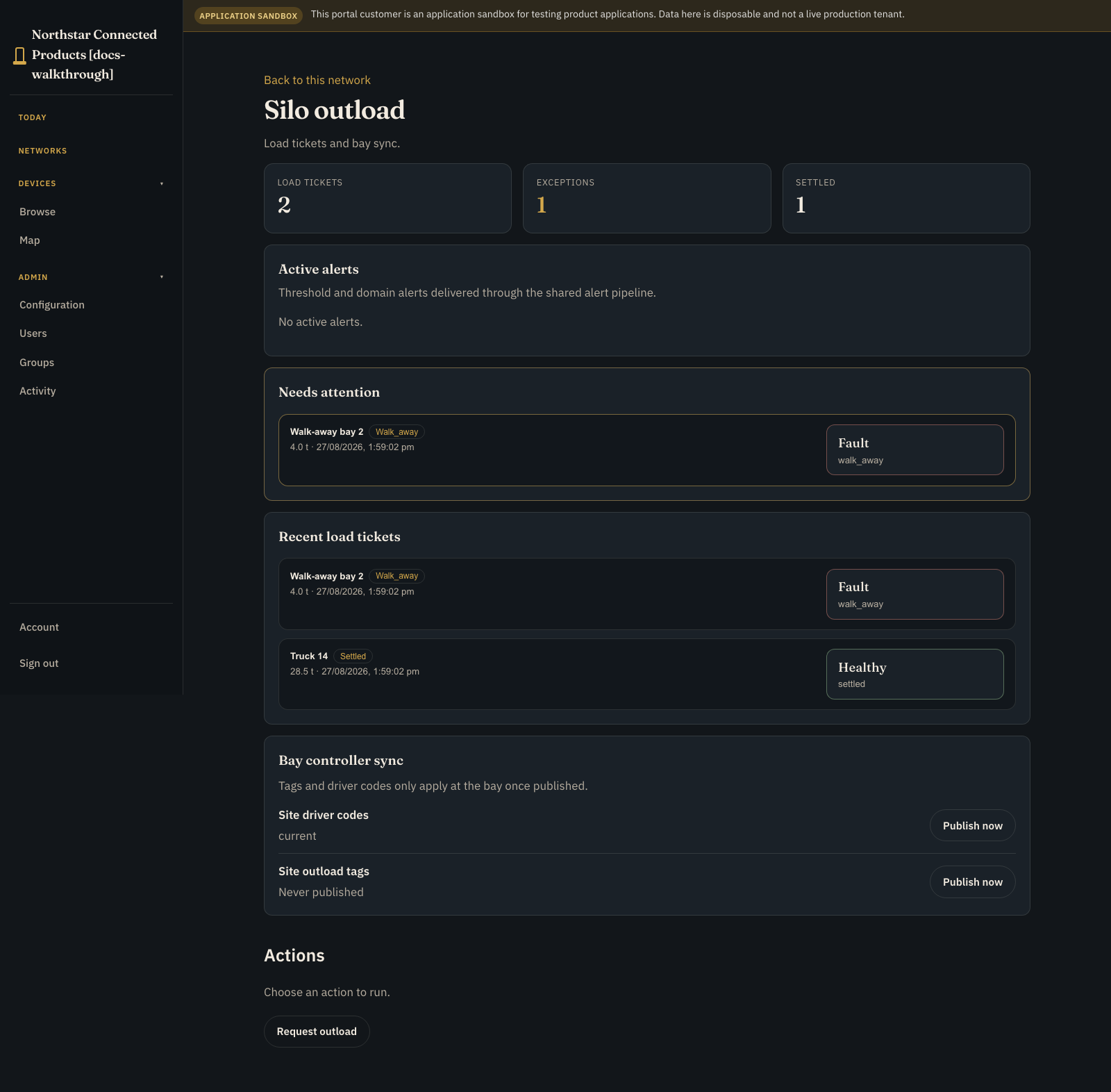
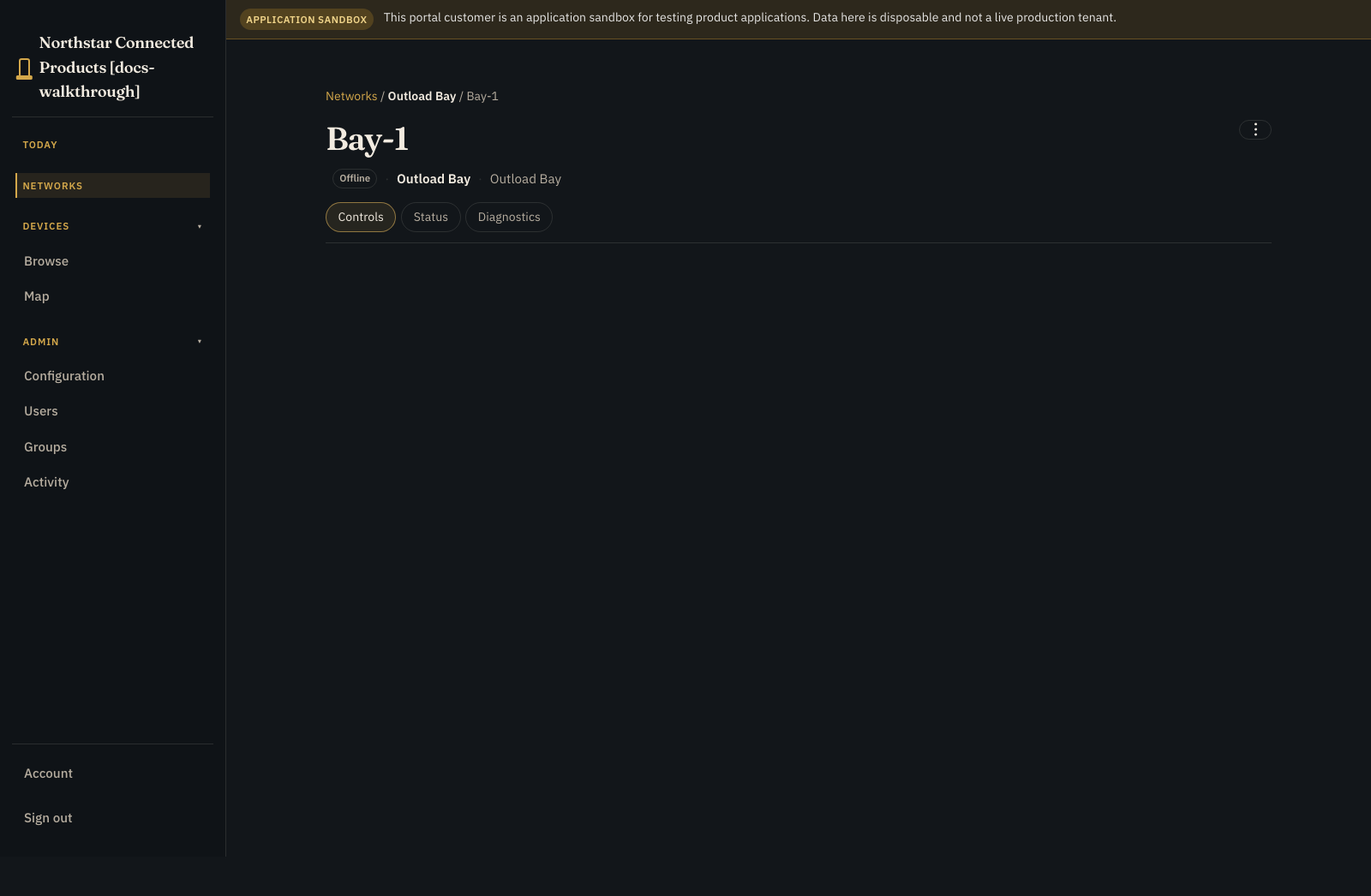
Use the yard board composition workplace for load tickets and exceptions (with a ledger tab for settled history). The bay and site gateway keep their vendor Device Class UI on Controls.
Silo monitoring #
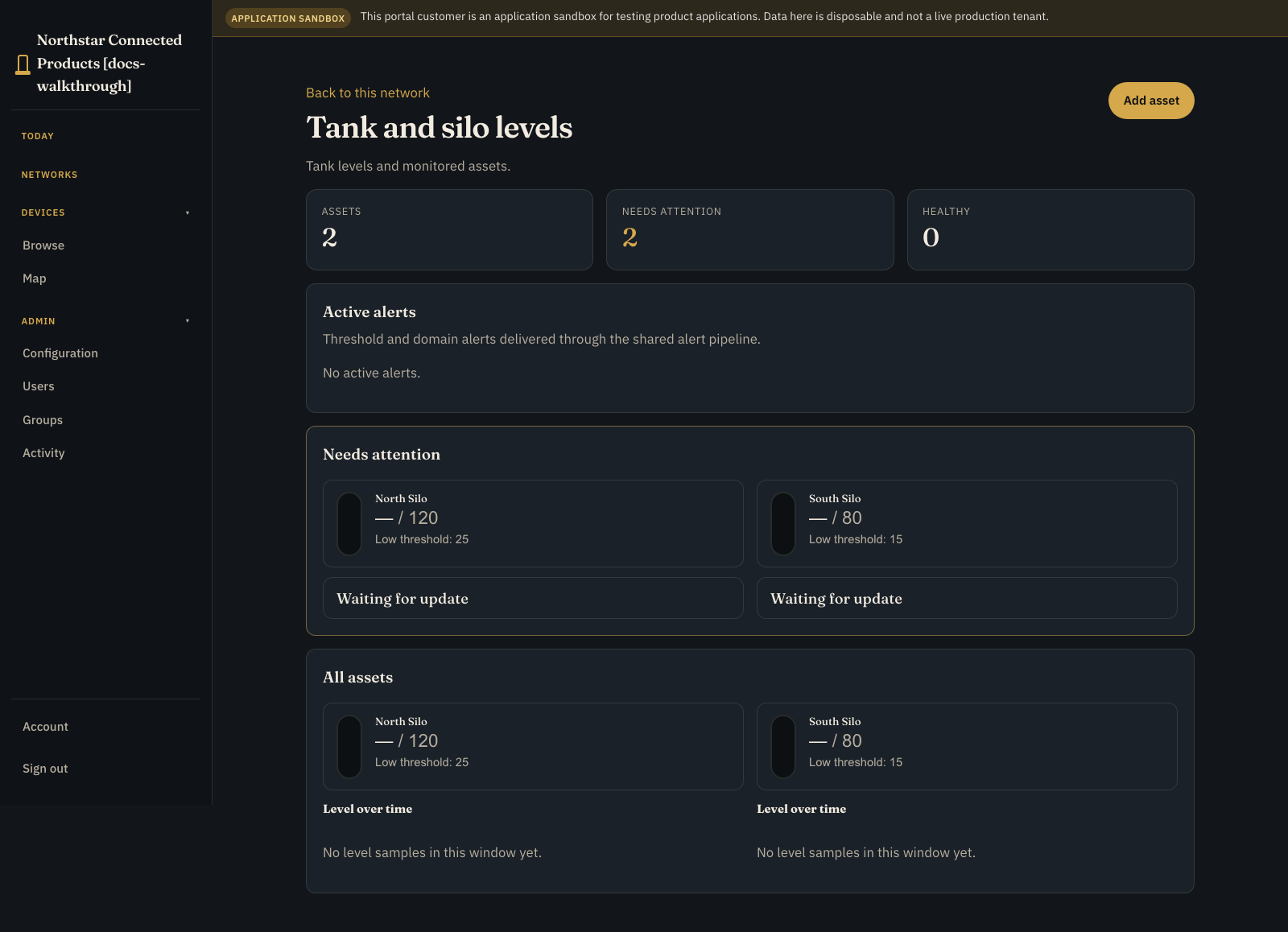
Use the yard capacity composition workplace to compare silos with current fill, volume history, and optional camera facets. Open a sensor device to inspect the level and controls for this silo.
Manage your account #
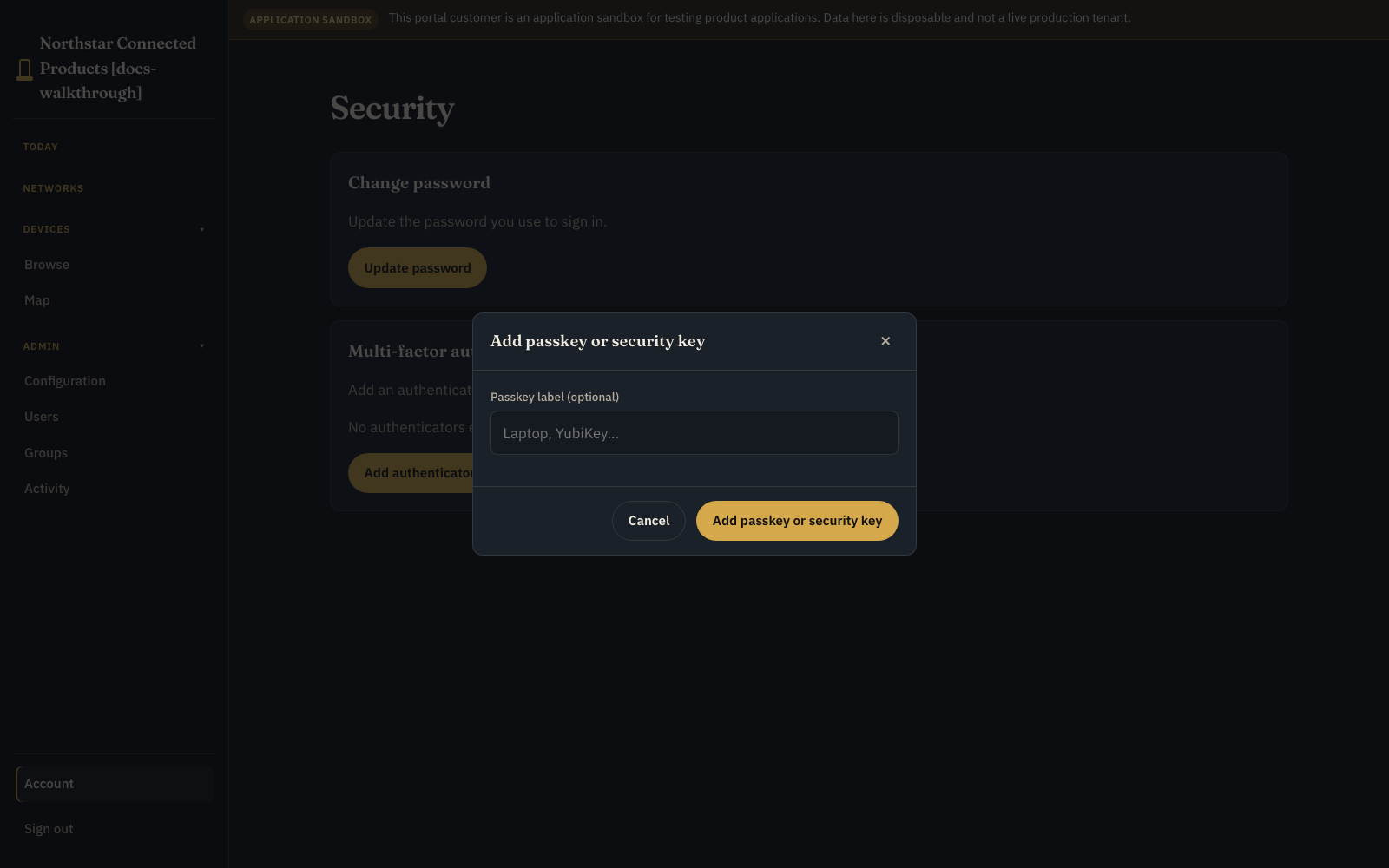
Open Account to see Signed in as and your identity, then open Security for password and multi-factor authentication.
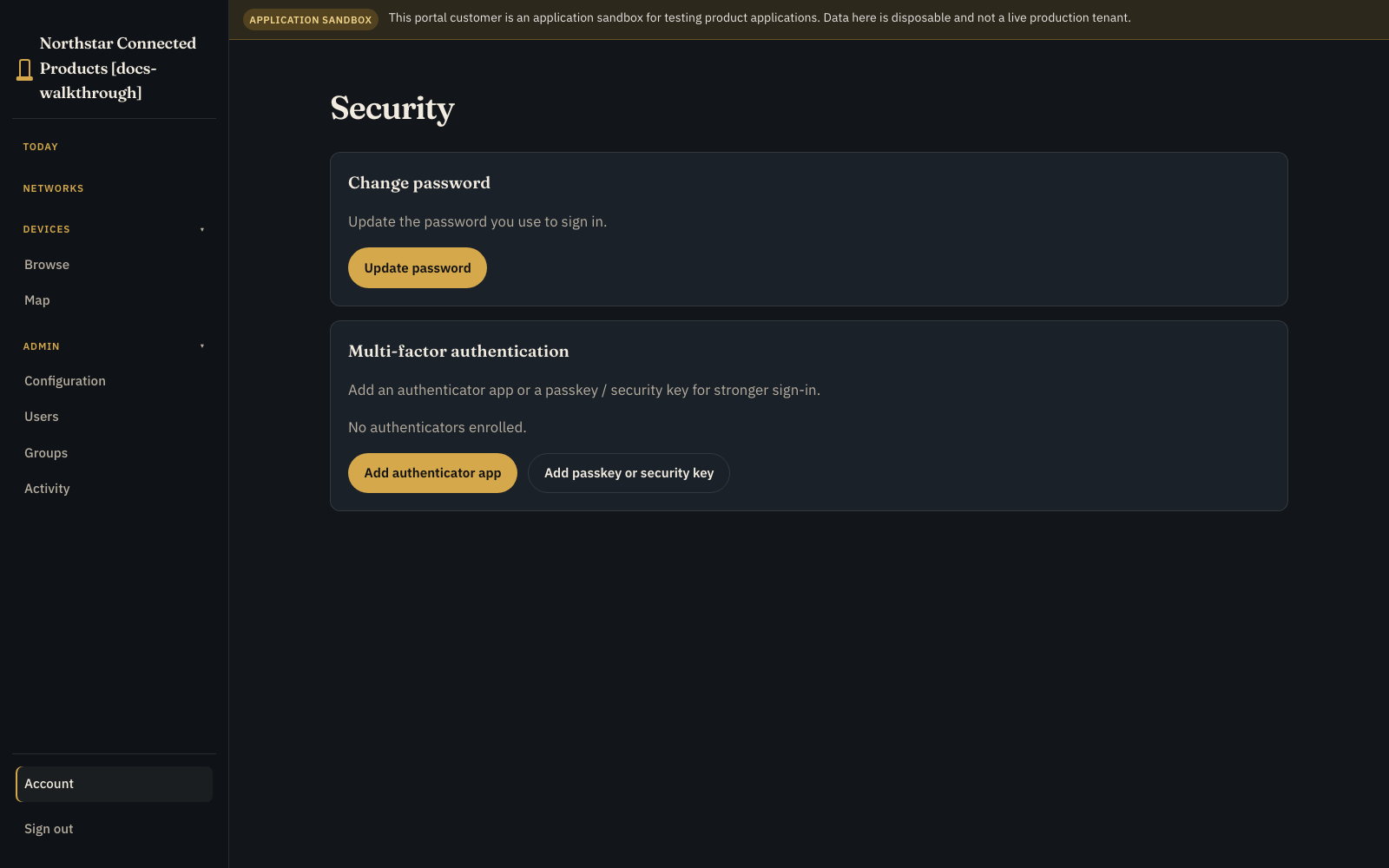
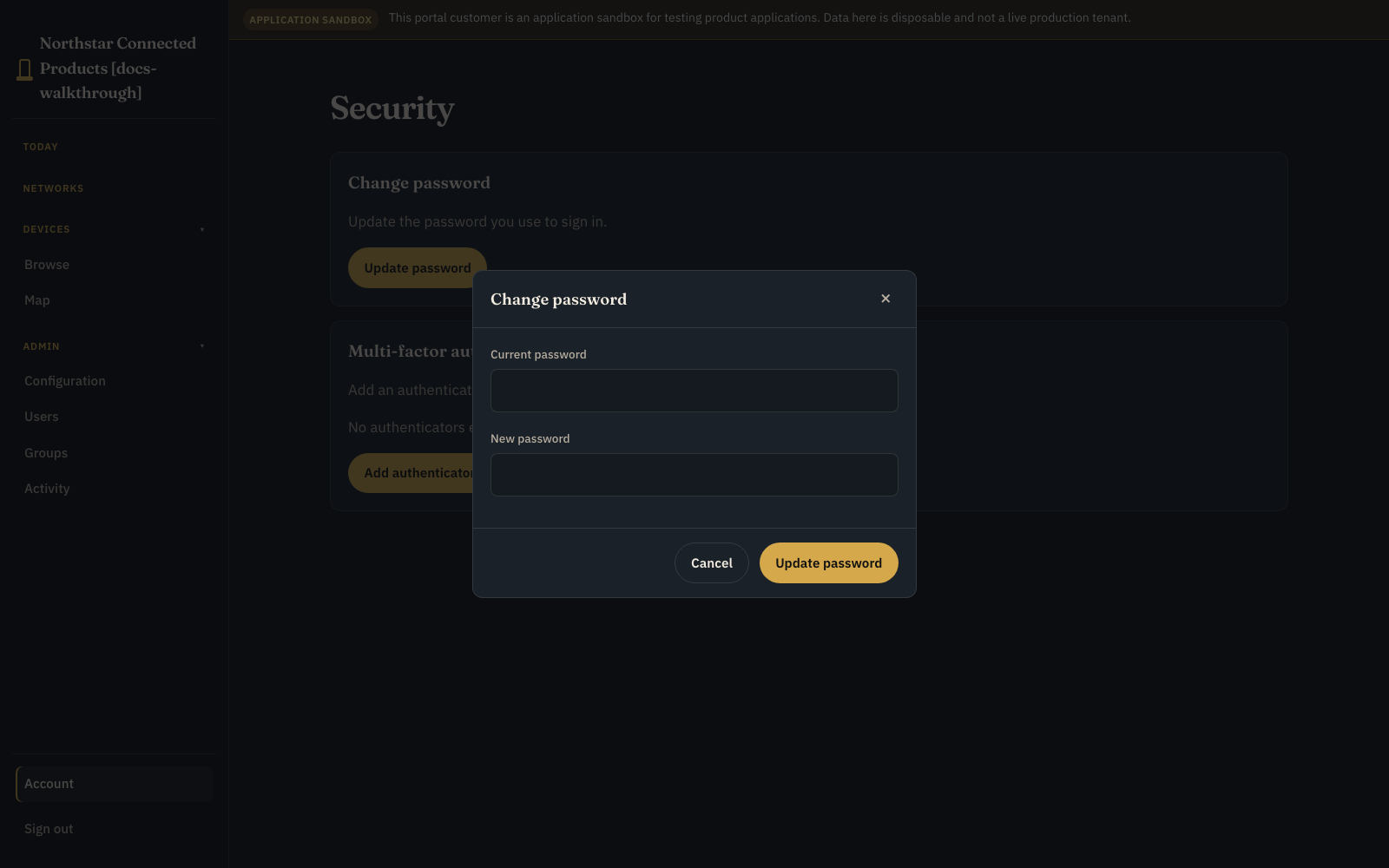
Password, authenticator-app, and passkey setup each use focused modals. Under Admin > Configuration, the This organisation section identifies the customer organisation whose settings are being changed.