

Appearance
Design the customer product UI #
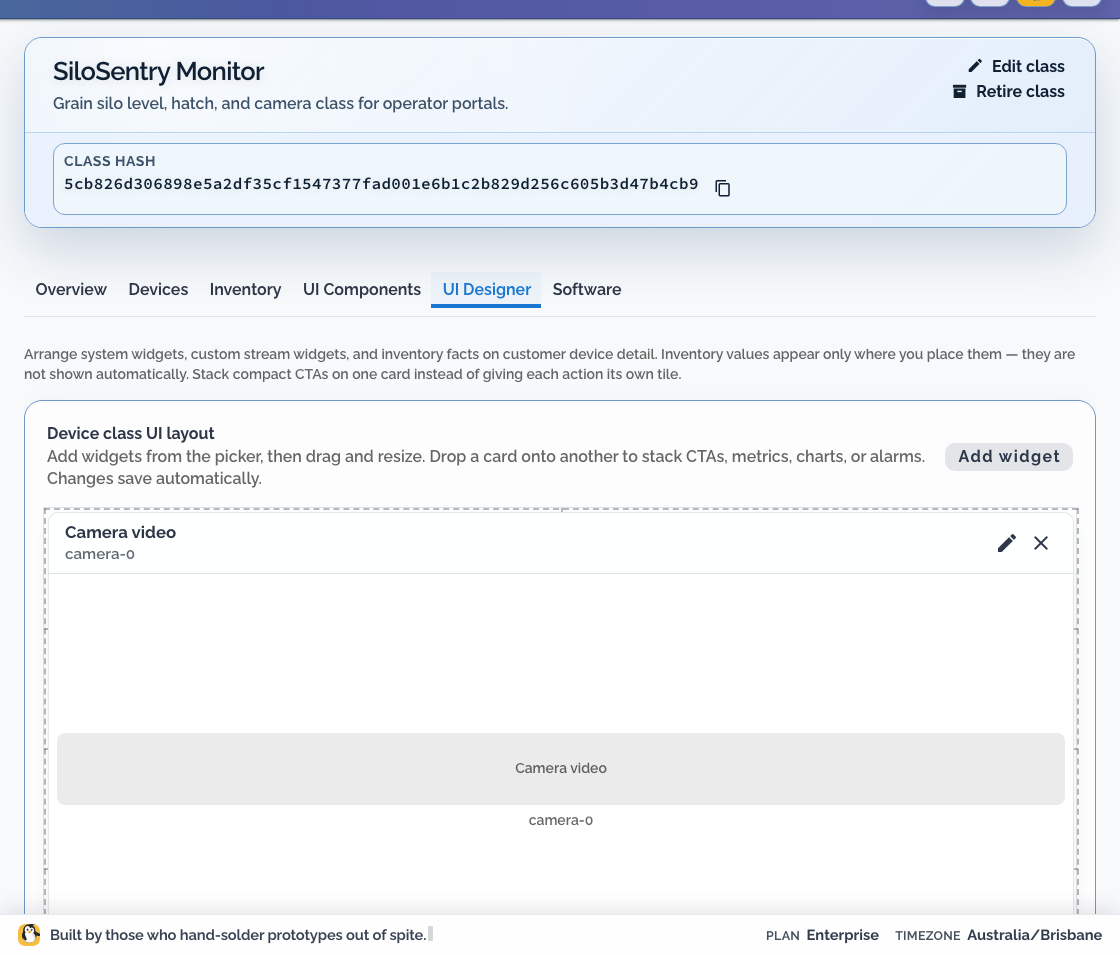
The class layout lives on the Device Class UI Designer tab. Use it to turn class identity, connectivity, product data, and permitted controls into the page a customer uses for one product.
This is separate from Dashboards and displays, which build organisation wallboards and paired TV layouts.
Start with the operator's shift #
Do not begin with the widget catalogue. Begin with a real moment:
A depot operator starts a shift, opens a cold-room monitor, and needs to know within seconds whether the room is safe, whether the reading is current, and what action they are allowed to take.
Write the questions in the order that person asks them:
- Am I looking at the right physical product and location?
- Is it connected, and how fresh is its product data?
- Is the current state normal, warning, or critical?
- What changed over the period relevant to this job?
- What safe action can I take now?
- What should I tell support if I cannot resolve it?
Add only what answers those questions. Keep firmware rollout, fleet-wide logs, Remote Shell, software configuration, and engineering diagnostics in the OEM workspace.
Choose the right UI concept #
The current designer supports these product concepts:
| Customer need | UI concept | Bind it to |
|---|---|---|
| Product name, serial, class, site, tags, or inventory context | System or inventory fact | Built-in device context or an approved inventory slot |
| Current reading such as temperature, pressure, or signal strength | Metric | A numeric or text stream |
| Change over time | Chart | A durable numeric or timeseries stream |
| Clear current state | Boolean | A boolean stream |
| One-off operation such as reset, test, open, or acknowledge | Button | A trigger action |
| Choose one operation from a known list | List | A list action with explicit options |
| Turn a permitted function on or off now | Action toggle | A boolean action |
| Persist an on/off preference | Setting toggle | A boolean setting |
| Persist a bounded target such as temperature or speed | Slider or number | A numeric setting with minimum, maximum, step, and unit |
| Persist one mode from a known set | Enum | An enum setting |
| Show tank, silo, battery, wellhead, percentage, or absolute fill | Level | A configured level input |
| Show a camera source and associated event marks | Video | A video stream and optional events channel |
| Show event marks or annotations | Events | An events stream, often associated with video |
An action requests work now. A setting records a desired value that the device reports after applying it. The portal control reflects the latest desired/reported value and pending state; it is not guaranteed to show both values side by side.
These definitions configure the server-side allowlist and customer UI. They do not implement the reverse path on the device. Your product application must handle the agent-delivered action or setting, validate it again, enforce local permissions and safety interlocks, apply it, and publish or report the outcome. The current queued action response is not execution confirmation. Action acknowledgement, expiry, cancellation, and idempotency are not published contracts. See Device data and control contract.
Prepare data sources #
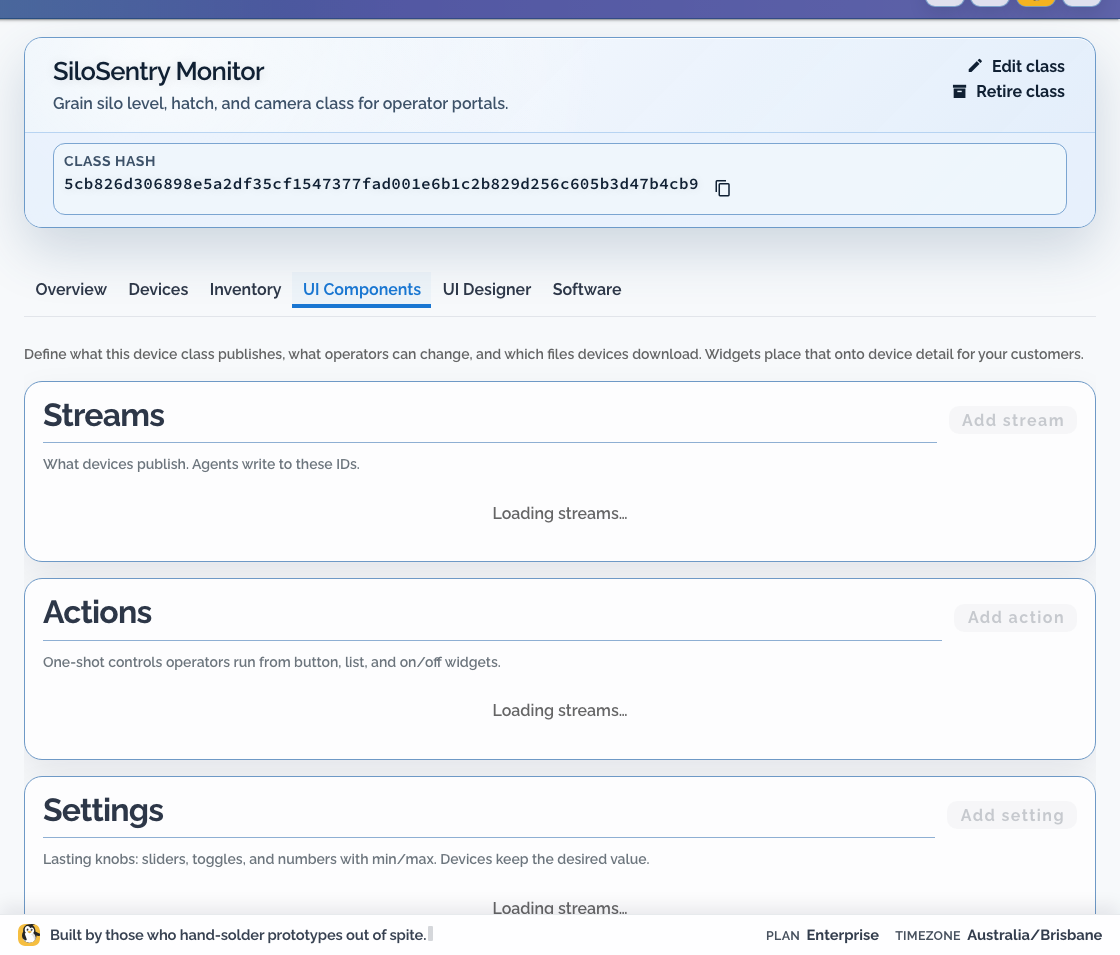
Open Engineering > Software > I/O before UI Designer:
- Define each value the device publishes under Streams.
- Define each permitted one-off operation under Actions.
- Define each persistent customer preference under Settings.
- On the separate class Inventory tab, define approved product and asset facts where available.
- Define derived tank, silo, battery, or gauge inputs under Level inputs.
- Publish representative data from staging hardware.
Identity and connectivity cards do not require a class container. Live product values require a publisher to the local agent broker. Controls require device-side handling and authorisation; placing a widget does not implement the device behaviour.
Build the layout #
- Open the Device Class.
- Open UI Designer.
- Add identity, location, and connectivity context first.
- Add the primary product state: metric, level, or video.
- Add history only when the time window changes a decision.
- Add warning state beside the value it explains.
- Add customer-safe actions and settings last.
- Give every tile a customer-readable name and unit.
- Drag related compact widgets onto one card when they form one decision.
- Save and preview against a staging device and a customer-scoped account.
Stacking is for related information, not density. “Temperature / threshold / alarm” can form one card. “Restart / camera / serial” should not.
Levels that look like the product #
Use a Level input when the device measures storage, charge, depth, or another bounded quantity. Available shapes include silo, tank, compact tank, battery, wellhead, percentage gauge, and absolute gauge.
Configure what the sensor actually reports: current, height, volume, percent, voltage, or pressure. Then choose the quantity the customer should see. Add empty/full calibration and capacity where they are meaningful. A silo or irregular vessel may require a strapping artefact before height can be converted to volume.
Never imply precision the sensor and calibration cannot support. Show the raw reading or a clear calibration warning when a trustworthy derived quantity is not available.
Video that remains operational #
A video tile binds to a named camera source such as camera-0. Place identity, connectivity, and event context near it so the operator can distinguish “camera offline” from “no recent event” and can identify the physical unit when escalating.
Video retention, historical events, camera masks, and device-side capture configuration are separate concerns. The designer presents an available source; it does not configure the camera hardware or create a privacy mask.
Test both surfaces #
The OEM device workspace and the customer portal have different access boundaries. Test the class page in both:
| Check | OEM workspace | Customer portal |
|---|---|---|
| Device identity and connectivity | Expected | Expected within assigned network |
| Class stream widgets | Expected | Expected when class UI is enabled |
| Engineering controls | Expected according to role | Not customer-facing |
| Other customers' devices | Organisation scope | Must not be visible |
Use a customer-scoped test user. An organisation administrator preview does not prove the portal boundary.
Test three roles, not one:
- Site viewer: understands state but sees no actions.
- Site operator: sees only the controls needed for the operating job.
- Customer Admin: can perform permitted placement and portal administration without gaining OEM engineering access.
Design missing and stale states #
Test at least:
- a newly assigned device with no stream sample
- a publisher that has stopped
- a device that is offline
- a value outside its expected range
- a class page opened by a read-only portal user
The page should distinguish “device offline” from “publisher has not sent this value.” A blank widget without context is not an operational state.
Also test:
- units at realistic minimum, normal, and maximum values
- a control awaiting reported-state confirmation
- an action failure with useful retry or escalation guidance
- long product, customer, and site names
- the page on a narrow laptop and mobile-width viewport
- colour-independent warning text for operators with impaired colour vision
Change a live page safely #
Class layout changes affect every device using the class.
- Add new streams and publisher support first.
- Verify the new data on staging hardware.
- Update the class page.
- Test OEM and portal roles.
- Remove old bindings only after the old layout is no longer in use.
I/O, UI Designer, and Software require the corresponding Device Class UI and Software capabilities. In the current package they are beta-gated and available on Standard+ when enabled for the organisation.
Actions, settings, and some widgets should be treated as preview for a specific product until the full device-side contract has passed restart, offline, duplicate-request, stale-state, and role tests. A designer preview is not that proof.
Do not reuse the class for a different product merely to reuse its page.