

Appearance
Connect and operate a Linux product without a Customer Portal #
No Customer Portal required
This route proves identity, connectivity, Remote Shell, diagnostics, monitoring and fleet operations on the Linux device you already ship. A branded Customer Portal and Product Applications are later choices, not prerequisites.
Start with the device you already have. It boots, runs your application, and does something worth putting in front of a customer. This workshop adds a durable cloud identity and an outbound support connection without requiring you to rebuild the application or adopt a container platform first.
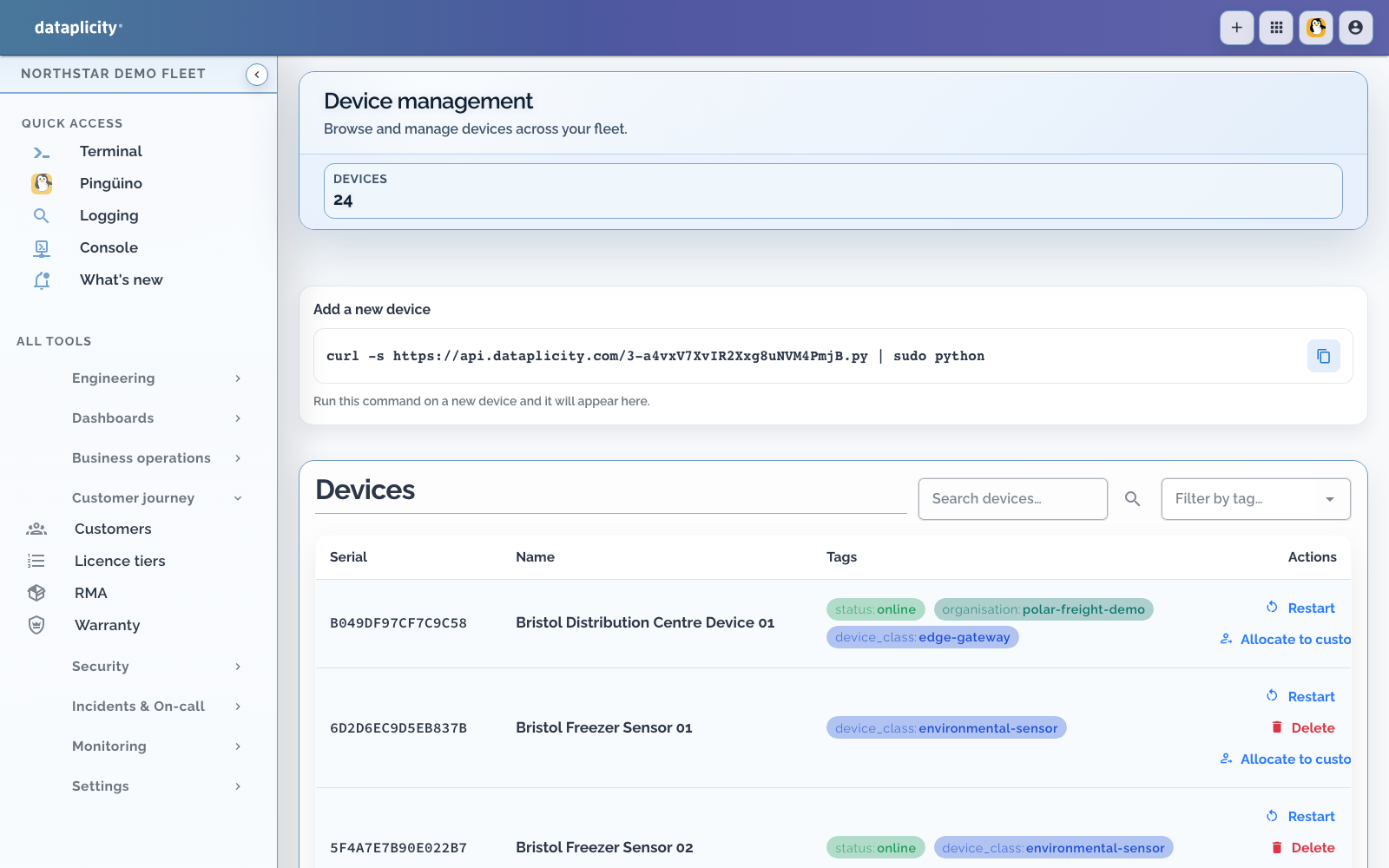
By the end, you can find the unit, confirm which hardware it is, open a remote shell, and investigate it from another network. That is already a useful connected product. Product pages, customer portals, managed containers, and Product Applications are later choices, not prerequisites.
1. Check the device before changing it #
Use one representative unit on the bench. Confirm:
- a supported Linux distribution and architecture
- a working system clock and DNS resolver
- outbound HTTPS access through the network it will actually use
- enough persistent storage for the agent and your own logs
- a unique serial number or other physical identity you can read from the case
- administrator access for the one-time install
- a recovery plan if your application or network configuration is interrupted
Run Device Check if the image or network is uncertain. For exact operating-system and supervisor requirements, read Supported operating systems.
Do not install a container runtime just for this step. The base agent connection and Remote Shell do not require managed Software.
2. Install the agent #
- Sign in at dataplicity.com.
- Choose Add device.
- Copy the generated one-line command for your organisation.
- Run that exact command on the Linux device.
- Return to the device list and wait for the unit to show online.
The command contains organisation-scoped provisioning material. Do not paste it into documentation, commit it, or reuse a command copied from another organisation. The quick start is the canonical installation reference.
3. Prove connectivity and identity #
Rename the device to match its physical label, then add the customer, site, hardware revision, and rollout cohort as searchable context. Check the serial number on screen against the unit in front of you.
Now move the device onto a representative customer network and verify:
- it reconnects using outbound traffic only
- its clock remains correct after reboot
- the same device record returns rather than creating a duplicate
- the online state changes when power or connectivity is removed
- agent logs do not show repeated authentication or DNS failures
If it does not reconnect, work through the firewall requirements and troubleshooting guide before adding product features.
4. Open Remote Shell #
Open the device and start Remote Shell from a browser on a different network. Use it to read application logs, inspect services, and prove a safe restart. You do not need inbound SSH, router port forwarding, or a customer VPN for this Dataplicity connection.
Keep privilege escalation deliberate and auditable. The remote-access guide explains Remote Shell, Wormhole for local web services, and resilient file retrieval.
5. What you can do with just the agent #
Stop here if this solves the immediate product problem. With the connected device and its stable identity, you can:
- support a unit through Remote Shell
- reach a local web interface through Wormhole where enabled
- retrieve files from an intermittently connected device
- attach logs, diagnostics, monitors, alerts, and scheduled tasks
- tag and search the installed fleet
- use Fleet Jobs for bounded maintenance across a selected cohort
- enrol a Device Class in Pulse to compare peer fingerprints once enough devices contribute to a reliable baseline
Pulse is not useful for a single prototype. It requires more than 20 devices in the class and at least 20 contributors in the same collection slot before its baseline becomes warm. See Device Class Pulse.
None of those steps require a full Product Application or a customer portal.
6. Optional: let Dataplicity manage application containers #
Add the optional supervisor and a supported container runtime only when you want Dataplicity to install and version OCI application workloads as managed Software. Docker, Podman, or nerdctl must be available on the device; the base agent does not install a container runtime for you.
This is the path for teams that want a managed application-container system around the product. It is not a requirement for declaring the connected device a product, and it is not a general Kubernetes pod API.
- Confirm your plan and organisation have Software access.
- Install the optional supervisor using the supported provisioning path.
- Install and qualify the chosen container runtime on the exact Linux image.
- Create a Device Class for the hardware model.
- Add an existing image or build a class container.
- Release it to one staging device and verify application output before widening the cohort.
Read Dataplicity agent for the base-agent and supervisor boundary, then Software and firmware boundaries before planning production rollout.
7. Choose the next job #
For evidence, monitoring, software delivery, or fleet work, use Operate Linux devices or Expand beyond remote access. When customers need a page designed around the product, continue with Build your first connected product. Either route is a complete choice, not a required product stage.