

Appearance
Design a device class page
The class layout lives on the Device Class UI Designer tab. Use it to turn class identity, connectivity, and product streams into the page an operator sees for one device.
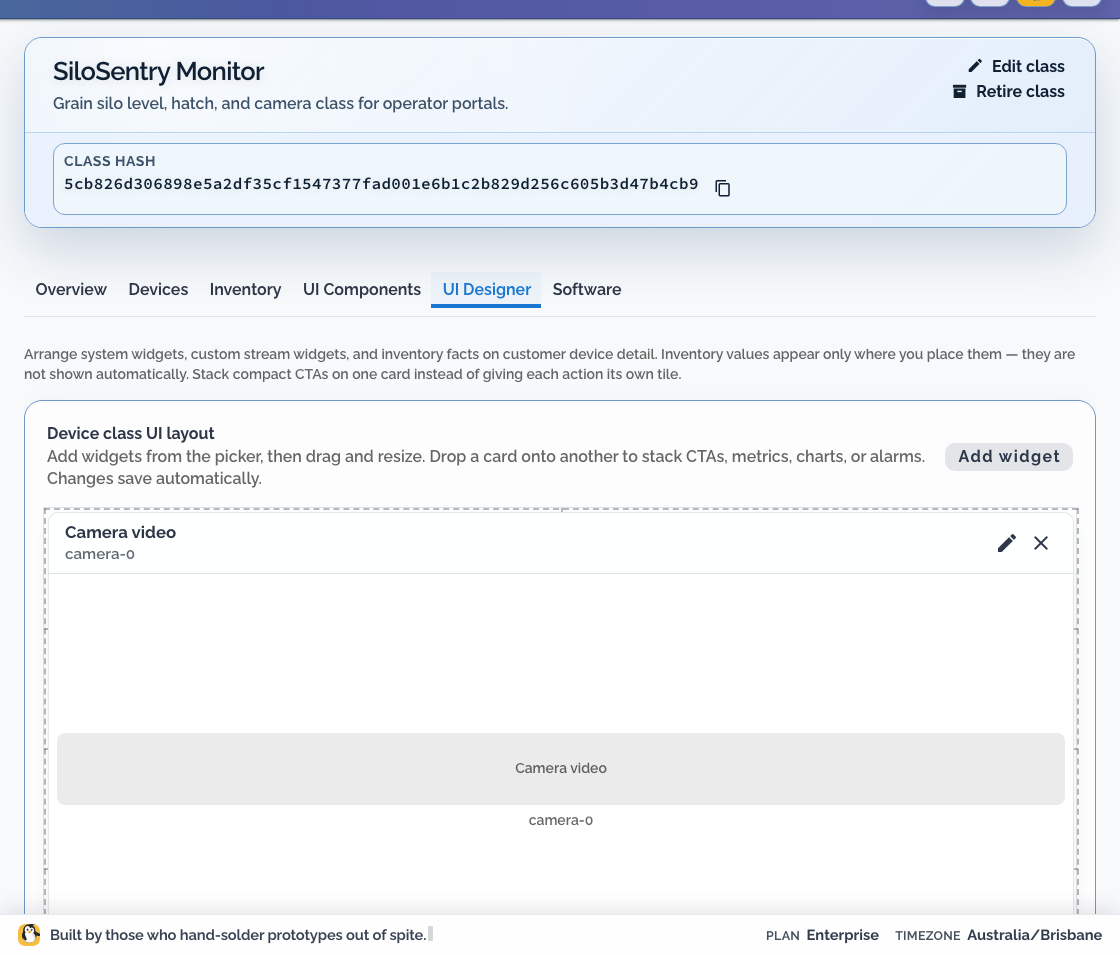
This is separate from Dashboards and displays, which build organisation wallboards and paired TV layouts.
Start with the customer task
Write down the questions a customer should answer from one device page:
- Is this unit online?
- When did it last report?
- What is the current product value?
- Is the value inside the operating range?
- Which site or network owns the unit?
Add only the widgets needed for those questions. Keep firmware rollout, fleet-wide logging, Remote Shell, and other engineering controls in the OEM workspace.
Prepare data sources
A live widget needs a device class stream. Create it on UI Components with Add stream, and confirm a staging publisher before designing around it.
Identity and connectivity cards do not require a class container. Live product values require a publisher to the local agent broker.
Build the layout
- Open the Device Class.
- Open UI Designer.
- Add identity and connectivity context first.
- Add a product widget and set Stream to show.
- Set a customer-readable Name and unit.
- Arrange the page in the order an operator diagnoses the product.
- Save and preview against a staging device.
Use explicit state widgets when they communicate action better than a raw number. For example, a tank implementation can publish both volume and threshold-state streams until a dedicated gauge is available.
Test both surfaces
The OEM device workspace and the customer portal have different access boundaries. Test the class page in both:
| Check | OEM workspace | Customer portal |
|---|---|---|
| Device identity and connectivity | Expected | Expected within assigned network |
| Class stream widgets | Expected | Expected when class UI is enabled |
| Engineering controls | Expected according to role | Not customer-facing |
| Other customers' devices | Organisation scope | Must not be visible |
Use a customer-scoped test user. An organisation administrator preview does not prove the portal boundary.
Design missing and stale states
Test at least:
- a newly assigned device with no stream sample
- a publisher that has stopped
- a device that is offline
- a value outside its expected range
- a class page opened by a read-only portal user
The page should distinguish “device offline” from “publisher has not sent this value.” A blank widget without context is not an operational state.
Change a live page safely
Class layout changes affect every device using the class.
- Add new streams and publisher support first.
- Verify the new data on staging hardware.
- Update the class page.
- Test OEM and portal roles.
- Remove old bindings only after the old layout is no longer in use.
Do not reuse the class for a different product merely to reuse its page.