

Appearance
Project Boards
Project Boards organise operational work as cards moving through columns. Use a board for device investigations, site rollouts, maintenance, and support handoffs that should stay linked to Dataplicity fleet records.
Project Boards are available in the core Dataplicity portal when the module is enabled for the organisation. They are not available on whitelabel sites.
Create a board
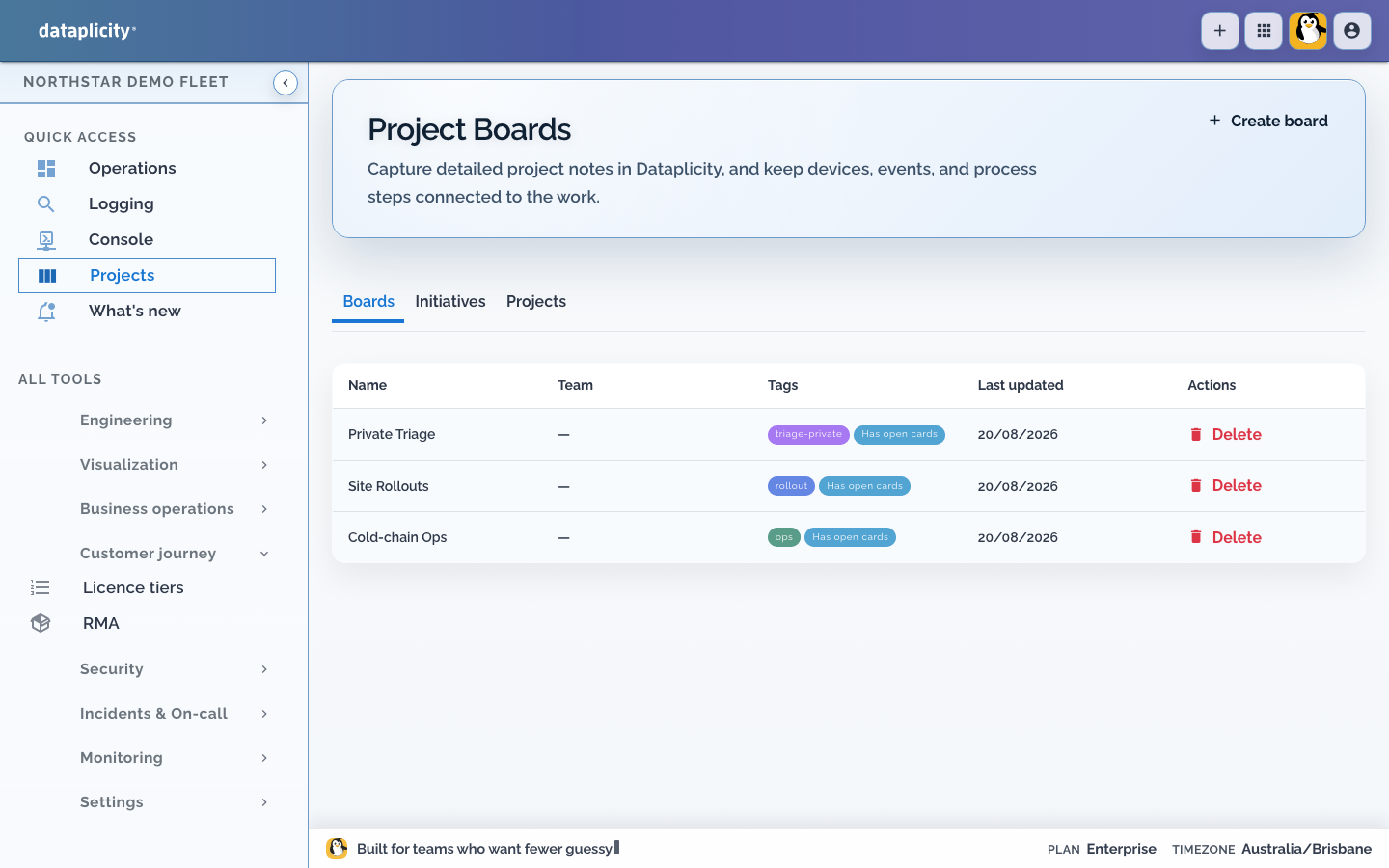
- Open Projects in the main navigation.
- Select the Boards tab.
- Select Create board.
- Enter a clear operational name, such as
Cold-chain Ops. - Select Create.
The new board starts with Todo, Doing, and Done, plus an example card. Rename those columns, remove the example, or add columns to match the handoffs your team actually uses.
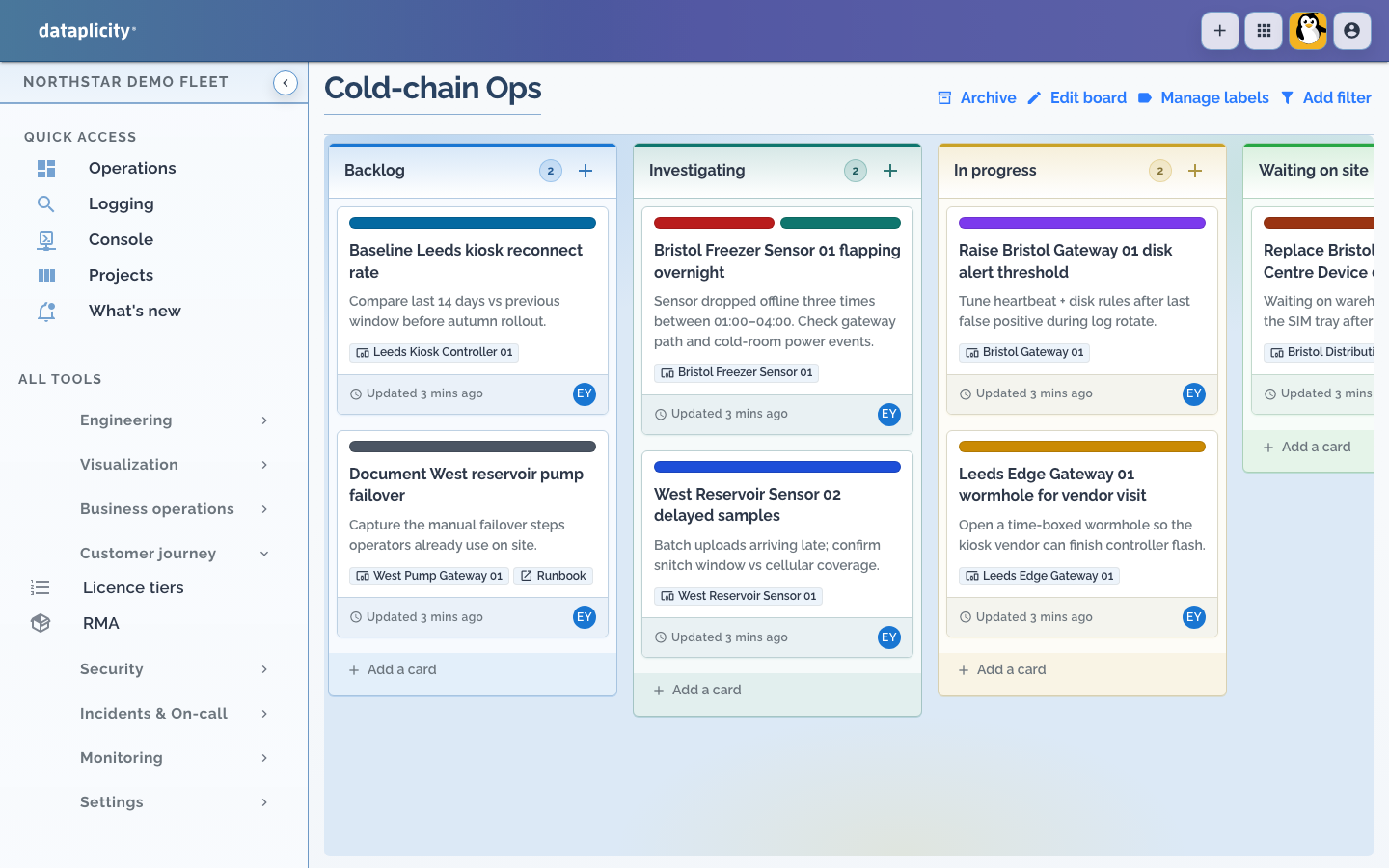
Shape the columns around your workflow
On the board:
- Select a column name to rename it.
- Select Add another list to add a column.
- Drag columns horizontally to change their order.
- Open Edit board for the full column list, including hidden columns.
Choose columns that represent real changes in ownership or state. For example:
- Support triage: Inbox → Investigating → Waiting for customer → Resolved
- Site rollout: Planned → Ready for site → Installing → Verifying → Done
- Fleet maintenance: Backlog → Scheduled → In progress → Waiting for parts → Done
Create a card
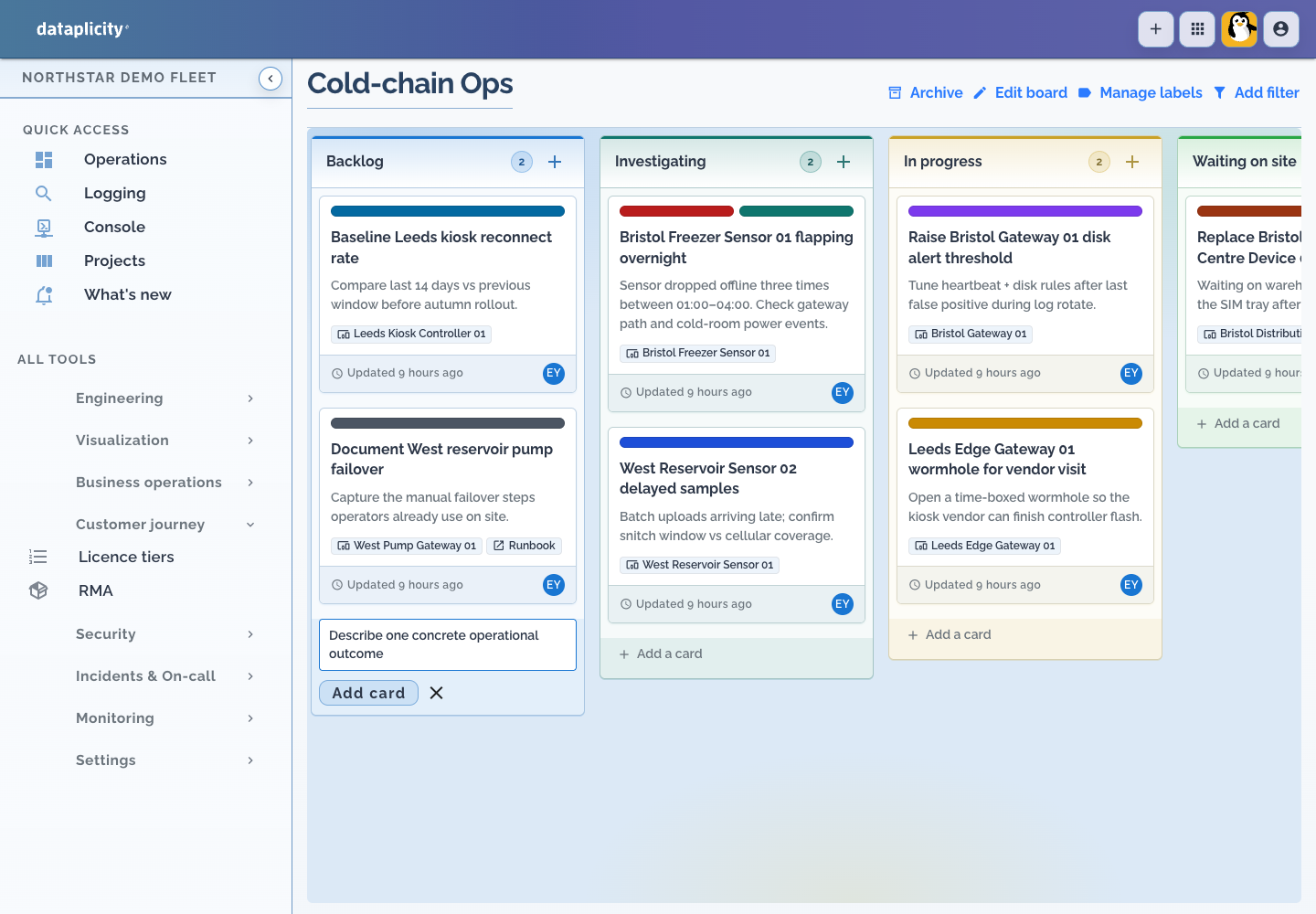
- In the target column, select Add a card.
- Enter a title that identifies the outcome, site, or device.
- Press Enter or select Add.
- Select the card to add its working details.
The inline composer creates a title-only card. Use the card detail panel for the rest of the work.
Good titles are specific enough to scan on the board, such as:
Bristol Freezer Sensor 01 flapping overnightInstall gateway at Leeds loading bayConfirm recovery after pump-controller update
Put the working detail on a card
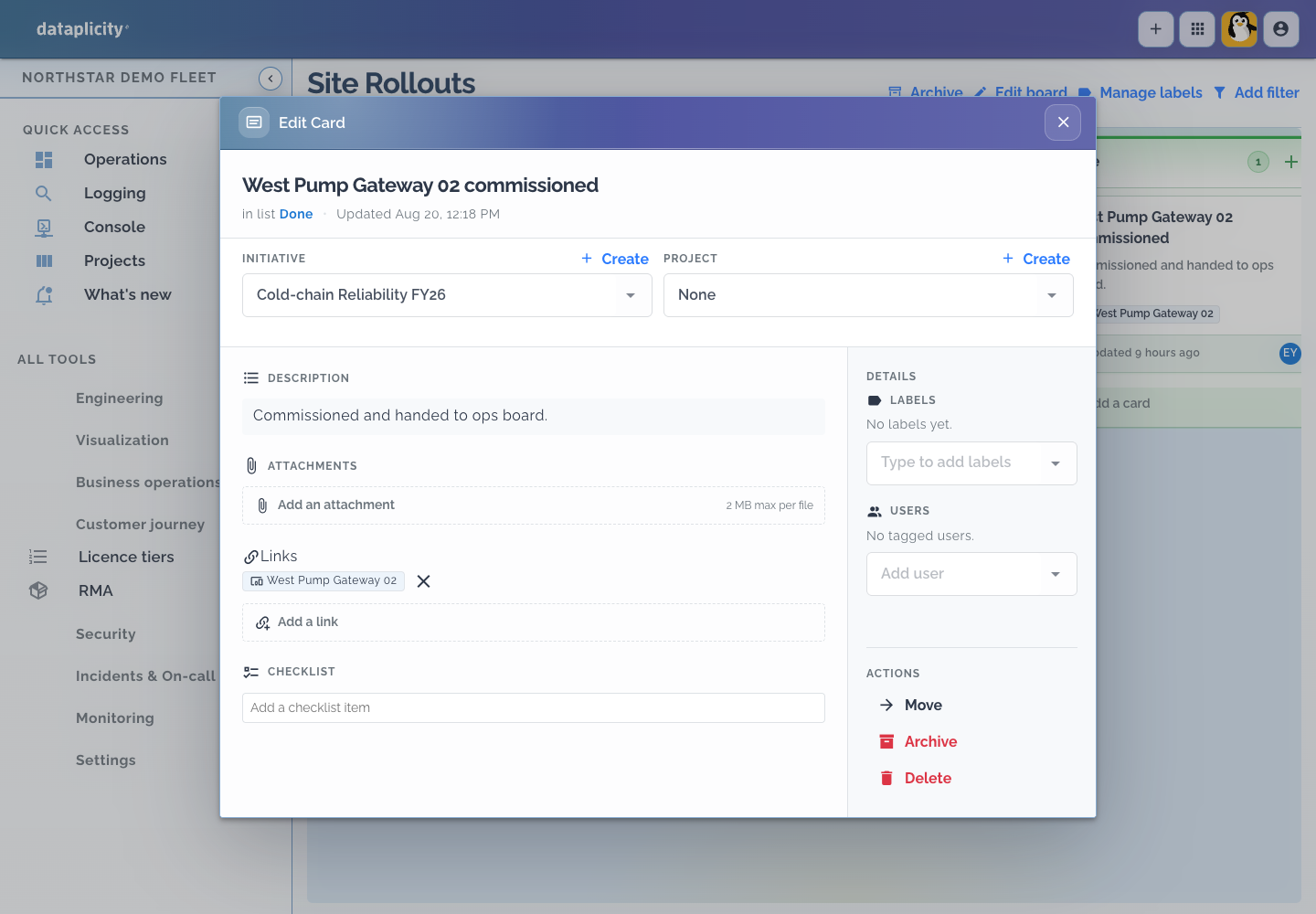
Open a card to add:
- a description with the problem, expected outcome, or handoff notes;
- a checklist for investigation, rollout, or verification steps;
- labels for categories your team wants to scan or filter;
- tagged users who need to see the work;
- file attachments, up to 2 MB per file;
- a linked Initiative, Project, or Plan;
- Dataplicity references to devices, device classes, events, incidents, and monitors;
- documentation and external URLs.
Card fields save through their own controls. For example, the title saves when editing finishes, while the description has a Save action.
Move work between columns
Drag a card to another column when its real workflow state changes. You can also reorder cards within a column.
The move saves when you drop the card. There is no separate board-level Save action. If the update cannot be saved after retries, Dataplicity shows an error and reloads the board.
Treat column movement as an operational signal. Move a card to Waiting on site only when the next action genuinely belongs to the site team, and move it to Done only after the checklist or acceptance evidence is complete.
Archive and restore completed work
Archiving removes a card from the active board without deleting its history.
To archive a card:
- Move it into a column whose name contains Done.
- Open the card.
- Open Actions and select Archive.
- Confirm the action.
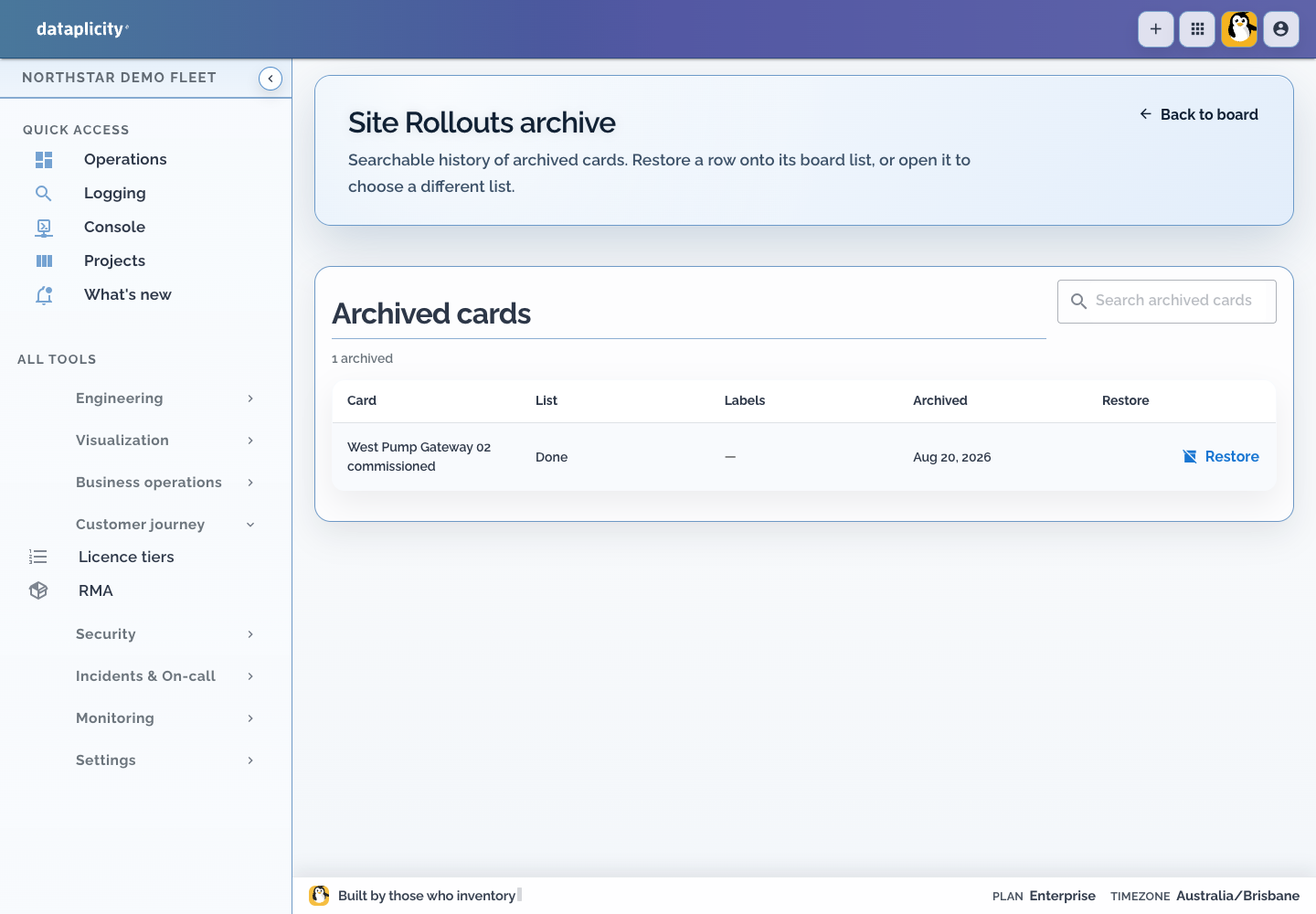
To find or restore archived cards:
- Select Archive in the board header.
- Search or browse the archived-card list.
- Select Restore on a card.
Restoring from the archive list returns the card to its previous column. Deleting a card is different: deletion is permanent.
Current auto-archive behaviour
The Auto-archive days setting is visible in board settings, but the app does not currently run a background job to archive eligible cards. Archive completed cards manually.
Start a card from a fleet record
Supported device, incident, and event views include Add to board:
- Open the device, incident, or event.
- Select Add to board.
- Choose a board and column.
- Enter the card title and confirm.
Dataplicity creates the card and attaches the source record as a reference.
Link an existing card to Dataplicity
Open a card and use Dataplicity links to attach fleet context. A linked device shows its current online or offline status. Incident and monitor references can also show their current state.
For example, Bristol Freezer Sensor 01 flapping overnight can link the sensor, its gateway, the active incident, and the monitor that detected the problem. The card checklist can hold the evidence and verification steps required before the work moves to Done.
Control access
Use an organisation-visible board for normal shared delivery work. For sensitive investigations, access can be restricted to members of groups whose board access tags match one of the board's assigned labels.
Make a board private
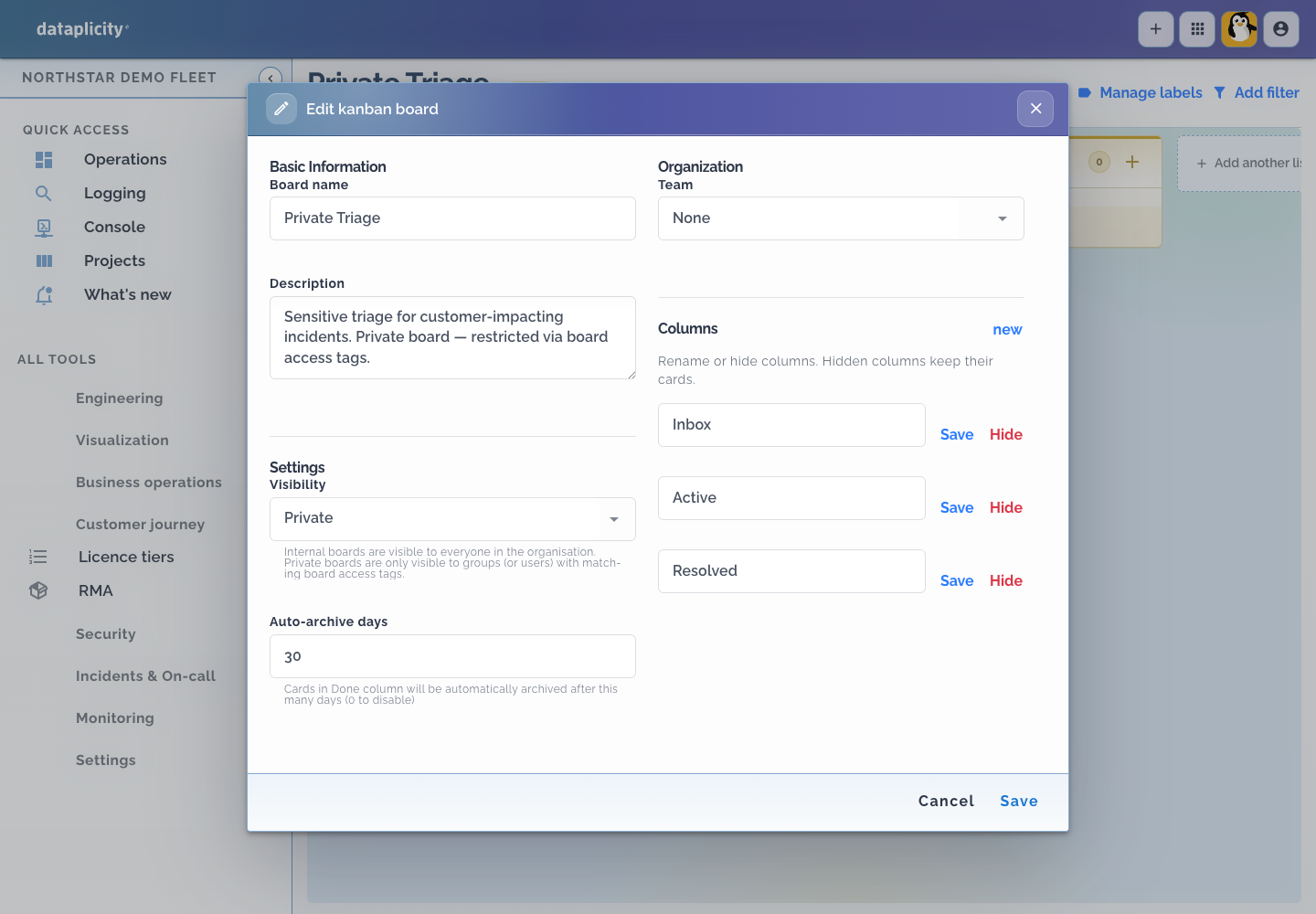
- Open the board and select Edit board in the page header.
- Under Settings, set Visibility to Private.
- Select Save.
The visibility field is shown only to users with boards.admin.
Choose who can open it
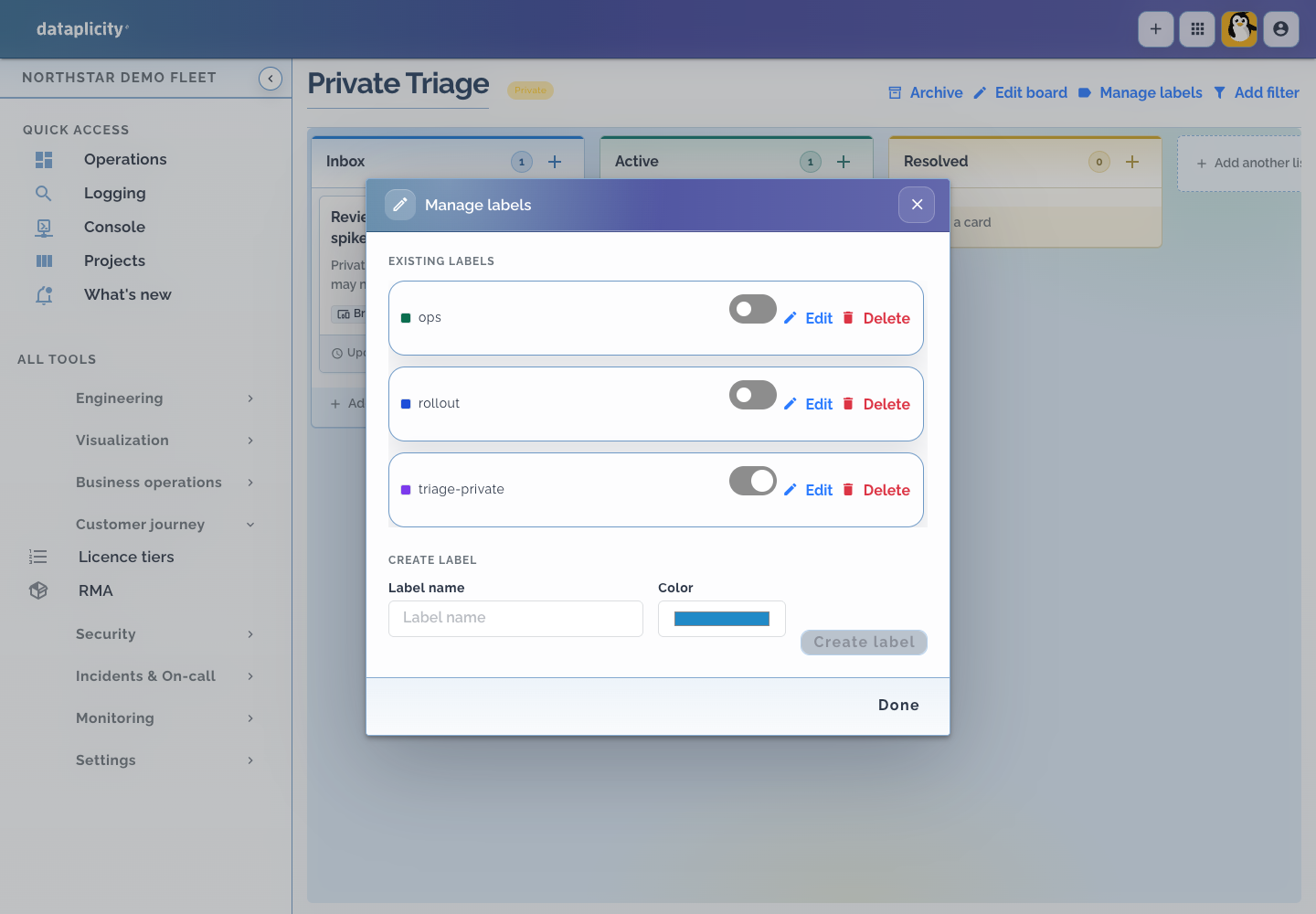
- A board administrator selects Manage labels on the board.
- They create or enable at least one label for access control, such as
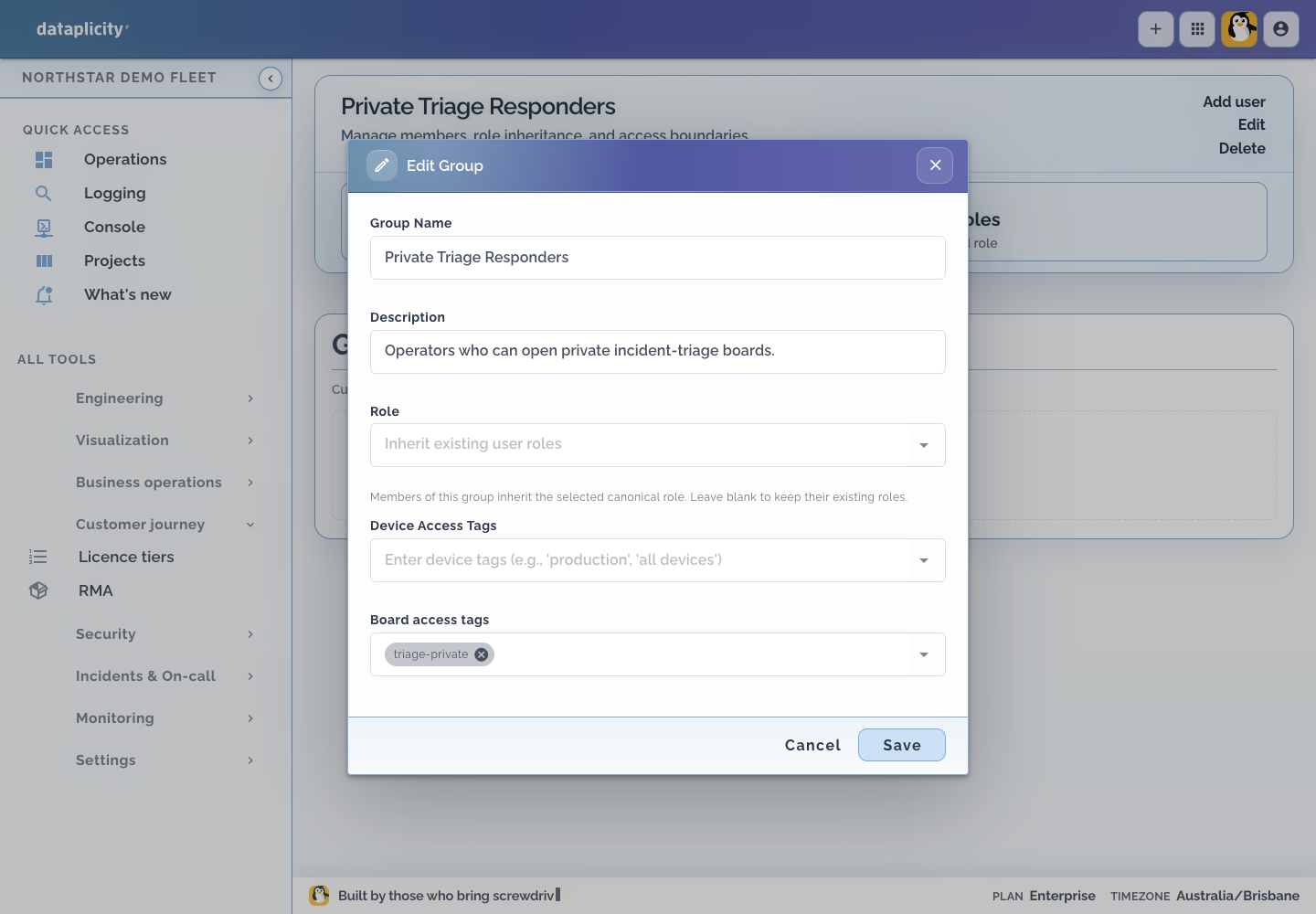
triage-private. - An organisation administrator opens Settings → Groups, then opens or creates the group that should have access.
- They select Edit and add the same value under Board access tags.
- They add the intended operators to that group.
Tag matching is case-insensitive. A private board with no assigned labels is visible only to board administrators.
After saving, permitted users see a Private badge beside the board name.
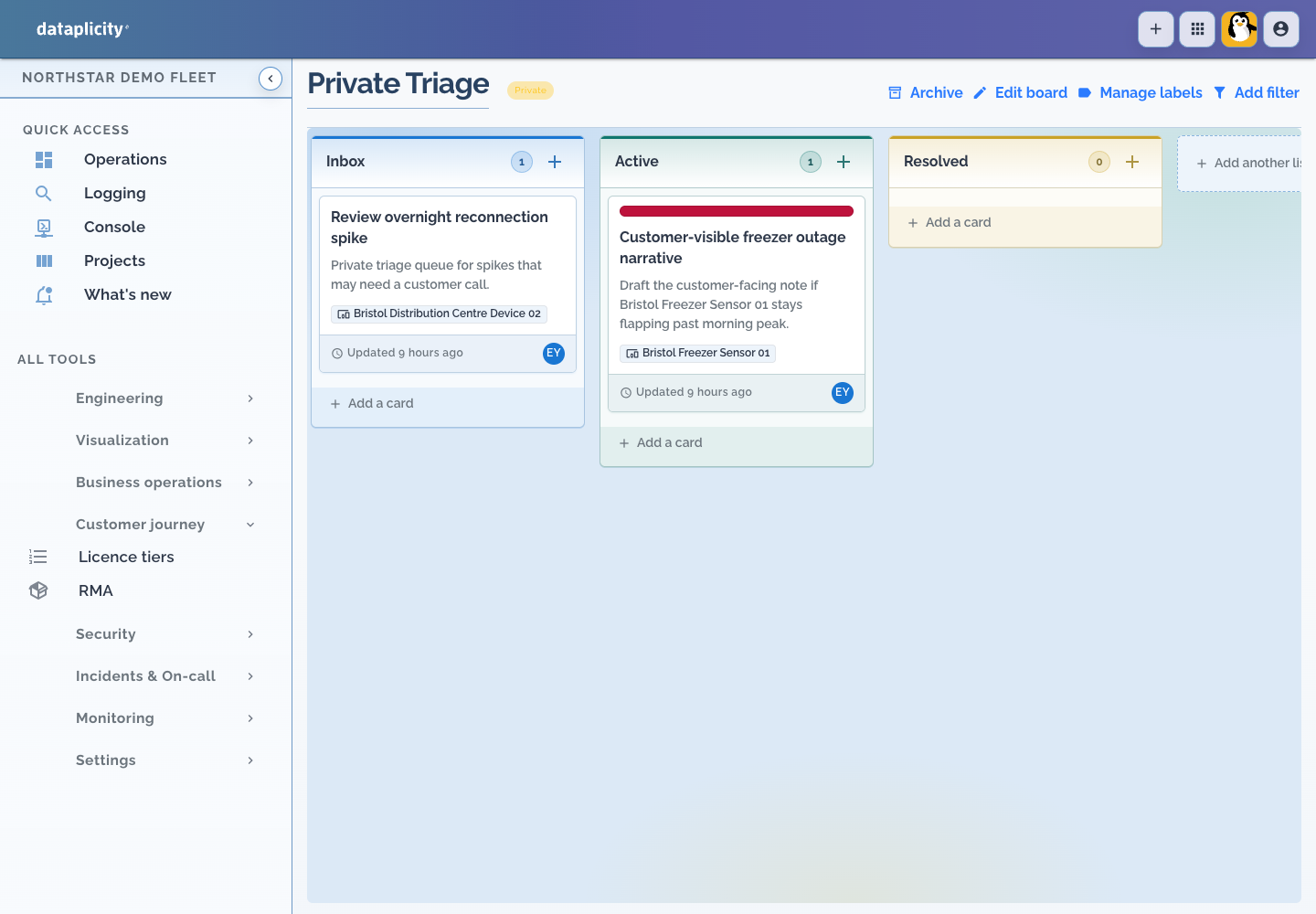
Board access does not replace access to a linked record. A user must still have the relevant device, incident, monitor, or other product permission.
Creating and updating board work requires boards.write. Changing visibility, managing board labels, and deleting boards requires boards.admin. Viewing also depends on organisation membership, module access, and matching access tags for private boards.
Roll up progress
Cards can be linked to Initiatives and Projects. When linked cards exist, their progress contributes to planning status so the higher-level record follows the work instead of relying on a manually maintained label.
A board-to-project link by itself does not drive status. Link the relevant cards to the Initiative or Project in card detail.